5 Using 3D Guidance in theField
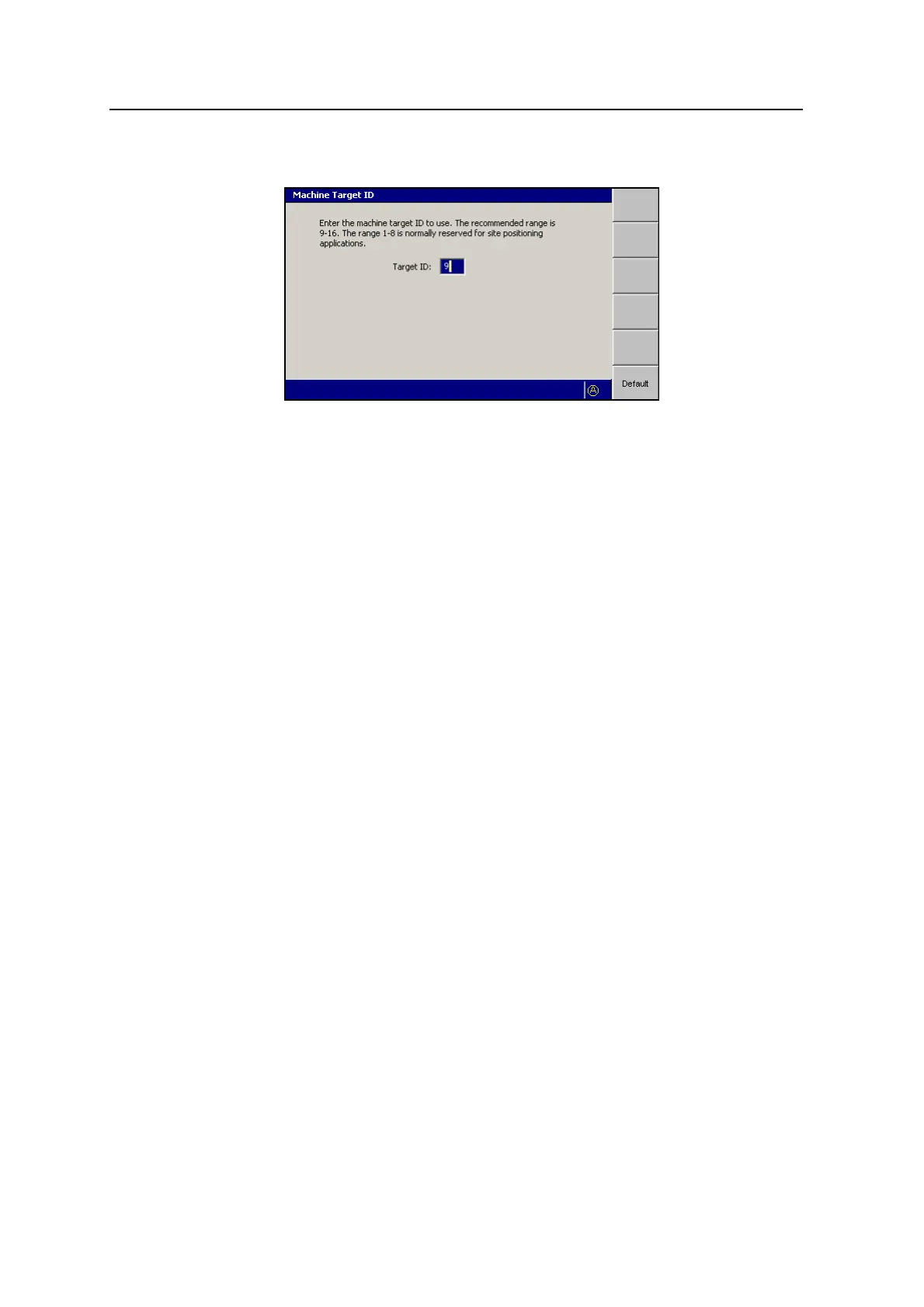
a. Press Target ID.
Note – The Target ID softkey is only available when the UTS is stopped.
b. Enter the selected target ID into the Target ID field. By convention, target
IDs of 9 through 16 are used for machine control applications, with IDs of
1 through 8 reserved for surveying applications. Ask your site supervisor
which target ID you should use. To set the default value of 9, press the
Default softkey.
c.
To confirm the settings, press \; to exit without saving changes, press
=. The UTS start-up dialog appears.
3. Set the Auto search status as required.
If Auto search is turned on (Yes) and the UTS loses lock on the target, it will
automatically attempt to locate and lock onto the target again by searching the
area bounded by the search window defined during UTS set-up.
If Auto search is turned off and the UTS loses lock, follow the steps in 5.5.5
Reacquiring UTS lock, to reacquire lock.
4. Press Start. The UTS system starts and the UTS instrument automatically
searches for the target in the area bounded by the search window defined
during UTS set-up.
When the target is acquired, the UTS dialog changes to its “Tracking” layout,
shown below:
116 GCS900 GradeControl System for Excavators Operator's Manual



 To Next Page