2 Using the Control Box and Lightbars
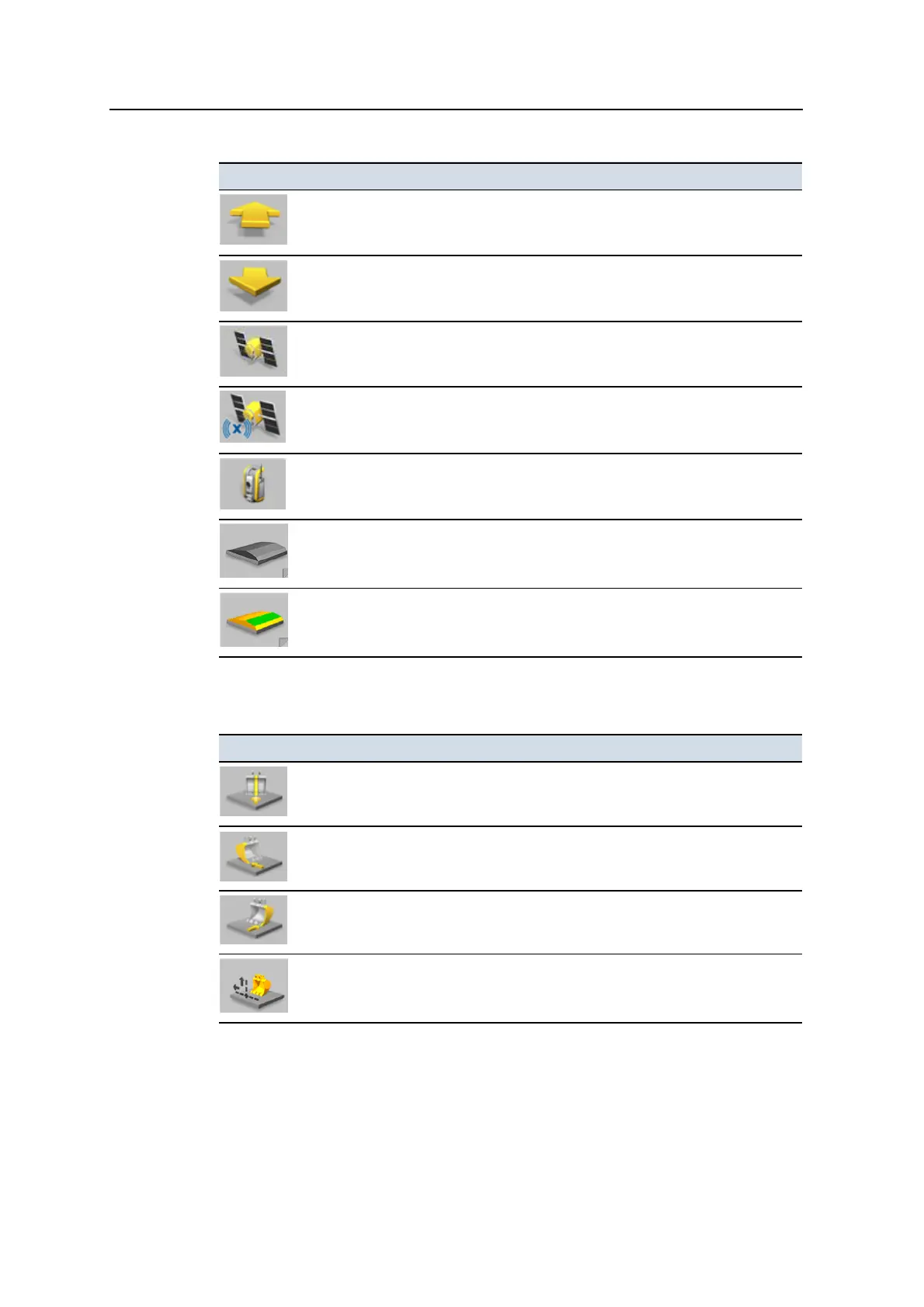
Icon Functionality
Direction:Forward
– Direction of motion is calculated to be forwards. Press to
open the
Direction
dialog.
Direction:Reverse
– Direction of motion is calculated to be in reverse. Press to
open the
Direction
dialog.
GNSS
– Press to open the
GNSS
dialog.
GNSS
– The system is using xFill to propagate corrections. Press to open the
GNSS
dialog.
UTS
– Press to open the
UTS
dialog.
Select Lane
– Press to use lane guidance, and select a lane at the current machine
guidance point. Press and hold to open the
Select Lane
dialog.
Select Lane
– Press to de-select the current lane. Press and hold to open the
Select Lane
dialog.
3D excavator softkey icons
Icon Functionality
Bucket Tip:Center
– Focus is on the center of the bucket. Press to change the
focus to the right side of the bucket.
Bucket Tip:Left
– Focus is on the left side of the bucket. Press to change the
focus to the center of the bucket.
Bucket Tip:Right
– Focus is on the right side of the bucket. Press to change the
focus to the left side of the bucket.
Offsets
– Press to open the
Offsets
dialog. Then press
<value> Offset
to switch
between horizontal and vertical. (3D only)
28 GCS900 Grade Control System for Excavators Operator's Manual



 To Next Page