Using theControl Box and Lightbars 2
Menus
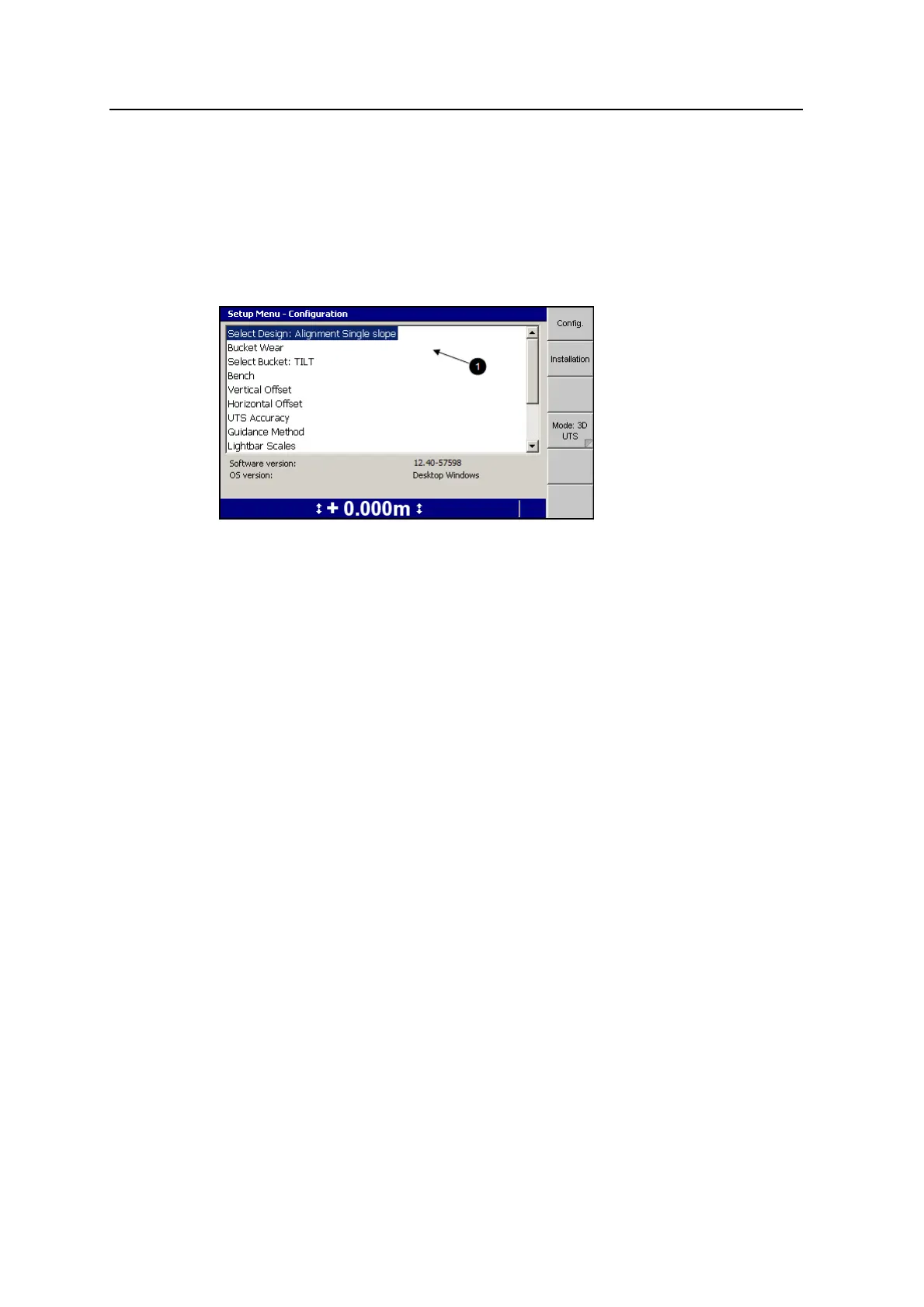
Menus let you choose another menu or dialog from a list. To move up or down the
list of menu items use the ] or [ keys. Once you highlight the item you want
to view (1), press \ to select it. To leave a menu without making a selection,
press =.
Dialogs
Dialogs let you enter data into the system. Dialogs can contain any of the following
items:
l Text fields. Text fields let you enter text information, such as the name of a
machine. Once you select a field, you can enter data into it. A selected field
appears as white text on a blue background.
l Number fields. Number fields let you enter numerical values, such as the
height of a benchmark. Once you select a field, you can enter data into it. A
selected field appears as white text on a blue background.
l Lists. Lists let you select a single item from a list of items, such as a list of
machine settings files.
l Check lists. Check lists let you select one or more items, or no items, from a
list of items, such as a list of sensors.
l Yes/No fields. Yes/No fields let you enable and disable particular features.
l Information to help you make your selection.
To move between fields in a dialog, press N.
To enter data into a text or number field, use the arrow keys as follows:
l
Press ] or [ to scroll through the upper case alphabet (A through Z),
numbers (0 through 9), the decimal point (.), the negative sign (–), the positive
GCS900 Grade Control System for Excavators Operator's Manual 31



 To Next Page