2 Using the Control Box and Lightbars
softkey label ends with a colon (:) and the bottom line shows the current option
or setting.
The icon on a softkey label can show the following details:
l A graphical representation of the operation that is performed when you press
the softkey once.
l The setting that is currently selected. The icon on the softkey label changes
when you press the softkey to switch between options.
l Softkeys that have a fold on the bottom right corner support press and hold
functionality to directly access the associated operation.
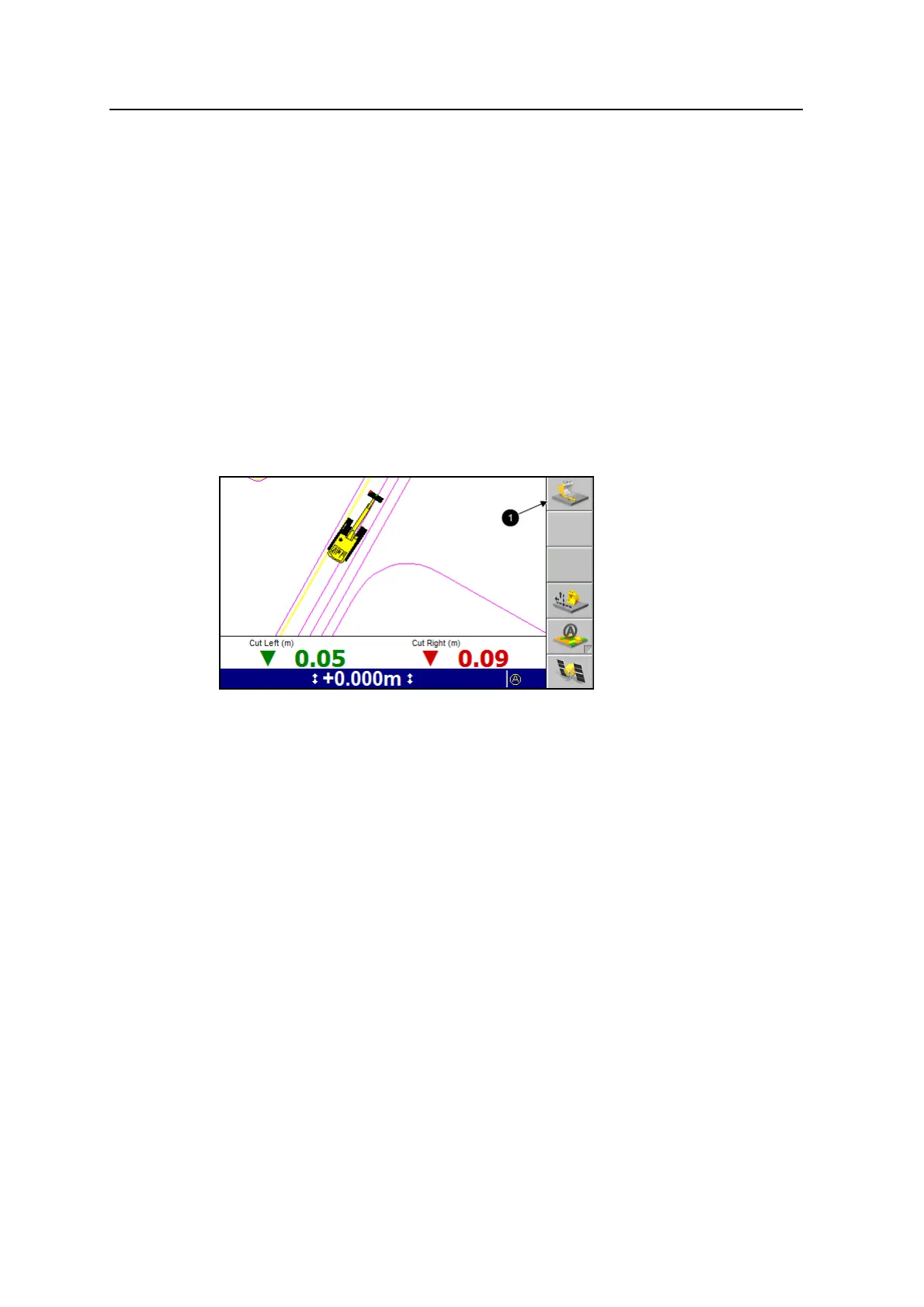
For example, the softkey labels Bucket Tip:Center, Bucket Tip:Left and Bucket
Tip:Right (1) show the side of the bucket that is selected for horizontal guidance on
3D systems.
Some softkey labels appear in more than one screen, in which case the function of
the softkey they identify is always the same.
As a softkey’s function relates to particular screens or dialogs, that functionality is
only available when the appropriate screen or dialog appears. For example the New
Level function is available only when the Select Design File screen appears, as that
function relates only to that screen.
If a softkey has no function in a screen or dialog, the softkey label is blank.
By convention, this manual refers to a softkey and its associated function by softkey
label.
30 GCS900 Grade Control System for Excavators Operator's Manual



 To Next Page