19
Thischapterprovidesstep-by-stepinstructionsfortheinitialcongurationofyourConsoleServerandconnectingittoyour
management or operational network. This involves the Administrator:
• ActivatingtheManagementConsole
• ChangingtheAdministratorpassword
• SettingtheIPaddressfortheConsoleServer’sprincipalLANport
• Selectingthenetworkservicestobesupported
This chapter also discusses the communications software tools that the Administrator may use to access the Console Server. It
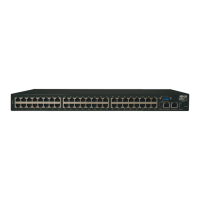
alsocoversthecongurationoftheadditionalLANportsontheB096-016/048ConsoleServerManagementSwitch.
3.1 Management Console Connection
YourConsoleServercomesconguredwithadefaultIPAddress192.168.0.1SubnetMask255.255.255.0
• DirectlyconnectacomputertotheConsoleServer
Note: For initial configuration it is recommended that the Console Server be connected directly to a single PC or computer.
However, if you choose to connect your LAN before completing the initial setup steps, it is important that:
o you ensure there are no other devices on the LAN with an address of 192.168.0.1
o the Console Server and the computer are on the same LAN segment, with no interposed router appliances
3.1.1 Connected computer set up
ToconguretheConsoleServerwithabrowser,theconnectedcomputershouldhaveanIPaddressinthesamerangeasthe
ConsoleServer(forexample,192.168.0.100):
• ToconguretheIPAddressofyourLinuxorUnixcomputersimplyrunifcong
• ForWindowsPCs(Win9x/Me/2000/XP/Vista/7/NT):
• ClickStart->(Settings->) Control Panel and double click Network Connections(for95/98/Me,doubleclick
Network).
• RightclickonLocal Area Connection and select Properties.
• SelectInternetProtocol(TCP/IP)andclickProperties.
• SelectUse the following IP address and enter the following details:
o IP address: 192.168.0.100
o Subnet mask: 255.255.255.0
• IfyouwanttoretainyourexistingIPsettingsforthisnetworkconnection,clickAdvanced and Add the above as a
secondary IP connection.
• Ifitisnotconvenienttochangeyourcomputernetworkaddress,youcanusetheARP-Ping command to reset the Console
Server IP address. To do this from a Windows PC:
• ClickStart->Run(orselectAll Programs then Accessories then Run).
• Typecmd and click OK to bring up the command line.
• Typearp –d toushtheARPcache.
• Typearp –atoviewthecurrentARPcache(thisshouldbeempty).
Chapter 3: Initial System Configuration


 To Next Page