55
Chapter 4: Serial Port, Device and User Configuration
4.8 Managed Devices
ManagedDevicespresentsaconsolidatedviewofalltheconnectionstoadevicethatcanbeaccessedandmonitoredthrough
the Console Server.
To view the connections to the devices:
• SelectSerial&Network: Managed Devices
ThiswilldisplayalltheManagedDevicewiththeirDescription/NotesandlistsofalltheconguredConnections:
• Serial Port # (ifseriallyconnected)or
• USB(ifUSBconnected)
• IP Address(ifnetworkconnected)
• Power PDU/outletdetails(ifapplicable)andanyUPSconnections
Devicessuchasserverswillcommonlyhavemorethanonepowerconnections(e.g.dualpowersupplied)andmorethanone
networkconnection(e.g.forBMC/serviceprocessor).
Alluserscanview(butnotedit)theseManagedDeviceconnectionsbyselectingManage:Devices.TheAdministratorcanedit
andadd/deletetheseManagedDevicesandtheirconnections.
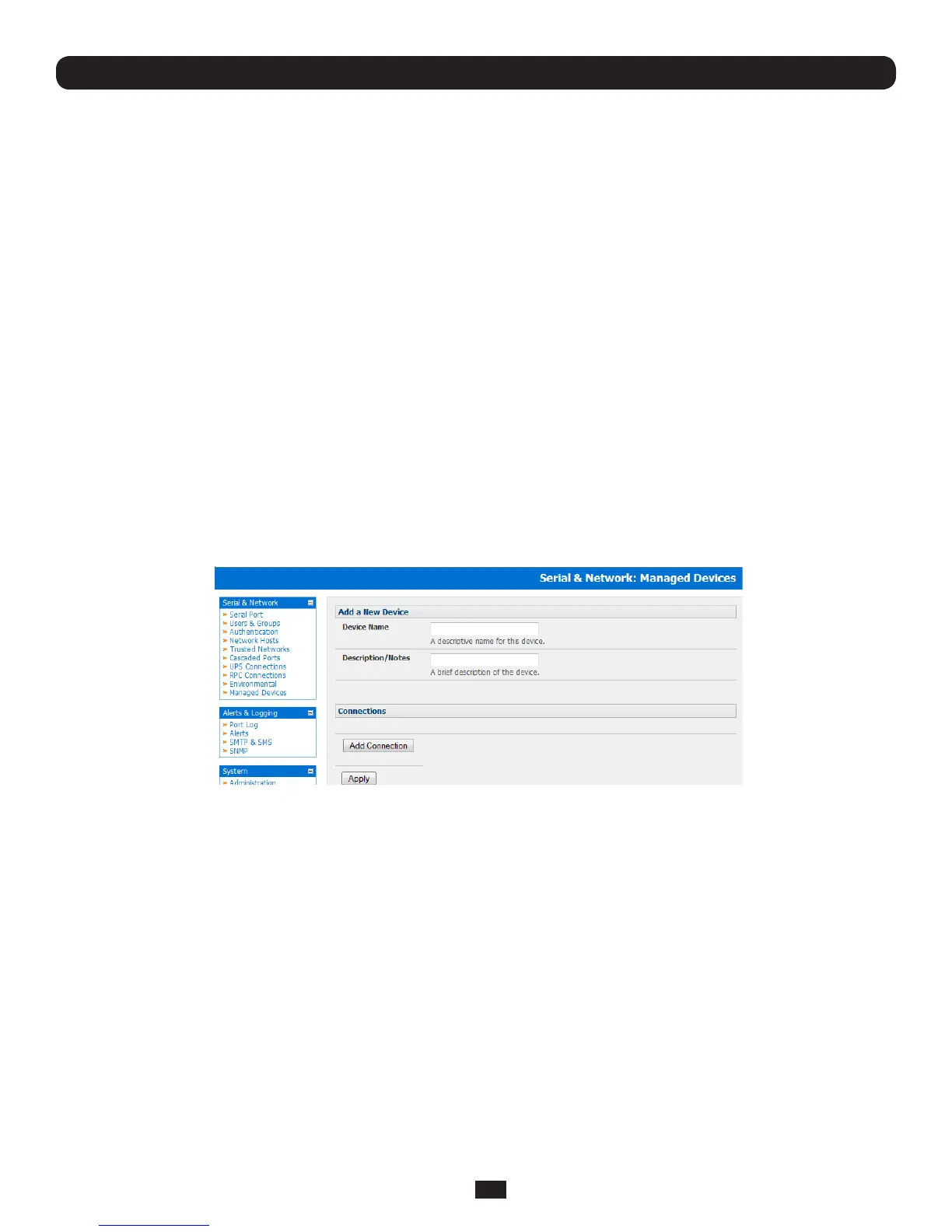
To edit an existing device and add a new connection:
• SelectEdit on the Serial&Network: Managed Devices and click Add Connection
• Selecttheconnectiontypeforthenewconnection(Serial,NetworkHost,UPSorRPC)andthenselectthespecic
connection from the presented list of configured unallocated hosts/ports/outlets
ToaddanewnetworkconnectedManagedDevice:
• TheAdministratoraddsanewnetworkconnectedManagedDeviceusingAdd Host on the Serial&Network: Network Host
menu.ThisautomaticallycreatesacorrespondingnewManagedDevice(ascoveredinSection 4.4 - Network Hosts)
• WhenaddinganewnetworkconnectedRPCorUPSpowerdevice,yousetupaNetworkHost,designateitasRPCor
UPS,thengotoRPC Connections(orUPS Connections)toconguretherelevantconnection.Againcorresponding
newManagedDevice(withthesameName/DescriptionastheRPC/UPSHost)isnotcreateduntilthisconnectionstepis
completed(referChapter 8 - Power and Environment)


 To Next Page