93
Chapter 6: Secure SSH Tunneling & SDT Connector
6.3 SDT Connector to Management Console
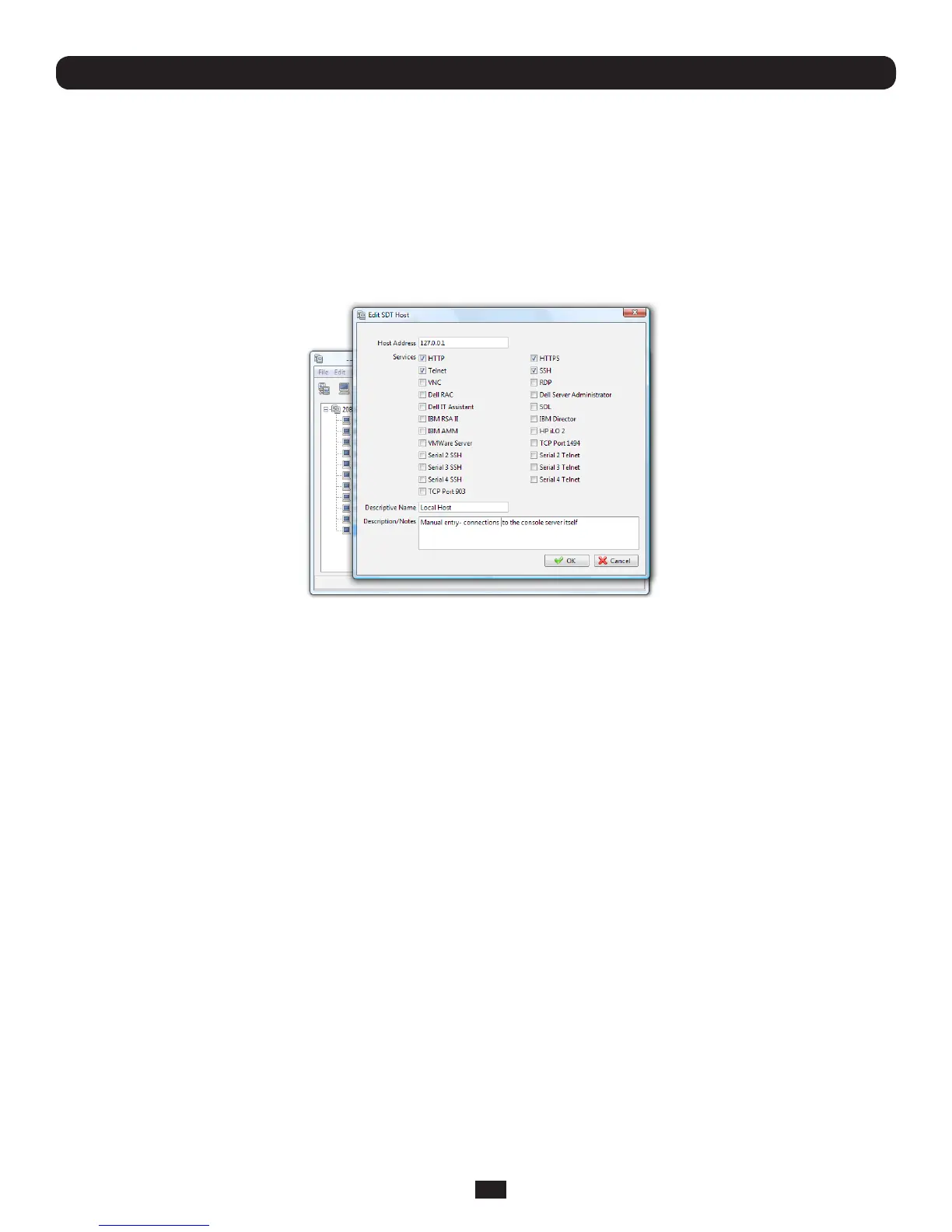
SDT Connector canalsobeconguredforbrowseraccesstothegateway’sManagementConsole–andforTelnetorSSH
accesstothegatewaycommandline.Fortheseconnectionstothegatewayitself,youmustcongureSDT Connector to
accessthegateway(itself)bysettingtheConsoleServerupasahost,andthenconguringtheappropriateservices:
• LaunchSDT Connector on your computer. Assuming you have already set up the Console Server as a Gateway in your SDT
Connectorclient(withusername/ passwordetc),selectthisnewlyaddedGateway and click the Host icon to create a host.
Alternatively,selectFile: New Host
• Enter127.0.0.1astheHost Address and give some details in Descriptive Name/Notes.ClickOK
• ClicktheHTTP or HTTPSServicesicontoaccessthegateway'sManagementConsole,and/orclickSSH or Telnet to access
the gateway command line console
Note: To enable SDT access to the gateway console, you must now configure the Console Server to allow port forwarded
network access to itself:
• Browse to the Console Server and select Network Hosts from Serial & Network. Click Add Host and in the IP Address/
DNS Name field enter 127.0.0.1 (this is the Console Server's network loopback address). Then enter Loopback in
Description
• Remove all entries under Permitted Services except for those that will be used in accessing the Management Console (80/
http or 443/https) or the command line (22/ssh or 23/Telnet). Scroll to the bottom and click Apply
• Administrators by default have gateway access privileges. However for Users to access the gateway Management Console,
you will need to give those Users the required access privileges. Select Users & Groups from Serial & Network. Click Add
User. Enter a Username, Description and Password/Confirm. Select 127.0.0.1 from Accessible Host(s) and click Apply


 To Next Page