68
4.11.3 Set up a remote PPTP client
EnsuretheremoteVPNclientPChasInternetconnectivity.TocreateaVPNconnectionacrosstheInternet,youmustsetup
twonetworkingconnections.OneconnectionisfortheISP,andtheotherconnectionisfortheVPNtunneltotheappliance.
Note: This procedure sets up a PPTP client in the Windows 7 Professional operating system. The steps may vary slightly
depending on your network access or if you are using an alternate version of Windows. More detailed instructions are available
from the Microsoft web site.
• LogintoyourWindowsclientwithadministratorprivileges
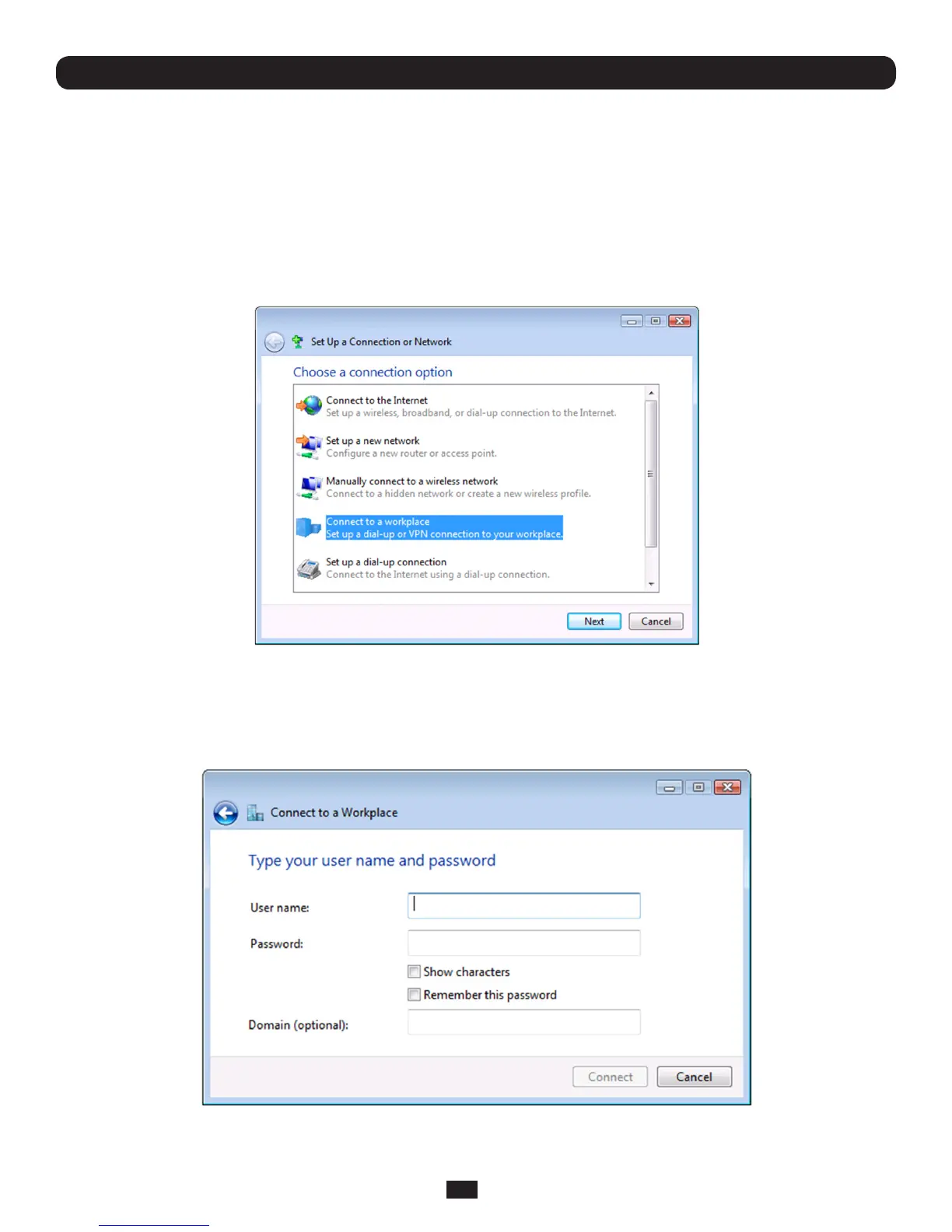
• FromtheNetwork & Sharing Center on the Control Panel select Network Connections and create a new connection
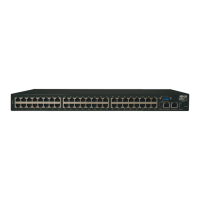
• SelectUse My Internet Connection (VPN) and enter the IP Address of the appliance
Note: To connect remote VPN clients to the local network, you need to know the user name and password for the PPTP
account you added, as well as the Internet IP address of the appliance. If your ISP has not allocated you a static IP address,
consider using a dynamic DNS service. Otherwise you must modify the PPTP client configuration each time your Internet IP
address changes.
Chapter 4: Serial Port, Device and User Configuration


 To Next Page