99
Chapter 6: Secure SSH Tunneling & SDT Connector
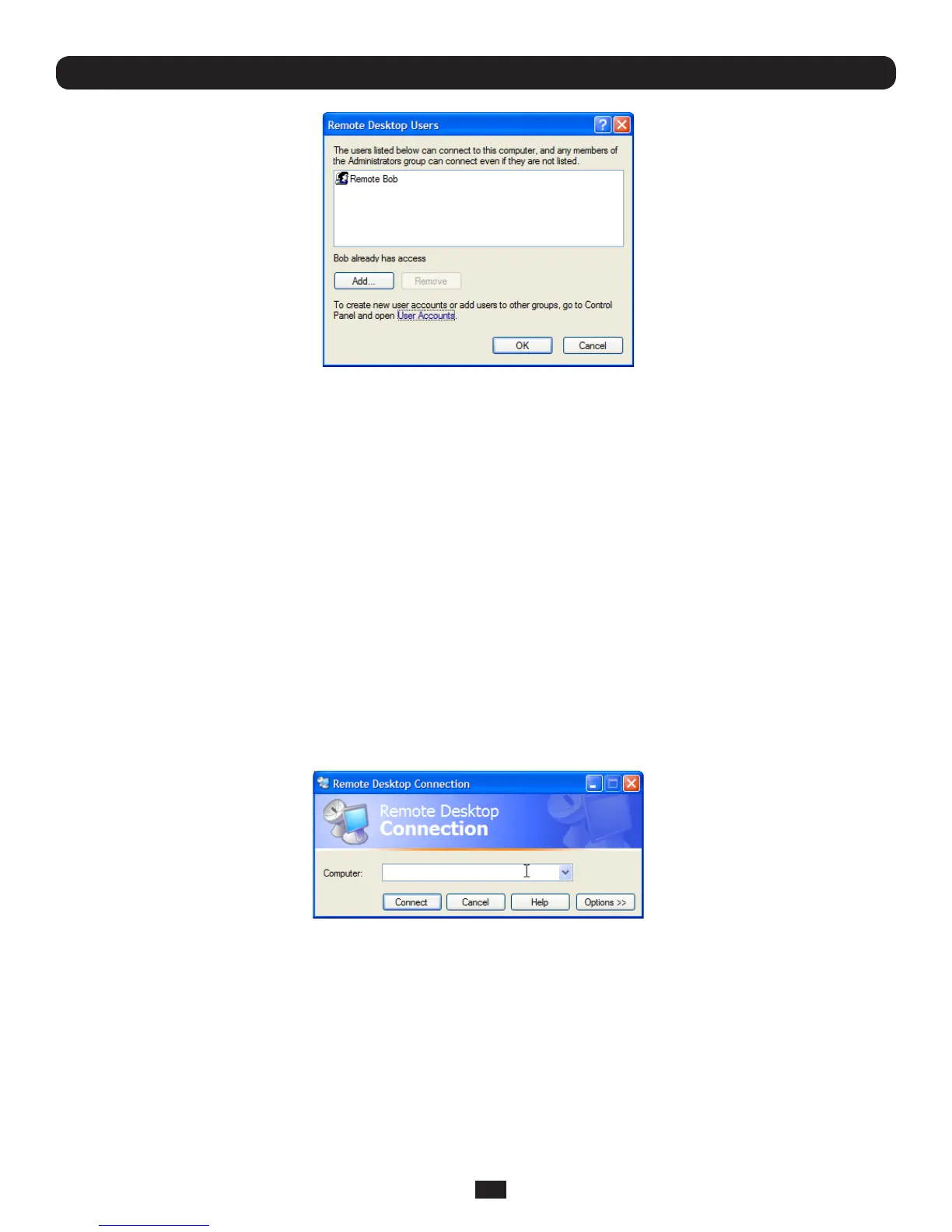
• Tosettheuser(s)whocanremotelyaccessthesystemwithRDP,clickAddontheRemoteDesktopUsersdialogbox
Note: If you need to set up new users for Remote Desktop access, open User Accounts in the Control Panel and proceed
through the steps to nominate the new user’s name, password and account type (Administrator or Limited)
Note: With Windows XP Professional and Vista, you have only one Remote Desktop session and it connects directly to the
Windows root console. With Windows Server 2008 you can have multiple sessions, and with Server 2003 you have three
sessions (the console session and two other general sessions). Therefore, more than one user can have an active session on
a single computer.
When the remote user connects to the accessed computer on the console session, Remote Desktop automatically locks that
computer (so no other user can access the applications and files). When you come back to the computer, you can unlock it by
typing CTRL+ALT+DEL.
6.8.2 Configure the Remote Desktop Connection client
NowthatyouhavetheClientcomputersecurelyconnectedtotheConsoleServer(eitherlocally,orremotely,thruthe
enterpriseVPN,orasecureSSHinternettunneloradial-inSSHtunnel),youarereadytoestablishtheRemoteDesktop
connectionfromtheClient.TodothisyousimplyenabletheRemoteDesktopConnectionontheremoteclientcomputerthen
pointittotheSDTSecureTunnelportintheConsoleServer:
A. On a Windows client computer
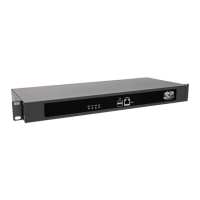
• ClickStart. Point to Programs,thentoAccessories,thenCommunications,andclickRemote Desktop Connection
• InComputer,entertheappropriateIPAddressandPortNumber:
o WherethereisadirectlocalorenterpriseVPNconnection,entertheIPAddressoftheConsoleServer,and
thePortNumberoftheSDTSecureTunnelfortheConsoleServer’sserialport(theonethatisattachedtothe
Windowscomputertobecontrolled).Forexample,iftheWindowscomputerisconnectedtoserialPort3ona
ConsoleServerlocatedat192.168.0.50thenyouwouldenter192.168.0.50:7303.
o WherethereisanSSHtunnel(overadial-upPPPconnectionoroverapublicinternetconnectionorprivate
networkconnection),simplyenterthelocalhostastheIPaddress,i.e.127.0.0.1.ForPortNumber,enterthe
source port you created when setting SSH tunneling/port forwarding (in Section 6.1.6) e.g.:1234.
• ClickOption. In the Displaysection,specifyanappropriatecolordepth(e.g.foramodemconnectionitisrecommended
younotuseover256colors).In Local Resources,specifytheperipheralsontheremoteWindowscomputerthatareto
becontrolled(printer,serialport,etc.)


 To Next Page