20
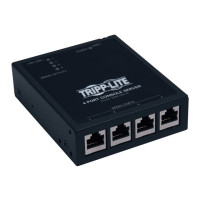
NowaddastaticentrytotheARPtableandpingtheConsoleServertoassigntheIPaddresstotheconsoleserver.Inthe
examplebelow,aConsoleServerhasaMACAddress00:13:C6:00:02:0F(designatedonthelabelonthebottomoftheunit)
andwearesettingitsIPaddressto192.168.100.23.AlsothePC/workstationissuingthearp command must be on the same
networksegmentastheConsoleServer(thatis,haveanIPaddressof192.168.100.xxx)
• Typearp -s 192.168.100.23 00-13-C6-00-02-0F(NoteforUNIXthesyntaxis:arp -s 192.168.100.23
00:13:C6:00:02:0F).
• Typeping -t 192.18.100.23 to start a continuous ping to the new IP Address.
• TurnontheConsoleServerandwaitforittocongureitselfwiththenewIPaddress.Itwillstartreplyingtothepingat
this point.
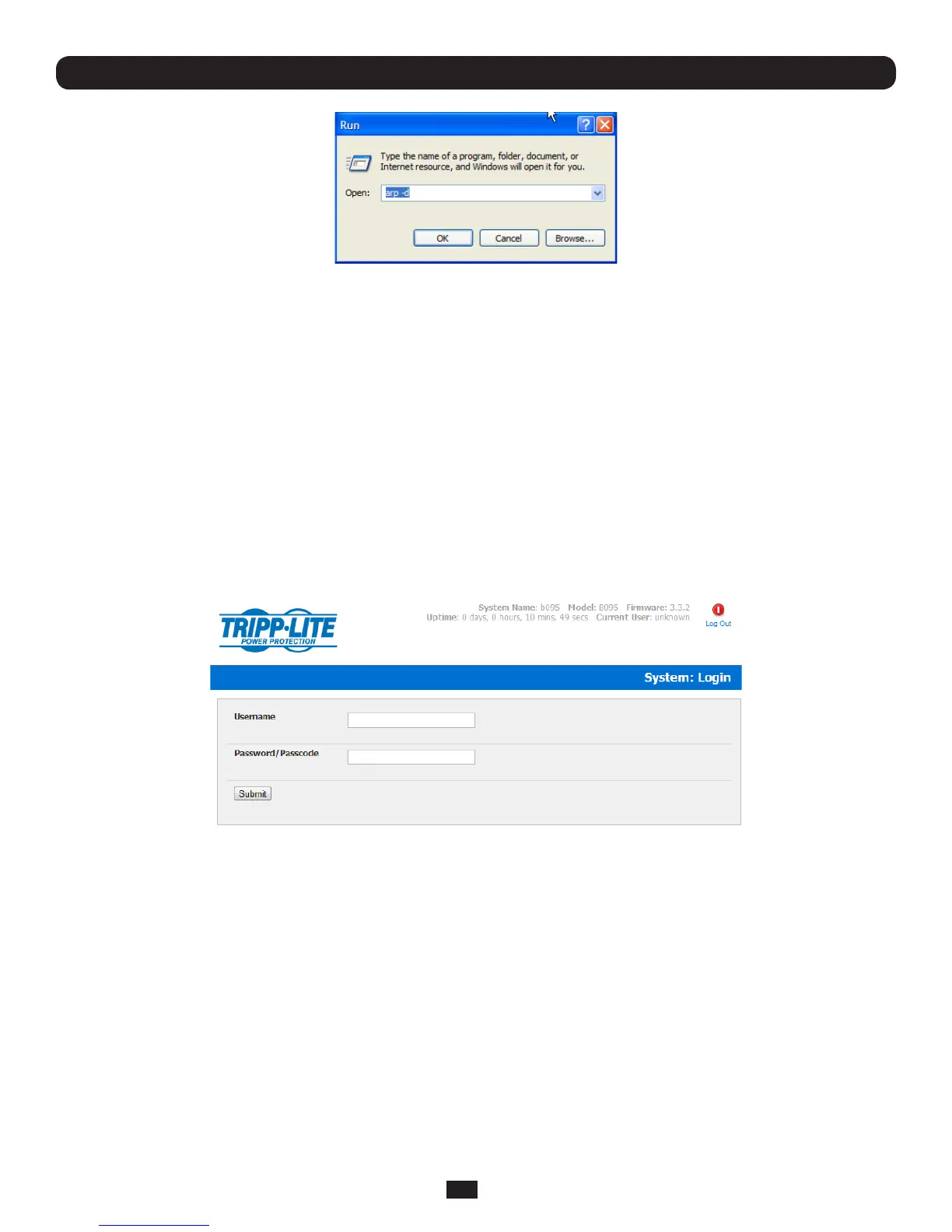
• Typearp –d toushtheARPcacheagain.
3.1.2 Browser connection
• Activateyourpreferredbrowserontheconnectedcomputerandenterhttps://192.168.0.1 The Management Console
supportsallcurrentversionsofthepopularbrowsers(InternetExplorer,MozillaFirefox,GoogleChrome,AppleSafariand
more)
Chapter 3: Initial System Configuration
• Youwillbepromptedtologin.Enterthedefaultadministrationusernameandadministrationpassword(Username:root
Password: default)
Note: Console Servers are factory configured with HTTPS access enabled and HTTP access disabled.


 To Next Page