ACU-RITE MILLPWR
G2
165
8.1 Milling and Drilling
Blend
Highlight a step within your program where you want to place a
blend.
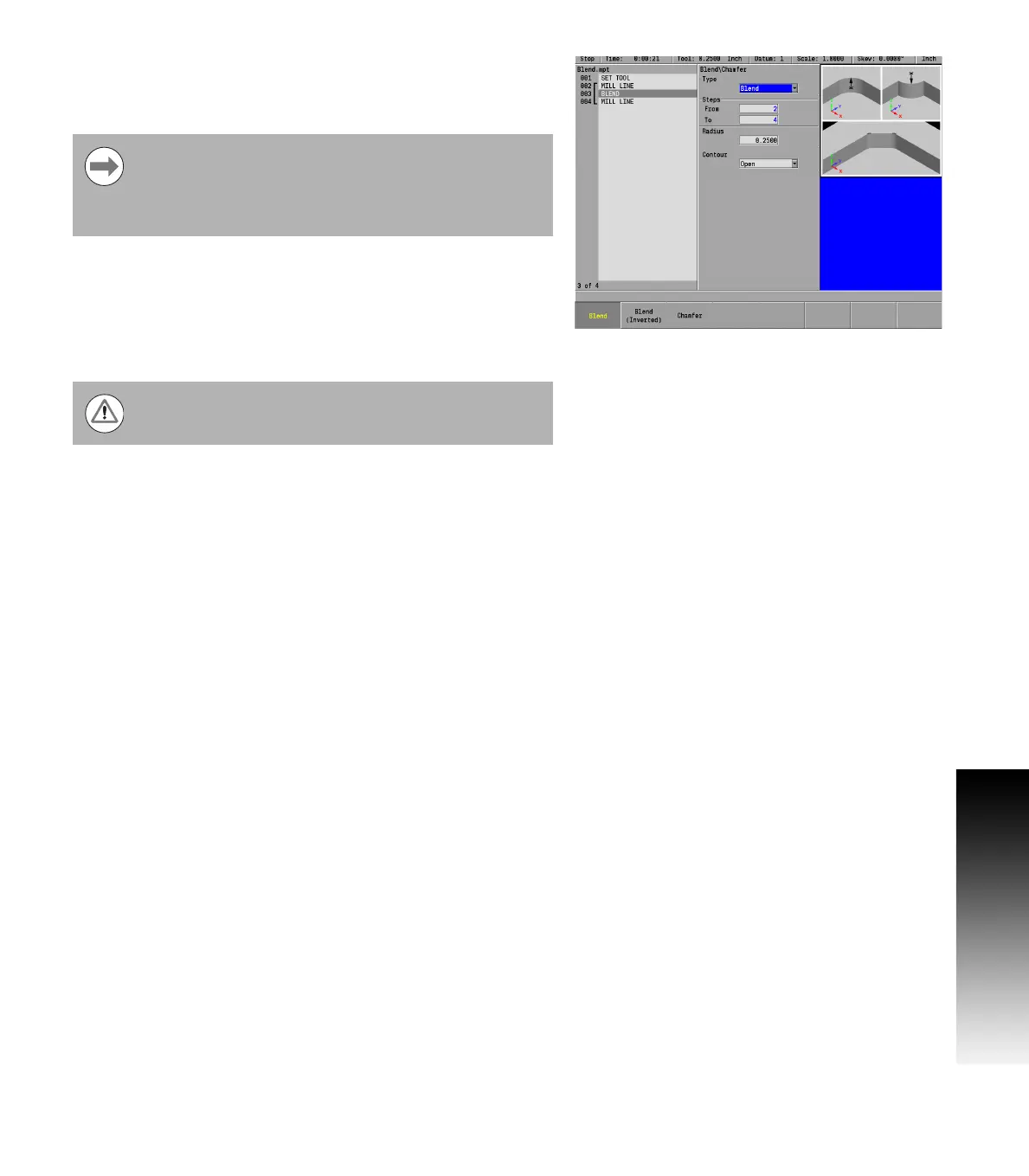
From the PGM screen, press the BLEND key to access the Blend
dialogue.
Or press the Program Steps soft key, then press the Position /
Milling soft key, and select Blend (Arc) from the popup menu.
Select the blend type. A blend is tangent to the two steps. An
inverted blend is perpendicular to the two steps.
Check that the steps listed in the From and To fields are the steps
to be blended. If they're incorrect, press the CANCEL key and
highlight the appropriate step.
Enter the blend's radius.
Press the Close Contour soft key to blend the end of a contour with
the beginning. The step numbers in the To and From fields will
automatically change.
Press the USE key.
The blend step can be added prior to adding the
connecting line in the program step, or between two
connecting lines. When placed before the connecting line
is added, it will not be displayed until the connecting line is
placed in the program.
Confirm that Blend is selected in the soft key.



 To Next Page