166 8 Milling and Drilling
8.1 Milling and Drilling
Chamfer
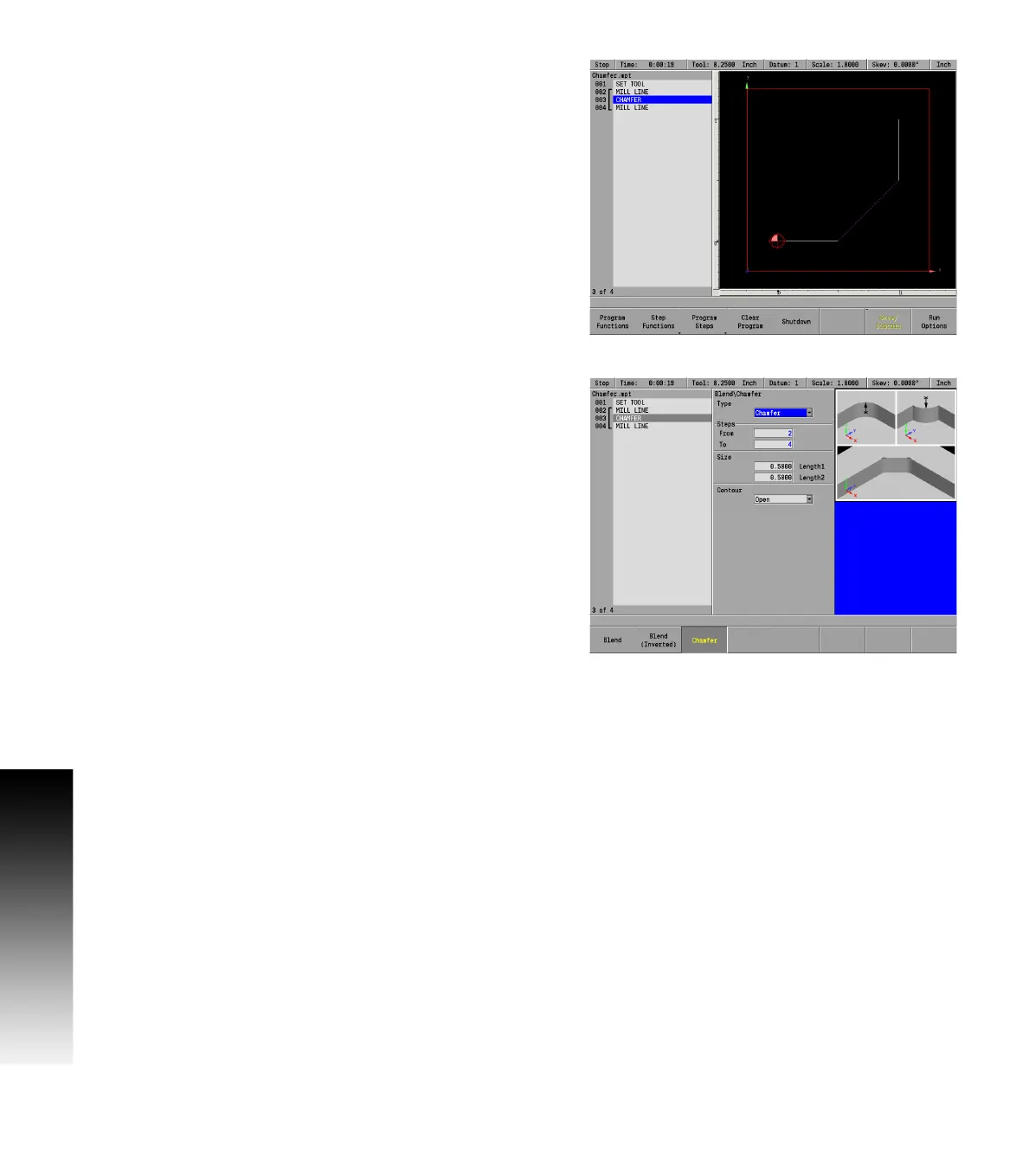
A Chamfer is done in the same way, but with less steps. In the Size
field enter the length of the chamfer.
A chamfer is a bevel or line that’s inserted between two lines to
relieve sharp angles or corners on a part. A chamfer can be inserted
between two intersecting lines whose steps are adjacent in the
program step.
A chamfer can also close a contour (e.g., a triangle) by inserting the
chamfer step immediately after the last step in the contour.
From the PGM screen, locate the lines where the chamfer is to be
inserted between.
Highlight the second line.
Press the BLEND key.
Or press the Program Steps soft key, then press the Position /
Milling soft key, and select Blend (Chamfer) from the popup menu.
Press the Chamfer soft key after the dialogue opens.
Check that the steps listed in the From and To fields are the steps
to be blended. If they're incorrect, press the CANCEL key and
highlight the appropriate step.
For Length 1, enter the distance from the common point to the From
line.
For Length 2, enter the distance from the common point to the To
line.
Press the Closed soft key to chamfer the end of a contour with the
beginning
Press the USE key.



 To Next Page