5
Restart the machine.
● Turn OFF the machine, wait for at least 10 seconds, and turn it back ON.
Checking whether the settings are correct
● Make sure that the Remote UI screen can be displayed with your computer ( Starting Remote UI(P. 606) ).
If a computer is not available, you can check the connection by using the operation panel ( Testing the
Network Connection(P. 439) ).
If you changed the IP address after installing the printer driver
● If you are using an MFNP port, and the machine and the computer are on the same subnet, then the
connection will be maintained. You do not need to add a new port. If you are using a standard TCP/IP port,
then you need to add a new port. Conguring Printer Ports(P. 453)
*
If you are not sure which type of port you are using, see Checking the Printer Port(P. 897) .
Testing the Network Connection
1
Tap <Menu> in the Home screen.
2
Tap <Network Settings>.
● If the logon screen appears, enter the correct ID and PIN using the numeric keys, and then press .
Logging on to the Machine(P. 44)
3
Select <TCP/IP Settings> <IPv4 Settings> <PING Command>.
4
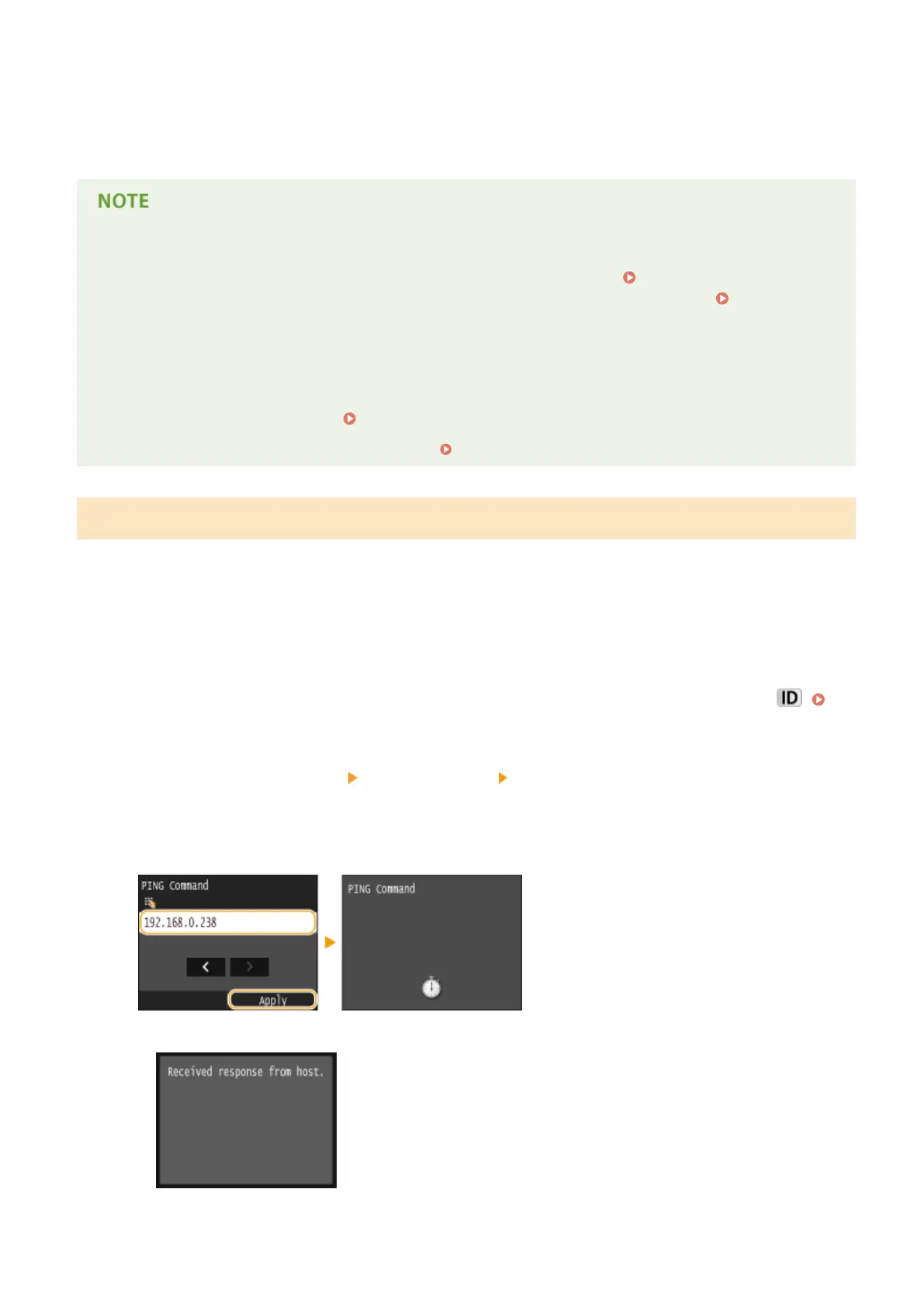
Enter the IPv4 address of another device on the network, and tap <Apply>.
➠ If a proper connection has been established, the following screen is displayed.
Network
439







 To Next Page