99
Update
Chapter 3
Set
up a WPAN Connection
3.1.2 CHANGE INTERFACE
I f you want t o change the comm unicat ion interface of 3610, use one of the connected
scanners to configure t he interface- related set t ings and t he scanner will pass t he new
sett ings to 3610, which will then initialize and pass the sett ings to other connected
scanners.
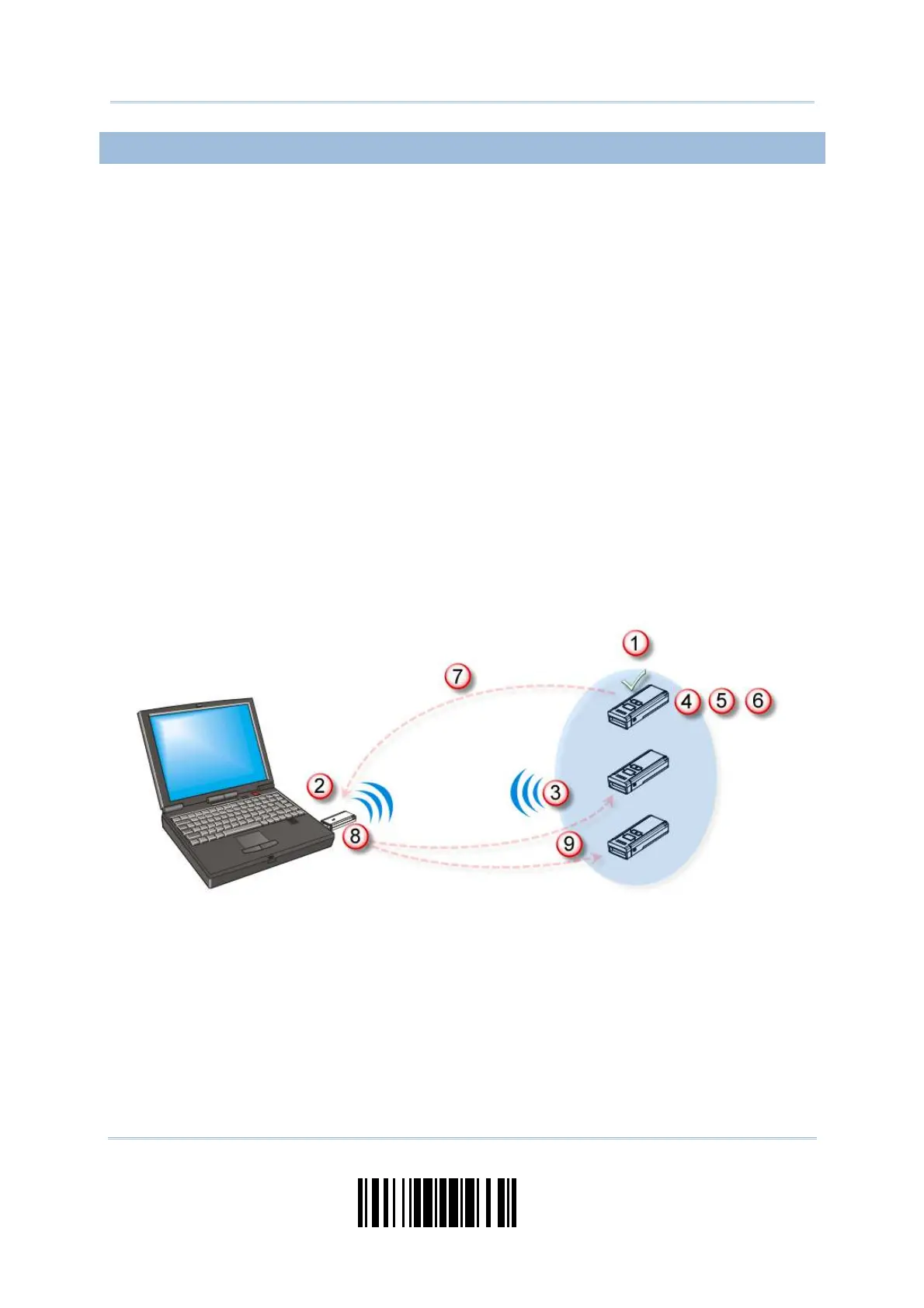
1) Read t he “ Set Connect ion” and “Serial Num ber” barcodes at t he back of 3610.
2) Within t wo m inut es, connect 3610 to the USB port of PC. For USB Virtual COM, you
will need to inst all its driver first !
3) Scanners will connect t o t he computer via 3610.
4) Read t he “ Ent er Set up” barcode t o enter the configuration mode.
5) Read t he desired interface barcode and configure it s related set t ings –
“ Act ivat e USB HI D & Select Keyboard Type”
“ Act ivat e USB Virtual COM”
6) Read t he “ Update” barcode to exit the configurat ion m ode.
7) Aft er the scanner resum es connection wit h 3610, it will pass t he int erface-related
sett ings to 3610.
8) Upon receipt of t he new settings, 3610 will initialize itself.
9) Updated wit h new settings, 3610 will pass the sett ings to other connected scanners.


 To Next Page