204
Enter Setup
1663 Barcode Scanner User Guide
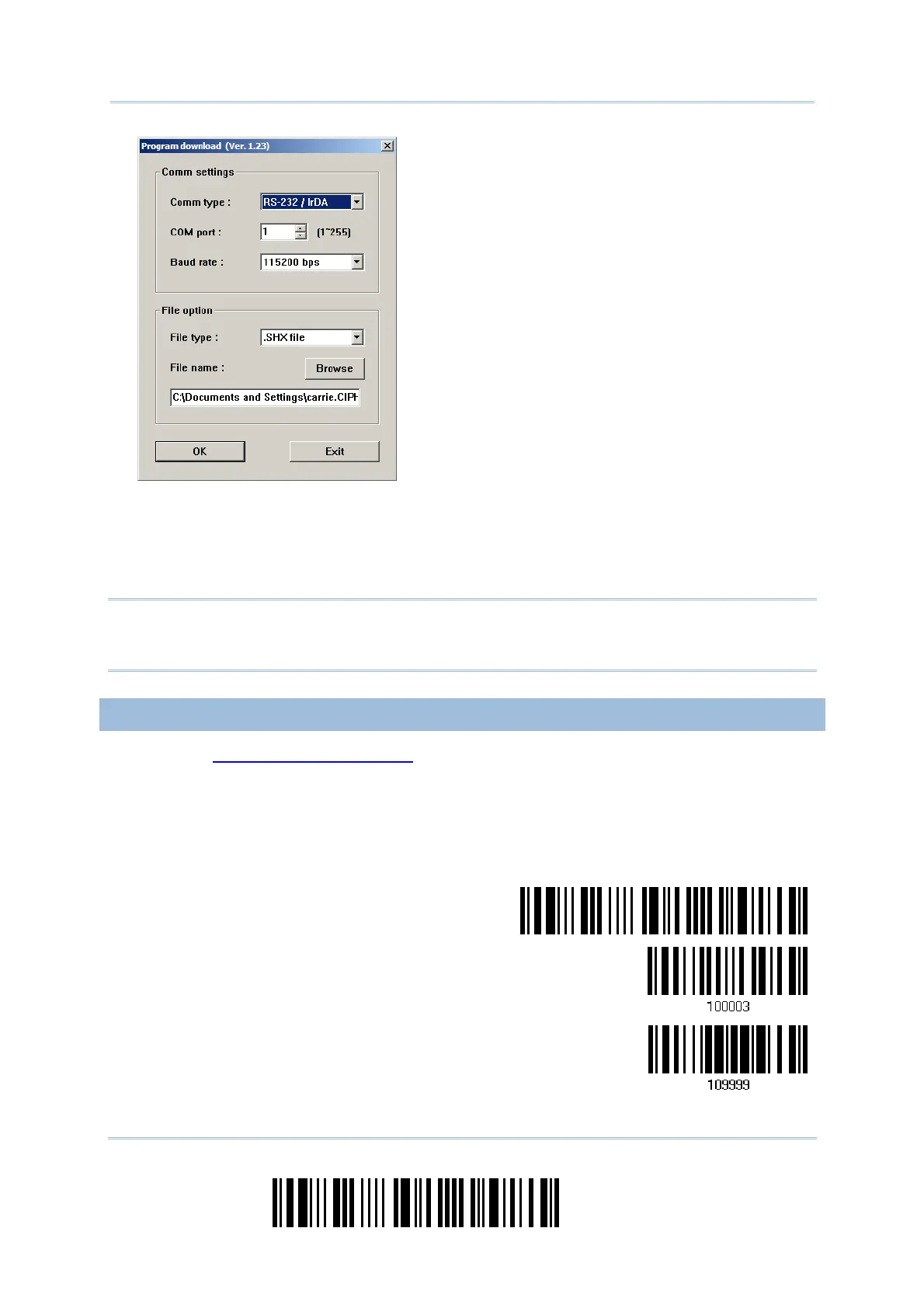
For the com m unication set tings, select
“ RS-232” and t he correct COM port for
Direct USB Virtual COM interface.
I gnore the baud rat e set t ing.
For the file opt ion, click [ Browse] to select
the target file for firm ware update.
Click [ OK] .
5) Aft er upgrading kernel, you will need to rest art the scanner m anually.
Aft er upgrading the user program, t he scanner will rest art it self autom atically once
the download is com plet ely.
Not e: Because 1663 supports t he downloading of firm ware via Direct USB Virtual COM
int erface, the out put interface will be set to t he previously used one upon
com pletion of firm ware upgrade.
USE BLUETOOTH
®
DONGLE
1) Refer to 3.2.3 Connect to Dongle for the target scanner to accept the connect ion
request from your com puter.
2) Read t he following barcodes in sequence t o configure the scanner t o use Bluet ooth
®
SPP as download int erface.
Enter Setup
Activate Bluetooth
®
SPP
Update


 To Next Page