151
Update
Chapter 5
Definin
Output Format
5.2.1 SELECT A SET FOR CHARACTER SUBSTITUION
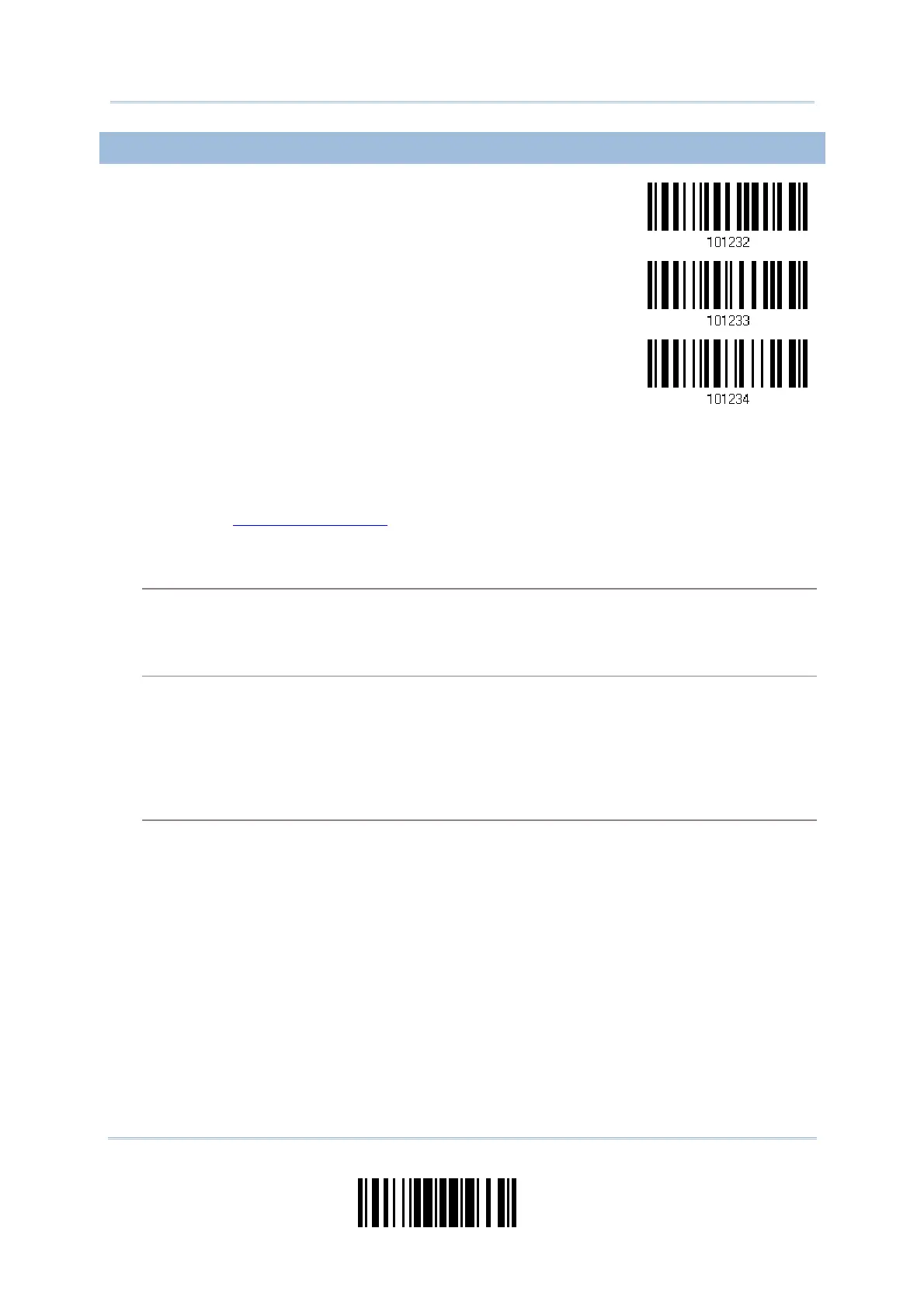
Configure Set 1
Configure Set 2
Configure Set 3
1) Read t he barcode above t o enable character subst itution by set.
For exam ple, read the “ Set 1” barcode t o configure the first set of character
substit ut ion. The scanner will respond w it h one short beep, high tone, to indicat e
m ore set up barcodes are required.
2) Read t he “
Hexadecim al Value” barcode on page 220 for the desired character
subst itution. For exam ple,
KEY TYPE = NORMAL
Read “3”, “0”, “ 2” , and “ D” to replace t he character “0” wit h a dash “- ” .
Read “3”, “0”, “ 2” , “D”, “3”, and “ 0” t o replace t he charact er “ 0” with a dash “ - 0”.
KEY TYPE = SCAN CODE
I f you want to replace the charact er “ 0” wit h “ a” ( = “1C” on the scan code t able) :
1. Read “3” and “ 0”.
2. Read t he “ Scan Code” bar code.
3. Read “1” and “ C”.
KEY TYPE = NORMAL + KEY STATUS = SHIFT
I f you want to replace the character “ 0” with “! ” (= “Shift” + “1” on keyboard):
1. Read “3” and “ 0”.
2. Read t he “ Add Shift” barcode.
3. Read “3” and “ 1”.
3) Read t he “ Validat e” barcode t o com plet e t his set t ing. ( The defined set or set s will be
applied to all sym bologies by default.)


 To Next Page