105
Update
Chapter 3
Set
up a WPAN Connection
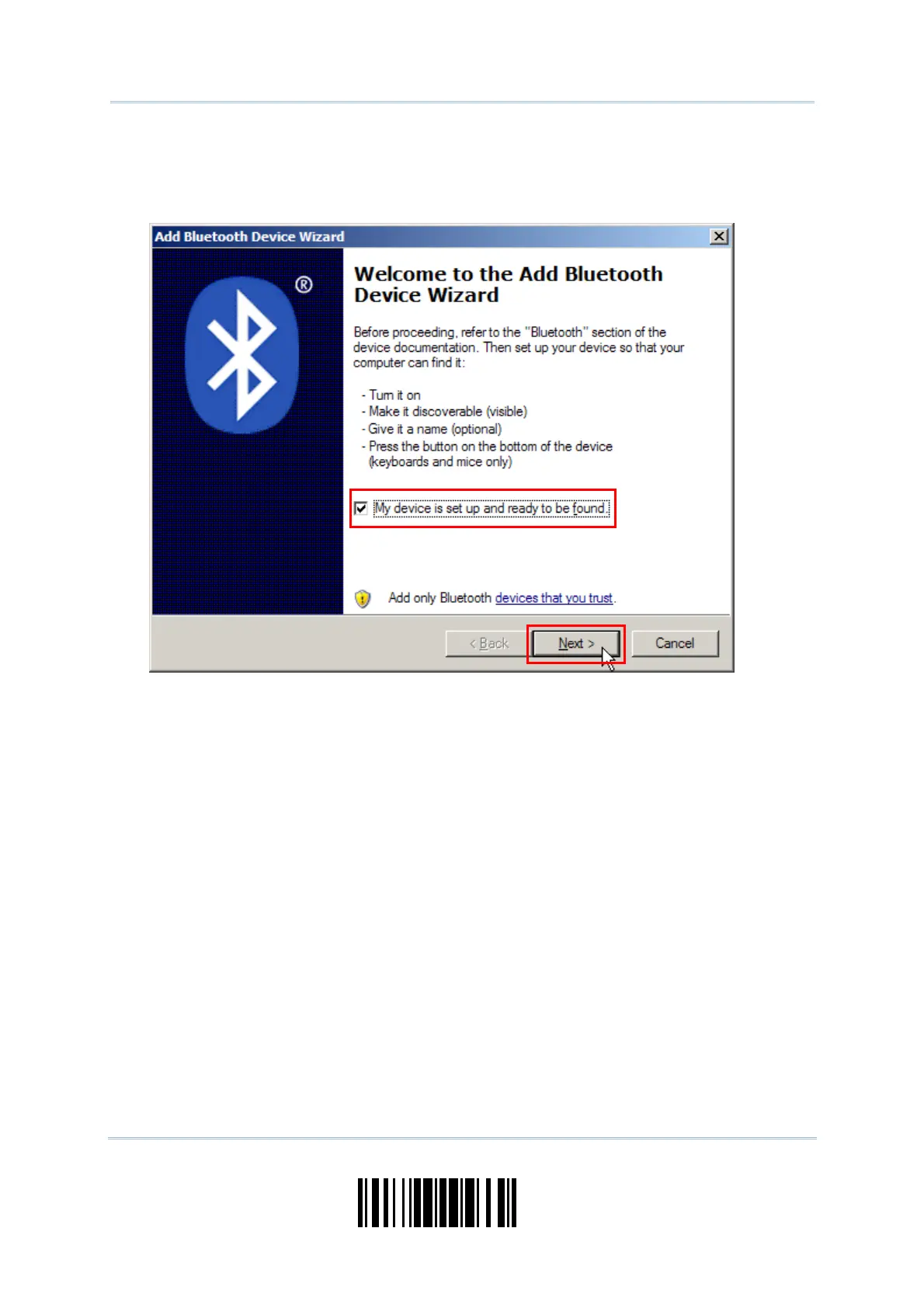
4) Turn on the scanner with correct WPAN set tings, such as select Bluetooth
®
SPP or Bluetooth
®
HI D, broadcasting enabled, aut henticat ion enabled, and PI N code specified, et c. Select the
check box of [ My device is set up and ready t o be found] on your com puter.
5) Click [ Next] .
6) Wait for a few seconds for the Wizard to search available devices nearby.
The scanner will appear wit h its “serial num ber” as the device nam e. You m ay double- check
the “ Serial Num ber” label on t he scanner t o ensure connect ing wit h t he correct scanner.
Select the target scanner . I f t he target scanner does not appear on the list, click [ Search
Again] t o refresh t he list. The scanner m ight enter Suspend Mode now, and you can press the
trigger t o have it active again ( = discoverable) . I t will t hen stay act ive for a specified period of
tim e (2 m inutes by default ) and wait for PC to establish a connection.


 To Next Page