109
Update
Chapter 3
Set
up a WPAN Connection
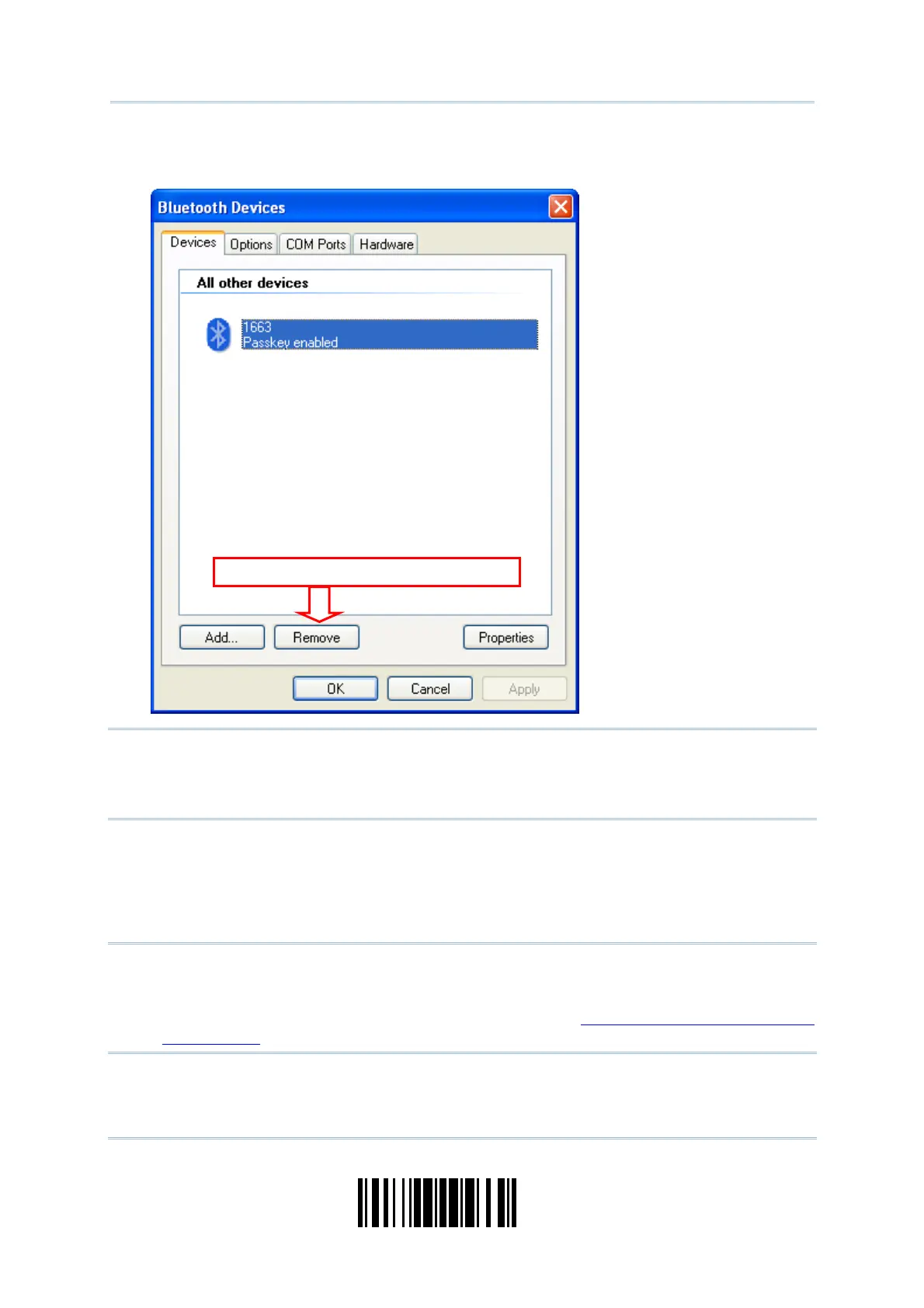
11) Now the target scanner will be listed as below.
You can have up to seven scanners connected to one com put er at the sam e tim e.
Not e: When any changes are m ade to aut hent icat ion and PI N code on t he scanner side,
or you want to change to use Bluet oot h
®
HID, it is suggested that you rem ove the
scanner from t he paired device list (called unpairing) and go t hrough the whole
process t o re-establish the connection.
12) Run t he desired applicat ion on your com put er, such as HyperTerm inal.exe if using Bluet oot h
®
SPP or Notepad.exe if using Bluetoot h
®
HI D.
The status of the scanner list ed on the device list will be updat ed to “ Connect ed”, indicat ing
the WPAN connection is established successfully via the out going COM port if using
Bluet ooth
®
SPP.
Not e: Even though the scanner is connect ed to the host wit h aut henticat ion disabled ( =
no PI N code required), t he host m ay st ill request a PI N code while t he applicat ion
is opening COM port . Dynam ic input of PI N code is support ed so that you m ay
input a m at ching PI N code on t he scanner. Refer to
Disable Authenticat ion or Use
Random PI N
.
Click to remove the
lect
d ite


 To Next Page