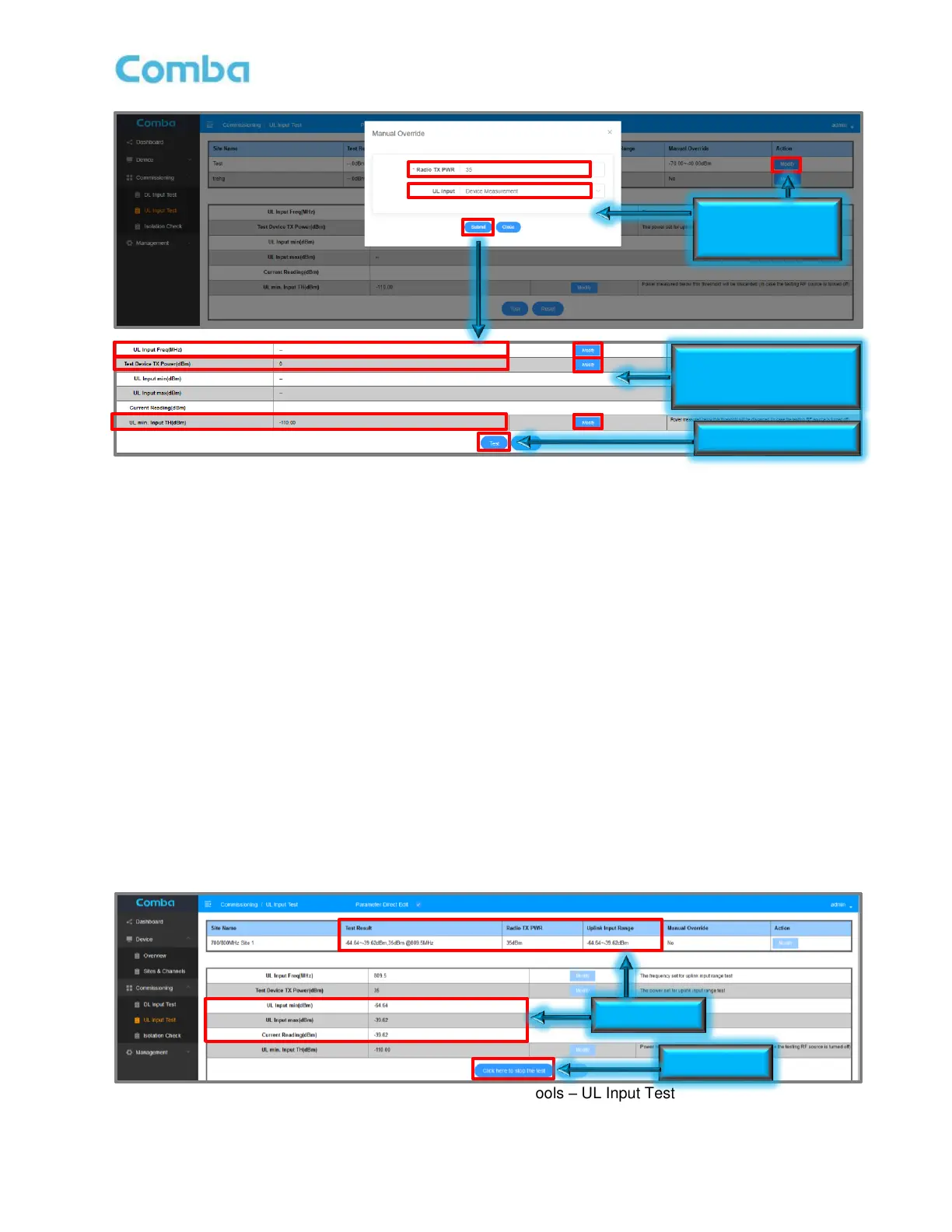
Figure 119: V3 BDA/MU Commissioning Tools – Performing UL Input Test
• Click the <Test> button to begin the test. The test will continue to run indefinitely.
The user can now walk through the entire building/coverage area performing transmissions so the system
can detect the minimum input and maximum input to the BDA. If you use a Signal Generator, leave the
device transmitting a CW tone throughout the entire walk. If using a portable radio, ensure you make
transmissions close to antennas and far from antennas (Near and Far locations). The goal of the test is to
capture the strongest and the weakest signal the BDA will see.
• When you have completed the test and the measurements are done, click on <Click here to stop the
test> button to end the test. A pop-up window will appear and ask, “should the current test result be
adopted?”. Click <OK> if you are satisfied with the test results and want to save the measurements.
If you do not want to save the measurements, click <Cancel>.
• You can reset the measurements at any time by clicking on <Reset>.
Note: Any abnormal exit while performing the UL Input Test will require the user to power-cycle the
device for the BDA to exit the UL Input Test monitoring mode.
The results will be displayed in the top window in the <Uplink Input Range> section. The results will also be
displayed in the <Commissioning Tool> table when you navigate to <Device – Sites & Channels – Site>. The
result can be used later to generate estimated RF parameters. See Figure 120 below.
Figure 120: V3 BDA/MU Commissioning Tools – UL Input Test Results



 To Next Page