2. Upgrade FOUs
- Click <Select File>, select the FOU firmware and then click the <Upgrade> button. This will upgrade
all FOU automatically. After a few seconds, you will receive a success message. Click <confirm>
and wait while the firmware is deployed in the background. The firmware can take 10-15 minutes to
deploy to the FOUs. It is recommended to validate that all FOUs have been upgraded before
performing the centralized upgrade for the RUs.
3. Check upgrade progress.
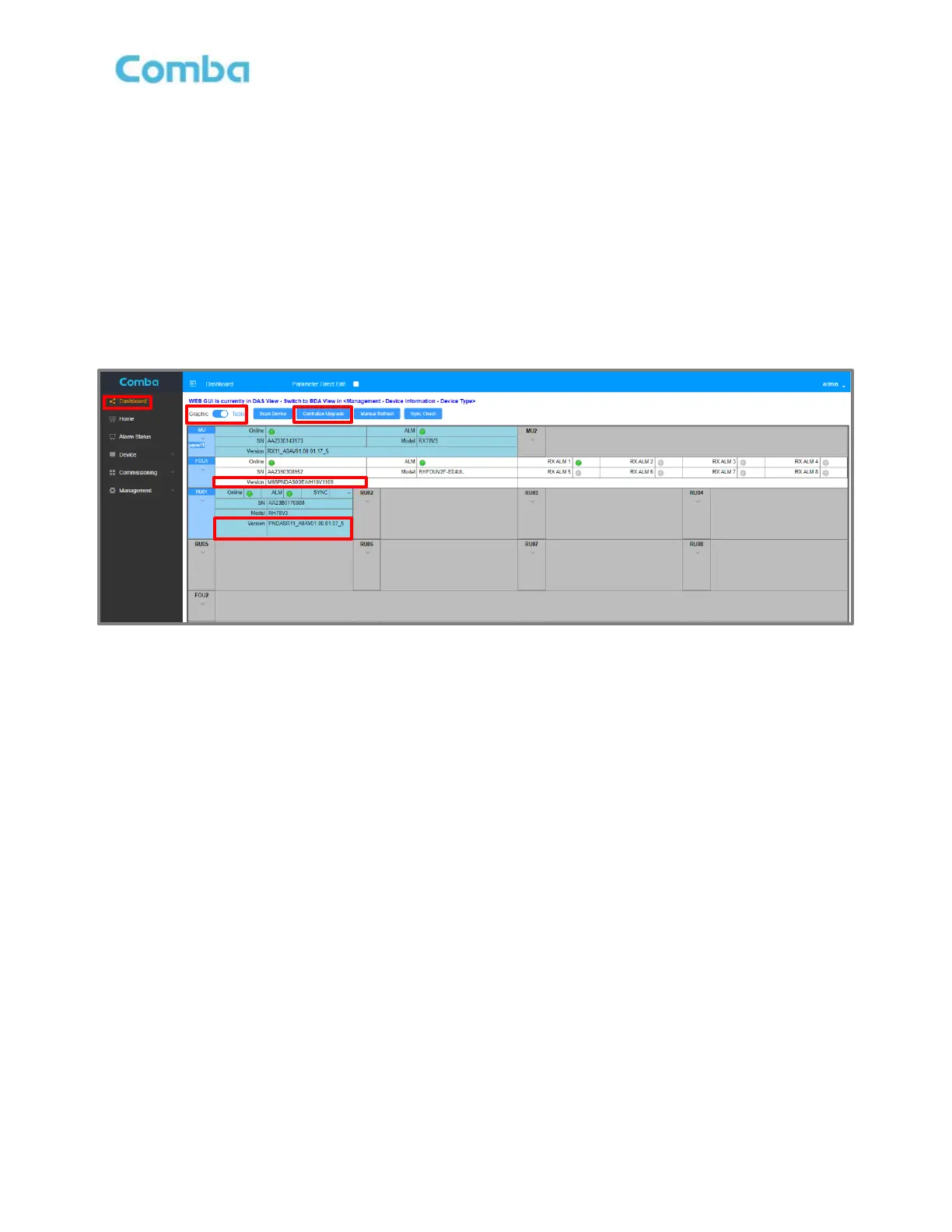
It is recommended to complete the FOU upgrades first, which normally takes a short time. Confirm all FOUs
have been upgraded to the expected version. Then apply the upgrades to the RUs.
Figure 168: V3 BDA/MU Dashboard Firmware Validation
1. Upgrade RUs
The upgrade for each RU is done over fiber and in series and the system will skip the upgrade if the target
device already has the same firmware. Large systems of RUs can take a long time to upgrade.
Note: Once you have started the centralized upgrade process for the RUs, local upgrades to RUs can
still be completed at the same time. In other words, the system will automatically deploy firmware to
RUs while a user at the site can deploy firmware locally to the same system of the RUs. This can
reduce the overall time to upgrade a large system of RUs.
- Dashboard -> Centralize Upgrade. Click <Select File>, select the RU firmware and then click the
<Upgrade> button. This will upgrade all RU automatically. After a few seconds, you will receive a
success message. Click <confirm> and wait while the firmware is deployed in the background. Each
RU firmware upgrade will take approximately 25-35 minutes to complete.
- Check progress in the Dashboard -> Table view by validating correct firmware versions.
End of Section



 To Next Page