94 Eos Family v2.9.0 Operations Manual
This will perform the same action as the previous example, assuming channel 8 was previously
patched to an address.
To select multiple parts for editing:
[1] [Part] [1] [Thru] [5]
This is useful for deleting or assigning new addresses to existing parts.
To patch a compound channel in channel format:
[1] [Part] [2] [At] [5] {Type} <scroller profile>
Creates a part 2 for channel 1 and assigns it the selected scroller profile. See
{Patch} Display and
Settings (on page104)
for more information on using {Type}.
Patching Moving Lights, LEDs, and Accessories
The process of patching moving lights requires more detail than patching a dimmer. Specific
information is required for more advanced control of the features offered by moving lights.
Note: It is recommended that when patching moving lights, LEDs, and accessories
that you work in patch by channel mode. See Patching By Channel (on page88).
After you have entered the channel number, click {Type}. You will then select a device type
from the fixture library.
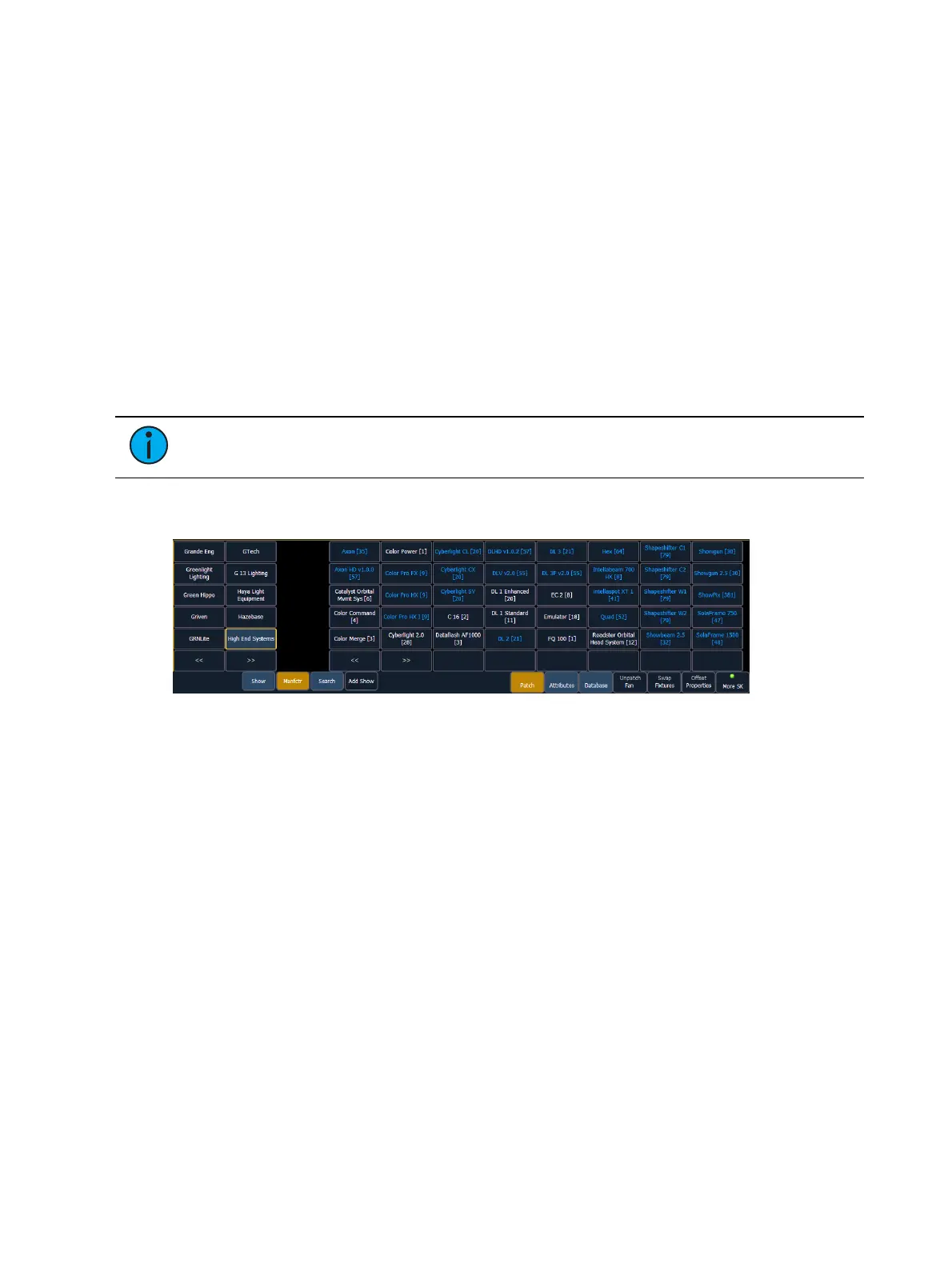
Notice the four softkeys {Show}, {Manfctr}, {Search}, and {Add Show} located beneath the CIA.
{Show} provides you with the option of showing only the library of fixtures or devices that are
already patched in the show, your favorites, and default devices. {Manfctr} shows all fixtures or
devices available in the library sorted by manufacturer.
Press {Manfctr} from the CIA to display the fixture library. The two columns on the left are
pageable and show manufacturer names. Use the arrow buttons to scroll the list of
manufacturers. Selecting a manufacturer repaints the device columns with all devices from that
manufacturer that are available for patching.
Scroll through the device list and make your selection. If a fixture has multiple modes or types, it
will display in blue text. Clicking on its name will open a list of available modes. After the
selection is made, the fixture or device type will be placed on the command line after the
channel number and displayed in the box beneath the {Type} button.
Press {Search} to open the search window. You will need an external alphanumeric keyboard or
you can click the keyboard icon in the search window to open the virtual keyboard. You can also
navigate the list as you would the browser. You can search by manufacturer name, fixture
name, part of a name, and by DMX footprint. For example, if you searched for 31, you would
see all of the fixtures that have a DMXfootprint of 31. Double clicking on a fixture name will
patch it.



 To Next Page