Virtual Media Server 375
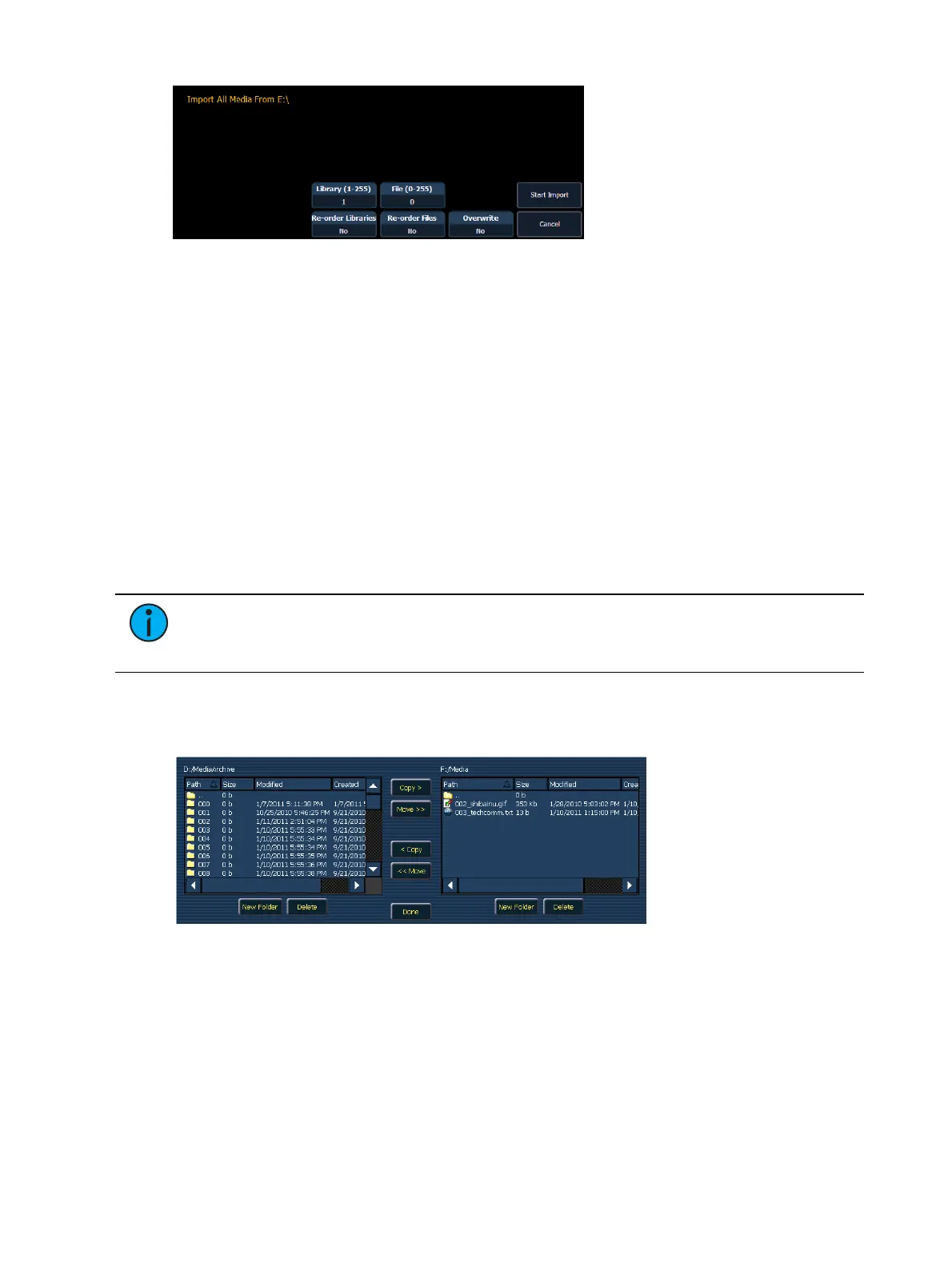
Options in this display include:
{Library (1-255)} - selects the library to import media.
{File (0-255)} - selects the file number.
{Reorder Libraries} - specify whether or not the library on the source device will be
renumbered. If the source device’s library is not numbered, it will be assigned the
specified library number.
{Reorder Files} - specify whether or not the file(s) on the source device will be renumbered.
If the source device’s file(s) is not numbered, it will be assigned the specified file number.
{Overwrite} - overwrite the existing media files.
{Start Import} - begins the import process. A progress bar will appear to indicate the status
of the import process. When finished, click {Done}.
{Cancel} - stops the import, and exits the display.
Importing with the File Manager
To import go to ECU>Settings>Maintenance>File Manager.
Note: Make sure your files follow the naming convention of file number_filename. If
the files do not, they will not be recognized as media files. You can always import using
Import All Pixel Map Media instead.
Select the device with the media on it in one window and in the other window select the
MediaArchive folder. Inside the MediaArchive folder, you will see numbered folders. Those
folders correspond to libraries. You can copy or move files.
Exporting Media Content
There are two ways to export media. Those methods are:
Export Pixel Map Media - An automatic method for exporting media.
File Manager - A manual method for exporting media.



 To Next Page