Creating and Using Effects 297
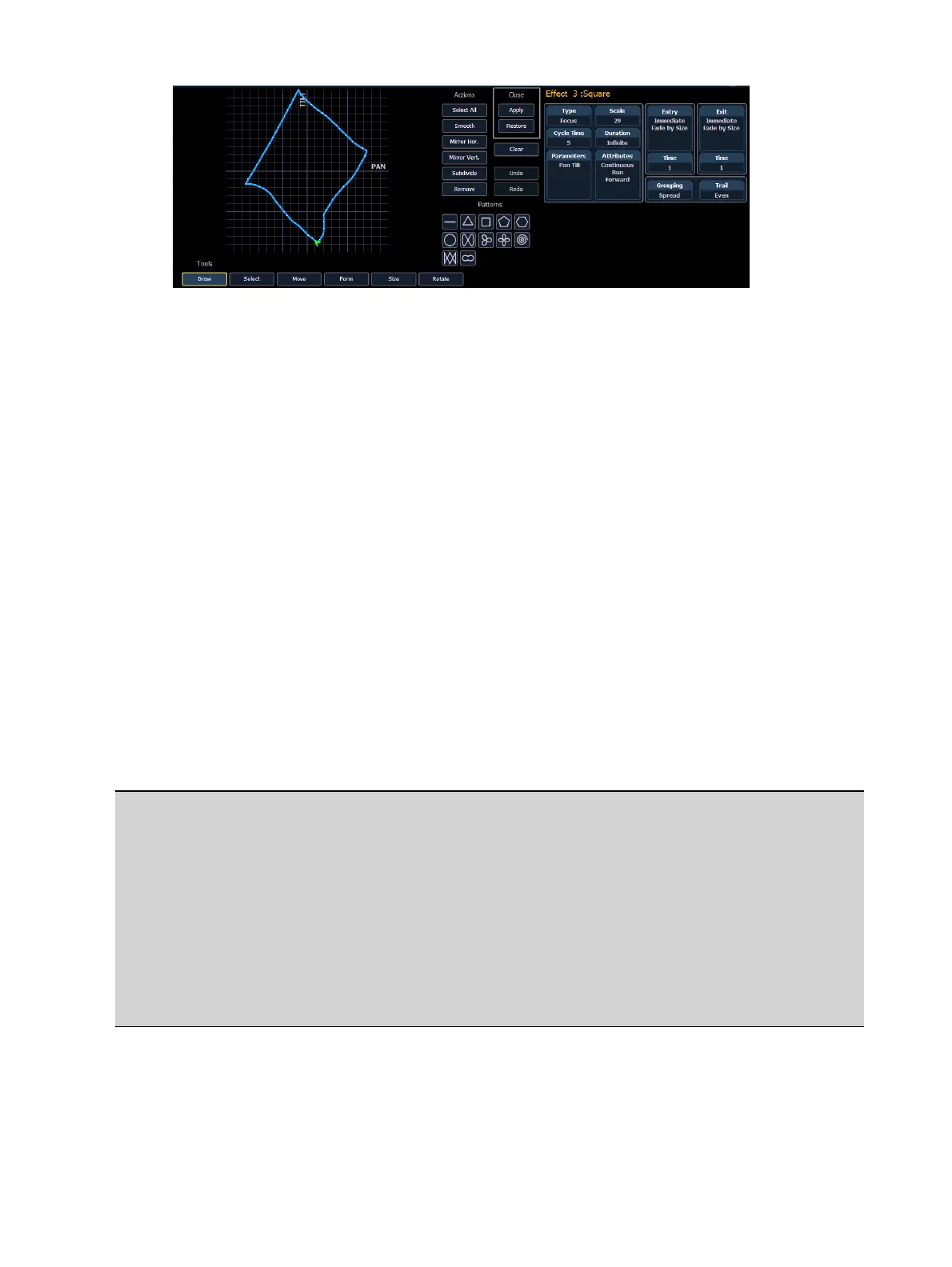
The following tools are also available to edit the curve with the mouse or touchscreen:
Draw - draw a new line for linear effects or append points to focus effects
Select - select points of the curve (if no points are selected, all are changed)
Move - move selected points, can also phase-shift the curve of linear effects in steps of 30
degree (only if no partial selection was made)
Scale - scale linear effects on y-axis or focus effects separately on x- and y-axis
Gamma - apply a log function to the curve (linear effects only)
Size - scale focus effects on both axis
Rotate - rotate focus effects around the center of the selected points
The following actions are available when editing the curve:
Select All - selects all points
Smooth - smooths the selected points
Mirror Hor. / Vert. - mirrors the curve
Subdivide - adds one point on each selected segment (useful to move that point or change
the behavior of smooth)
Remove - removes the selected points
Undo - undoes the last operation
Redo - redoes the last operation
Programming a New Relative Effect
Below is the process used to program a new relative effect.
Example:
To open the effects list press:
[Effect] [Effect]
Establish the number of the effect by pressing:
[Effect] [4] {Type} {Linear/Focus/Color} [Enter]
The effect will appear in the effect list and the CIA will repaint with the effect details
visible. Manipulate the effect using the effect graph, and/or property fields so that the
effect meets your needs (see
Effects Editor (on page281)
for details on effect
properties).
Preprogrammed Rainbow Effects
Two preprogrammed rainbow linear effects are available in the effect list. Effect 917 is a
Rainbow RGB effect, and effect 918 is a Rainbow CMY effect. These effects are for a rainbow
on native color parameters that will fade hue from 0 to 360 with saturation at full, when the



 To Next Page