Storing and Using Macros 345
{SC Learn} - enables or disables excluding specific macros from being learned as show
control events. See
Adding Events using Learn Mode (on page440)
for more information.
Create a New Macro from the Display
From the macro editor display, enter any unrecorded macro number from 1 to 99,999 and press
[Enter]. Your new macro number will display in the macro list in numerical order but will not
have a label or any contents.
To store the macro contents, select the macro and press {Edit}. A cursor appears flashing in the
macro content detail portion of the display, ready for you to add the macro content.
For Example:
Create macro 3. Write the instruction to set all active channels to 50%, then sneak
them to their original levels over 10 seconds and last, link to macro 5.
<Macro> [3] [Enter]
{Edit}
[Select Active] [At] [5] [Enter]
[Sneak] [Time] [1] [0] [Enter]
[Macro] [5] [Enter]
[Select]
While in macro edit mode, all keys are entered as content except the macro editor softkeys,
arrow keys, [Escape], [Select] and [Learn] keys.
Edit an Existing Macro
When you have created a macro using macro learn mode from live or otherwise, you can edit
the content of your macro by removing or adding commands and special macro softkey
functions (such as wait, loop, and so on).
From the macro editor display, select an existing macro number and press [Enter]. The selected
macro contents will display the detail section. Press {Edit} to make changes to the content.
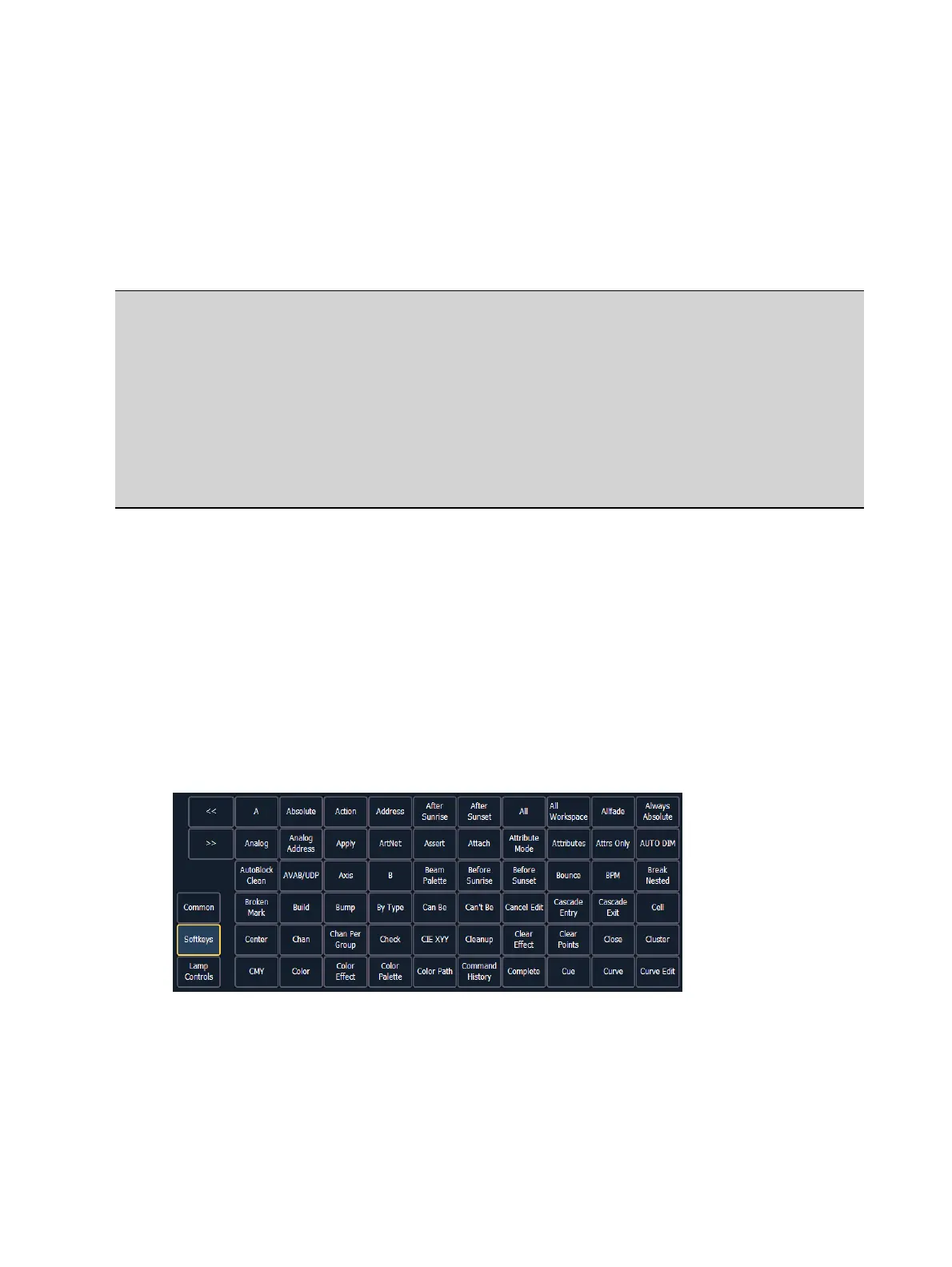
When in edit mode, the browser changes to display all softkeys available for the system that
would otherwise be difficult to find when recording a macro. You can also choose from a list of
the most common macro commands.
Next to the softkeys display are paging buttons to page through the available softkeys. When
used, these paging buttons will not be stored as content in your macro.
In addition, a new set of macro editor softkeys are displayed while in edit mode including:



 To Next Page