82 Eos Family v2.9.0 Operations Manual
Files can be exported in a Moving Light Assistant (MLA) format by going to File>Export>Moving
Light Assistant.
This will open the export screen in the CIA. From this screen, you can choose which aspects of
the show file you want to export. By default all aspects are selected and will be exported. To
withhold any show aspects from exporting, simply deselect them in the CIA by clicking on the
respective button. Deselected show aspects will appear in black.
You can also choose to export specific portions of show aspects. To select this information, press
the {Advanced} button. In the Advanced screen, all aspects are deselected (black) by default.
To stop the show file from being saved for export, press the {Cancel} button. If you are ready to
save, press {Ok}. You will be prompted to name the file. A .csv file will be created.
Exporting Logs
Logs are useful tools for diagnosing issues. ETCTechnicalServices may request that you email
logs if they are assisting you with an issue. See
Help from ETC Technical Services (on page1)
for
information about contacting Technical Services.
If you are experiencing an issue, press [Displays] & [Record] to put a marker in the log file. This
marker along with any other additional information you provide will assist us in reproducing your
issue.
Note: Logs can also be created from the ECU. If created through the ECU, you will
have the option to add additional information to the file. See Save Logs (on page419)
for more information.
Logs can be exported by going to the Logs option in the Browser. Select the location for the
export, the Show File Archive, a File Server (if connected), or to a USB device, and press
[Select].
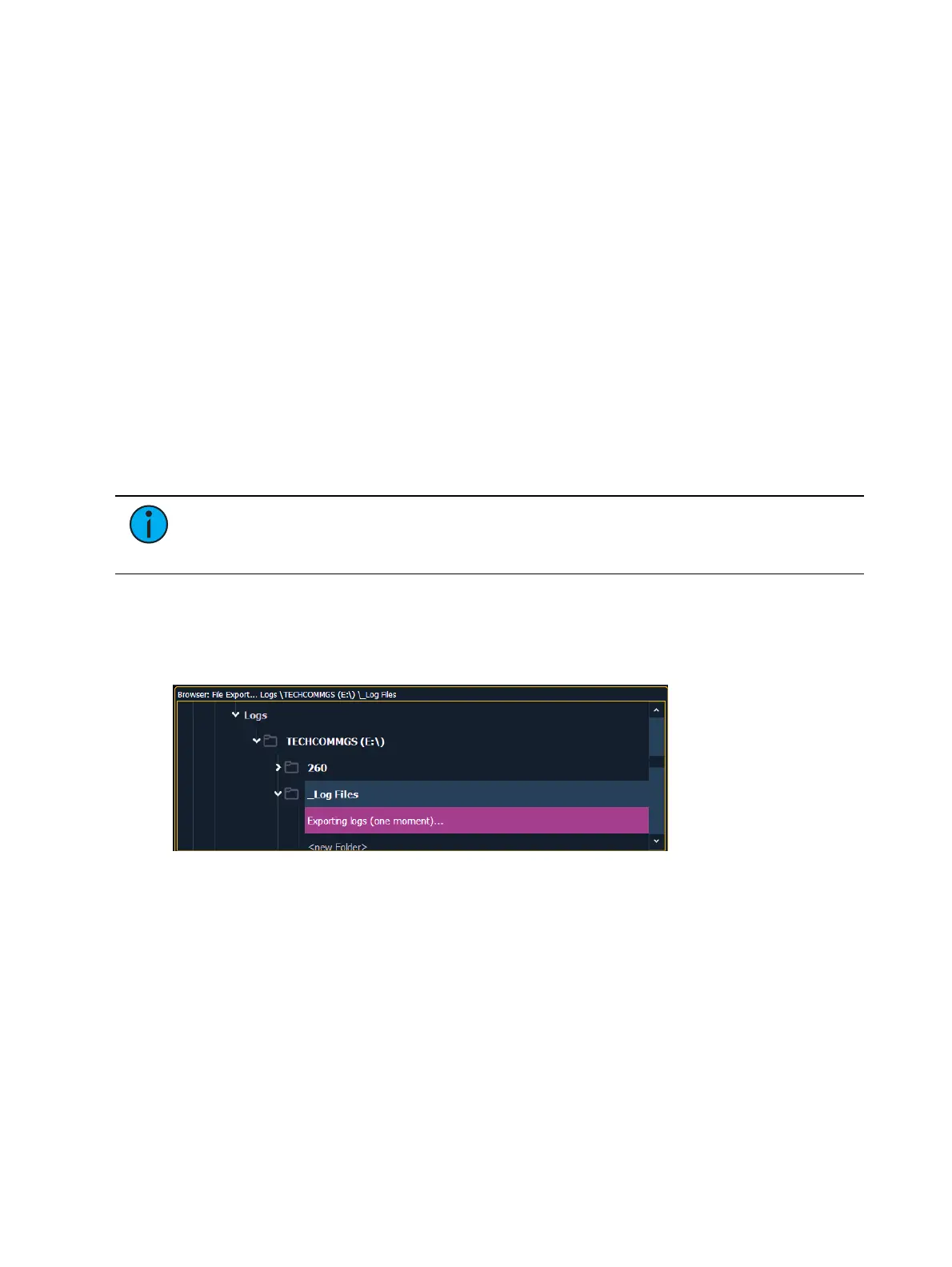
An exporting logs message will appear while the log files are being created.
Deleting a File
Element provides you with the ability to delete show files from the Show File Archive and the
File Server from within the Browser.
To Delete a Show File
Navigate within the Browser to: File> Open and press [Select]. Navigate to the desired show file
and press [Delete]. Press [Enter] to confirm or any other key to abort the deletion process.
To Delete a Folder
The folder must first be empty.



 To Next Page