434 Eos Family v2.9.0 Operations Manual
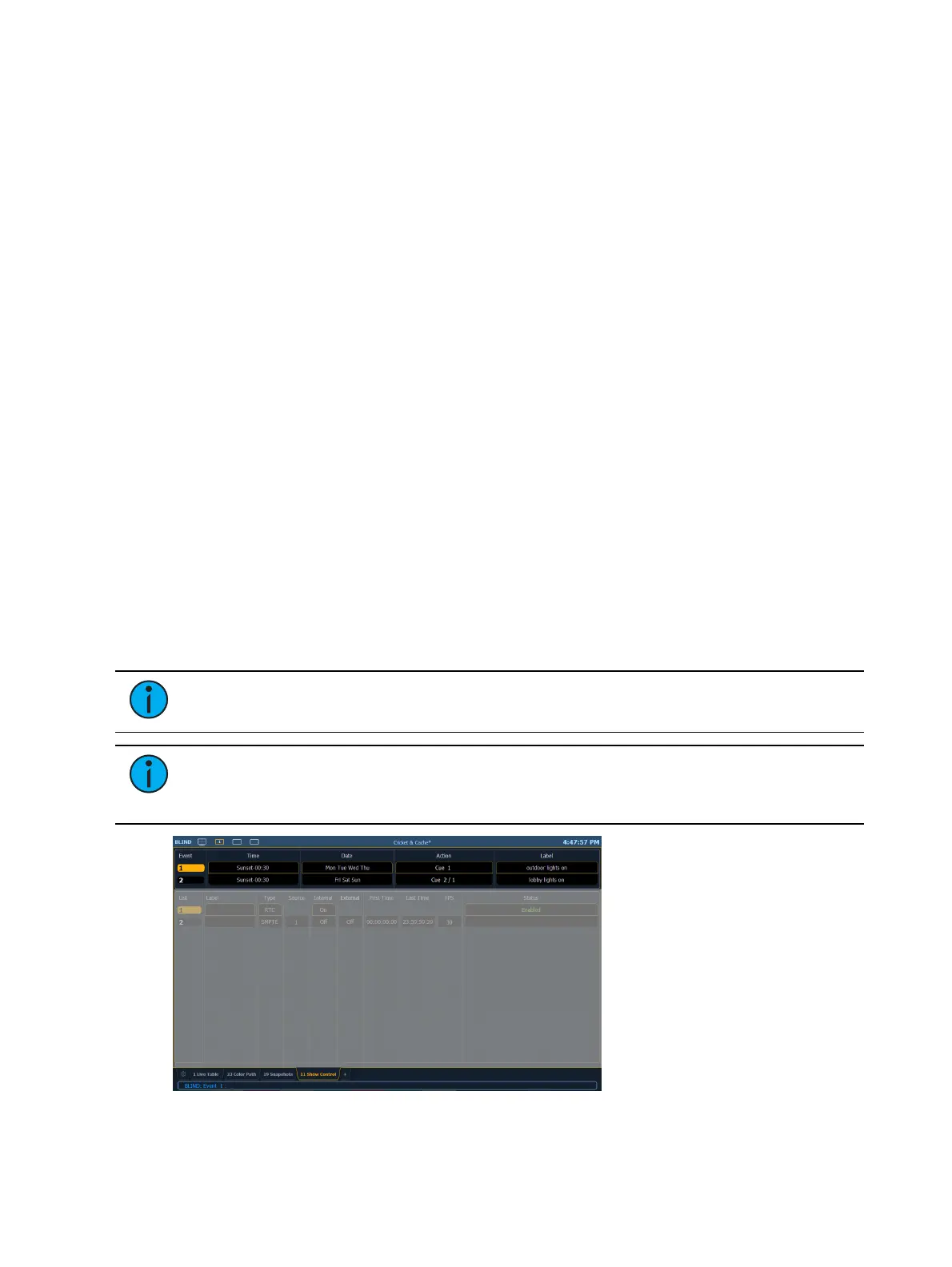
Show Control Display
The Show Control Display allows for the creation of event lists, which are comprised of events.
An Event List defines how incoming show control events are processed by the console – any
protocol that can be received by the console is handled here. Each event list uses a different
type of show control at a time (time code, analog inputs, RTC, or network). Specific information
about setting up events for each show control type can be found later in this guide.
The show control display can be accessed by pressing {Show Control} on the Display
Management Home Screen.
Settings
In addition to the show control display, your console provides additional user-definable settings
for show control which can be accessed by pressing [Displays]>{Setup}>{System}>{Show
Control}. For more information, see the
Show Control Settings
.
Events
The upper portion of the show control display shows the specific events that are contained in
each event list. An event consists of an input condition, such as a timestamp, real time, an
address, or input value, and an action. An event plays back (or “fires”) when the input condition
is met (for example, the timecode passes the given timestamp, or a contact closure at the given
address changes). Multiple events can be fired at the same time; however a single action can
only be placed in each event.
Eos Family consoles support three event actions:
Cues can be run.
Submasters can be bumped, faded (via analog only), and turned on and off.
Macros execute without interaction with the command line, unless the macro is set to
foreground mode.
Note: If another macro is fired before the first macro completes, the first macro will
finish its action before the second is started.
Note: If a macro is selected as the intended action, it will fire using the macro mode
specified. Please see Macro Editor Display (on page343) for information on macro
modes.
Softkeys are available for the various event options:



 To Next Page