20 Eos Family v2.9.0 Operations Manual
About System Basics
This section explains the base level procedures for setting up, navigating, and understanding
how to operate your console.
Power Up the Console
1. Attach the appropriate power cable to the IEC connector on the rear of the console.
2. Press the I/O switch (I is “on”) next to the IEC connector on the rear of the console to turn
power on. This will provide power to all internal electronics.
3. Press the power button, located on the face panel. The button LED will illuminate blue to
indicate the console is running. The console will boot up into the Element environment.
The system is now ready for use.
Note: You can go straight to the welcome screen by adjusting a setting in the ECU.
See Open in Shell E.C.U (on page407) in the ECU appendix.
Power Down the Console
1. After saving your show (see
Saving the Current Show File (on page77)
), in the browser
menu select Power Off Device. A dialogue box opens asking you to confirm.
2. Confirm this command by pressing {OK} in the dialog box. The console will power down.
Note: These are persistent storage systems. Therefore if you shut down your system
without saving the show file, you will return to the same place in your show when you
reboot.
Note: The console will display an improper shutdown message on the next power up
if the console was not powered down from the browser menu or welcome screen.
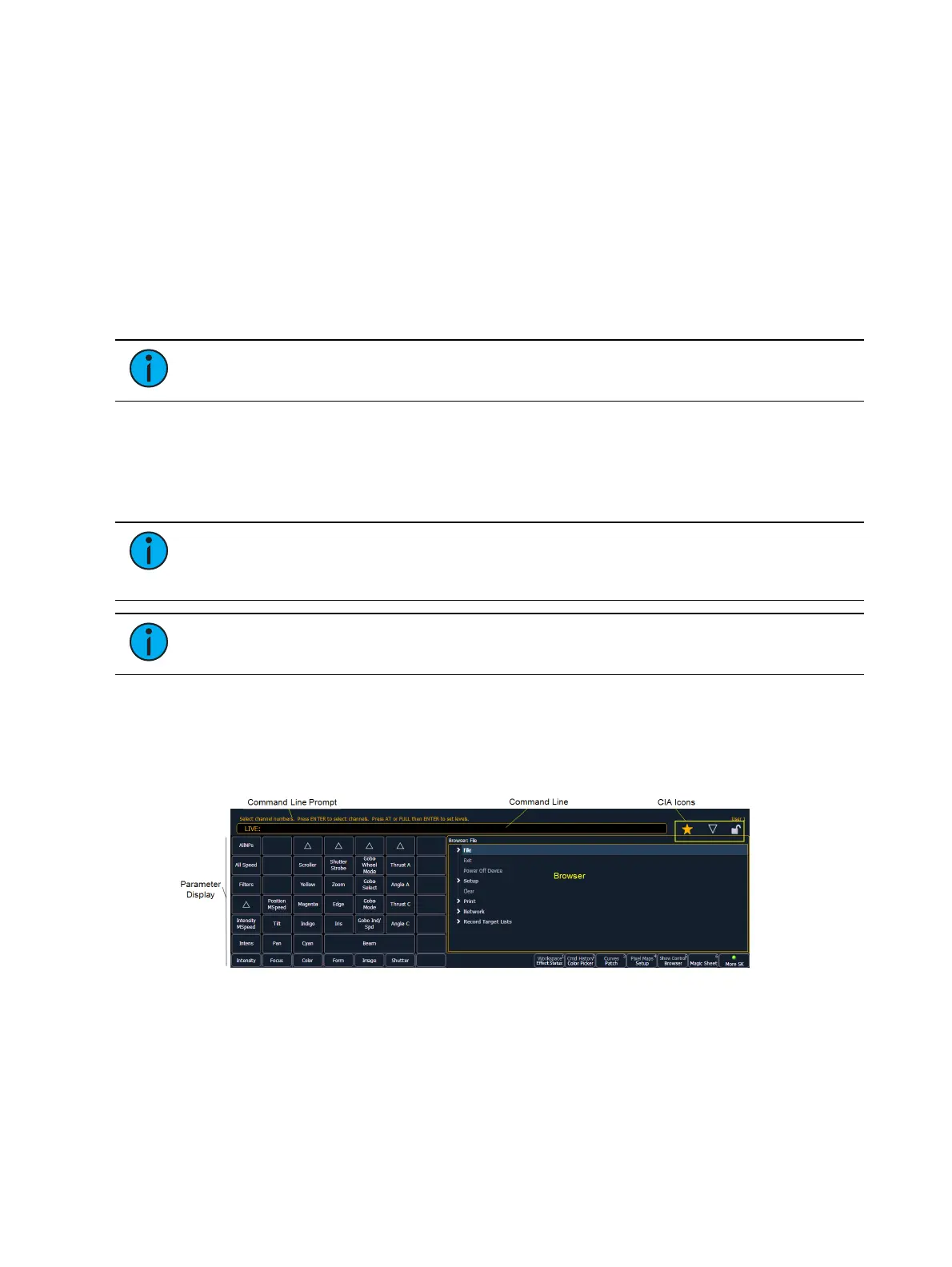
The Central Information Area (CIA)
The Central Information Area (CIA) is the lower portion of the screen. By default, the CIA
consists of three primary areas: the command line, the parameter display, and the browser.
Softkeys are also contained within the CIA.
CIAIcons
There are three icons located above the CIA.



 To Next Page