Managing Show Files 73
Target - The desired location of the components in the new show file (for ranges, this will
be the location in the new show of the first component in the range, the others will follow
in order).
Show File Advisory
If the loaded show file exceeds the console’s output capacity, an advisory will display in the CIA.
You will need to dismiss the advisory by pressing {Ok} before continuing. To see the capacity of
the console, press [About].
Park Buffer
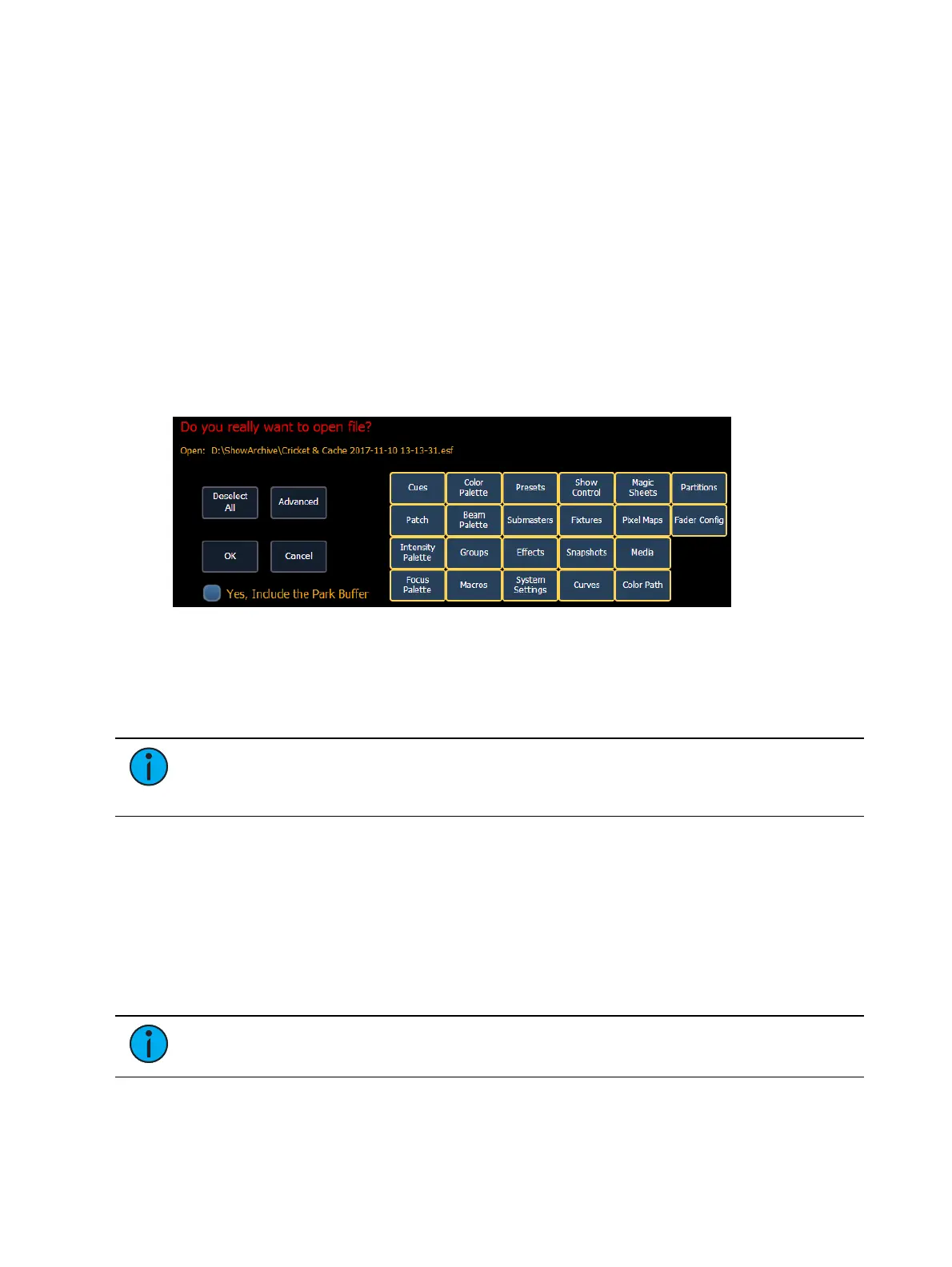
The contents of the Park buffer are saved with show files. By default, the park buffer will not
open with a show file.
You can load the park buffer, but it requires an additional step of confirming that you want to
open the park buffer. You will need to click or press the check box by the text Yes, Include the
Park Buffer.
For more information about park, see
About Park (on page304)
Merging Show Files
Element supports the merging of .esf (Eos Family) show files.
Note: Merging show files is different from opening show files. When you do a partial
open of show components, untouched record targets are cleared. When you do a
merge, those record targets remain.
You have the option of merging .esf show files from the Show File Archive, a File Server (if
connected), or a USB device.
To merge a show file, navigate within the Browser to: File> Merge>. Navigate to the desired
storage location and press [Select]. When using merge, Element displays only the available files.
Navigate to the specific file and press [Select].
This will open the merge screen in the CIA. From this screen you can choose which aspects of
the show file you want to merge. By default all aspects are unselected (black). Selected show
aspects will appear in gray.
Note: Media is imported gobo and magic sheet images, and will be included by
default when you select Patch, Fixtures, or Magic Sheets.



 To Next Page