74 Eos Family v2.9.0 Operations Manual
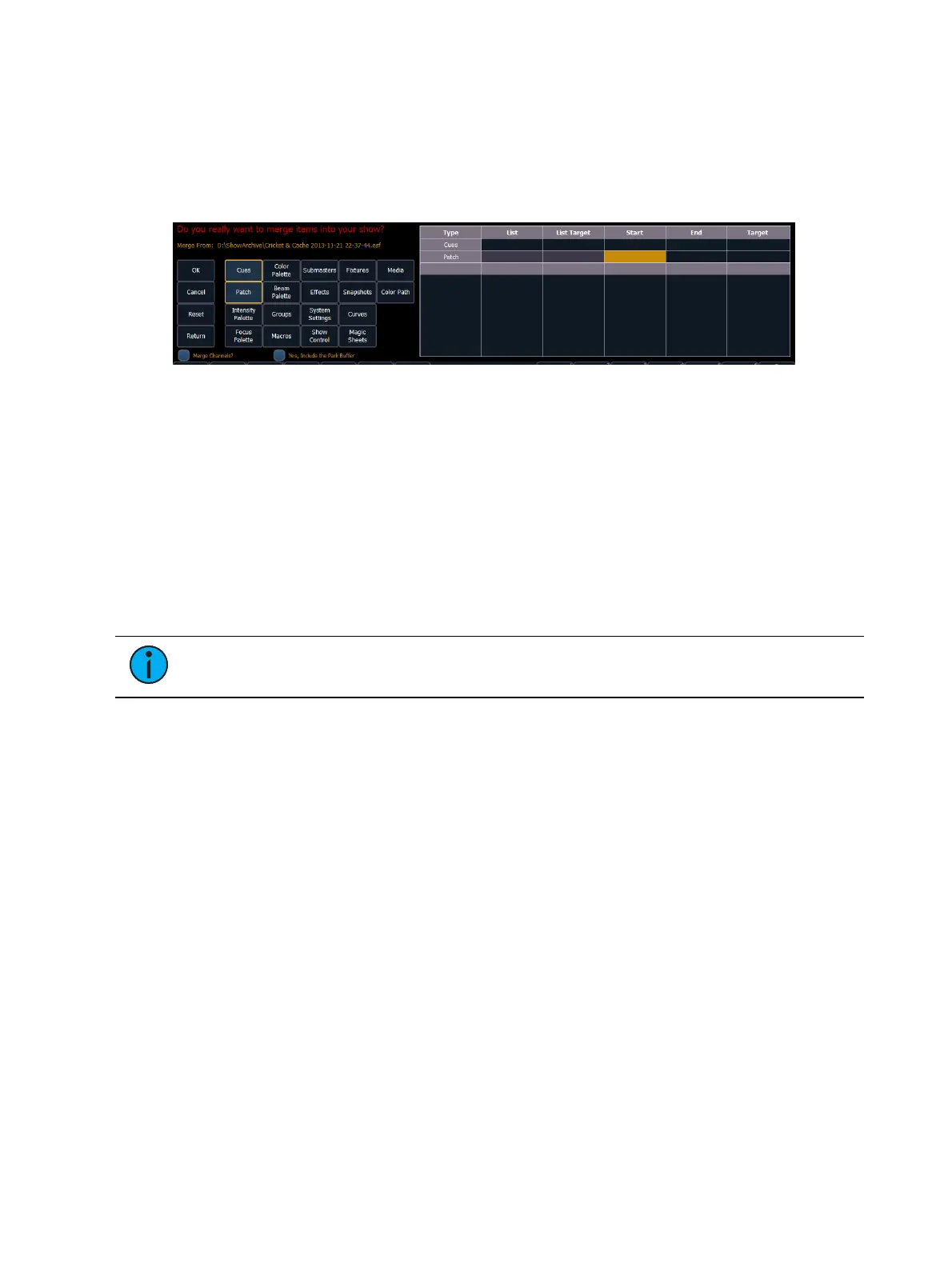
If you select the {Advanced} button in the merge show loading screen, you will have the
opportunity to load partial components from the show file and be able to specify the desired
location of those partial components in the current show file.
For example, you could specify only cues 5-10 and load them as cues 20-25 in the current show.
You could also specify only specific palettes, presets, effects, and so on. To see the complete list
of show components, press the {Advanced} key in the merge show loading screen.
As you specify components, they are added to a table in the CIA. In the table, fields with a dark
background may be edited, fields with a light gray background do not apply to that component.
For each component in the list, you can specify the desired range by pressing the proper area in
the table and entering numbers from the keypad. The columns in the table are:
List - The list you are taking data from (such as a cue list).
List Target - The list you are adding the data to.
Start - The first in a range of components (such as a range of cues).
End - The last in a range of components.
Target - The desired location of the components in the new show file (for ranges, this will
be the location in the new show of the first component in the range, the others will follow
in order).
Note: In the {Advanced} view, you can use the [Thru] key to jump to the End column
and [At] to jump to the Target column.
To merge channels, see
Partial Show File Channel Merge (on the facing page)
To merge only partial components:
1. From the browser, navigate to the desired show file (see
Open an Existing Show File (on
page70)
).
2. When the merge show load screen appears, press the {Advanced} button. The partial
components selection screen will appear in the CIA.
3. Select the show components that you wish to merge by pressing on their respective
buttons on the left side of the CIA. The components will appear in the list to the right as
you select them.
4. Press any fields for which you want to enter specific numbers. The field (if editable) will
highlight in gold.
5. Enter the numbers using the keypad to specify the desired cues/groups/effects and so on.
6. Press {OK} to load the components to the current show
Partial Patch Merging
You have the option to selectively merge partial patch information or fixtures into a show file by
selecting the {Advanced} button in the partial show merge screen. Select {Patch} or {Fixtures}.
You can specify the desired range by selecting the proper area in the table and entering
numbers from the keypad. The columns in the table that relate to patch are:



 To Next Page