264 Eos Family v2.9.0 Operations Manual
About Cue Playback
Cues are played back using the master playback fader pair.
The master playback fader pair is located to the left of the control keypad. The master is a split
fader pair. The left fader controls the intensity upfade, while the right fader controls all intensity
downfade actions. The two buttons beneath the master fader pair are [Go] and [Stop/ Back].
The [Load] button is located directly above the fader pair.
Playback Controls
It is important to familiarize yourself with the playback controls and their locations on your
console.
Please see the
Element Geography (on page12)
for more information.
Selected Cue
When in Live or Blind, if you press [Live] or [Blind] respectively, the selected cue will be the last
executed cue. This cue will appear on the command line.
When working in Live, the selected cue is always the last cue you recorded, edited, updated or
played back. When entering Blind for cues, the selected cue will be selected and displayed.
Changing the selected cue in Blind will cause the playback status display to change as well,
unless preserve blind cue has been enabled in Setup, which will not synchronize the Blind
display to the currently selected cue but rather shows the last cue selected in Blind. When you
return to Live, the selected cue is synchronized to the currently active cue.
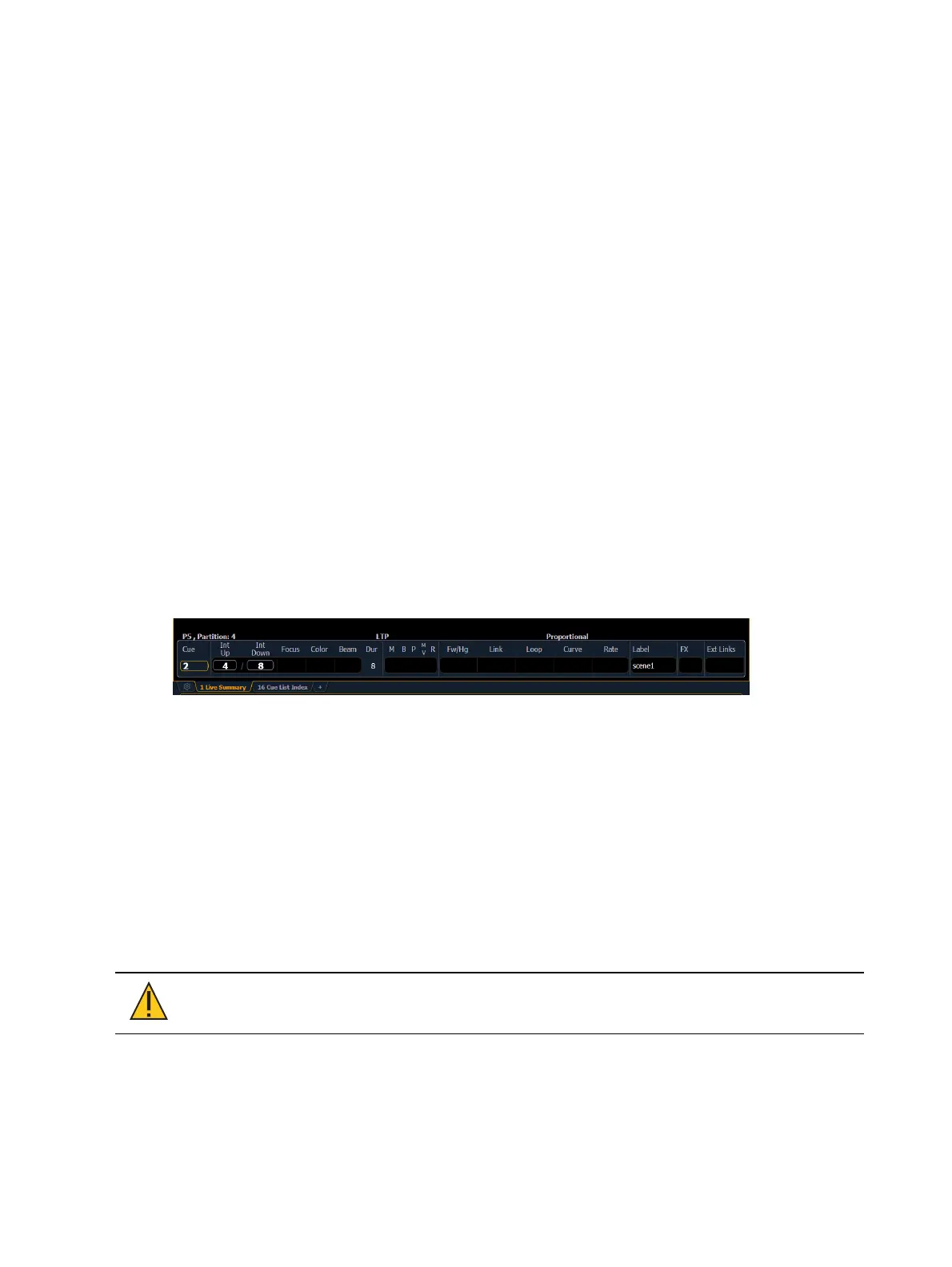
The attributes of the selected cue (such as timing, attributes, label and external links) are shown
at the bottom of the Live / Blind display.
In Live
To load a new cue to the pending file of the playback fader, press [Cue] [#] [Load]. When the
[Go] button is pressed, the activated cue will be the selected cue.
The selected cue is changed by go, record, or update instructions as well as cue modification
and selecting a cue on the command line. When you execute a cue that has a follow or hang
time, the next cue will become the selected cue when activated.
In Blind
While in Blind, changing the selected cue will change the playback status display to show
information surrounding that cue.
CAUTION: When editing in blind, changes to cues are automatically stored,
therefore no update or record command is required.
While working in blind mode, cues can be executed in live using [Go], [Stop/Back], and [Go to
Cue], but this does not change the cue you are working with in blind.
Loading a Cue With Temporary Time
A cue can be loaded with a temporary time.



 To Next Page