Using Magic Sheets 353
Limited Expand Mode - allows a magic sheet to be displayed at fullscreen. See
Limited
Expand Mode (on page369)
for more information.
The following options are only available while in Limited Expand Mode:
Disable Keyboard Input - disables input from the facepanel and an external keyboard.
Fader and macro buttons will still work.
Lock Fader Page - locks the fader page to the currently displayed one.
Navigating a Magic Sheet
Magic sheets can be navigated using a mouse, a keyboard, a touchscreen, or a multi-touch
touchscreen. The drag and drop function for placing objects is a single touch action or done
using a mouse.
Additional mouse commands include:
Left Click - selects an object.
Right Click - pans the display.
Wheel - zooms the magic sheet.
[Shift] & Wheel - provides a fine zoom of the magic sheet.
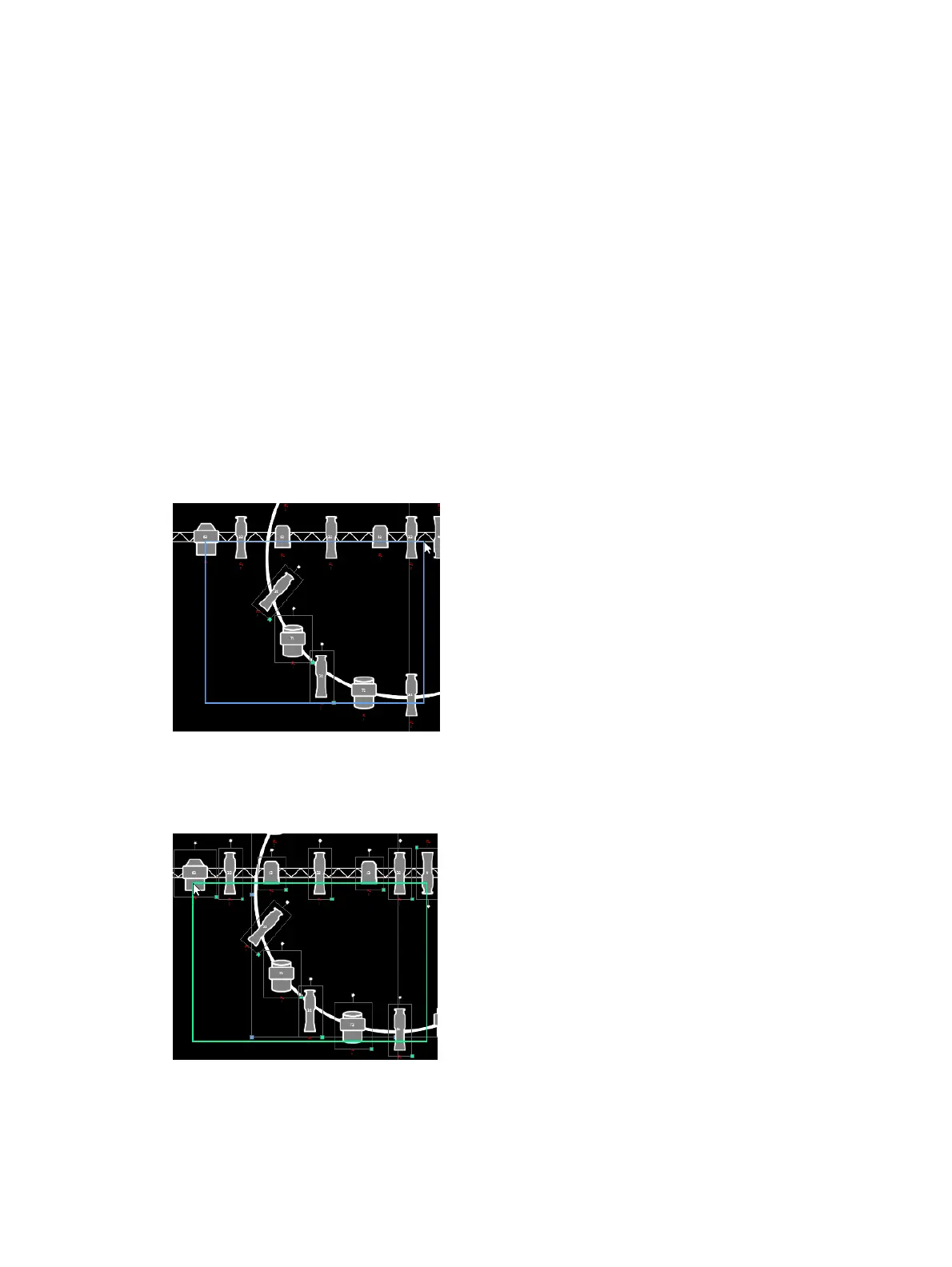
Selecting from left to right will open the blue window selection box. This selects any object that
is completely inside the box. This can be done with a single touch or using a mouse.
Selecting from right to left will open the green crossing selection box. This selects any object
that either crosses the boundary line of the box or is completely inside of it. This can be done
with a single touch or using a mouse.



 To Next Page