Creating and Using Effects 295
Multiple Intensity HTP Effects
Multiple intensity HTP effects are either step or absolute effects running on HTP submasters. For
multiple intensity HTP effects to run correctly, they must be recorded and played back from
different sources.
For example, you create three separate step effects. Each effect impacts the same channels. For
the three separate effects to run correctly you need to record them to three separate effect
submasters. Either method will allow for each effect to run together according to the rules of
HTP. But, for example, if you were to have three separate effects running on three separate
effects submasters and you try to record that into one cue, the cue will only run the effects that
were currently at the highest level at the moment of the record.
Relative Effects
A relative effect is an offset from the current state of a channel parameter. There are three
different types of relative effects:
Focus Effects (below)
,
Color Effects (below)
, and
Linear
Effects (on the next page)
. Each of the these effect types have a graphic editor designed
specifically for the parameters involved.
Relative effects have many of the same properties and attributes as step-based and absolute
effects.
Element is preprogrammed with 16 relative effects which represent some of the most commonly
used patterns and parameters. You may also custom build relative effects.
Note: As you learn to use the effects editor with relative effects, it is recommended
that you experiment with the preprogrammed effects until you understand the
fundamentals and how effects can be altered.
Focus Effects
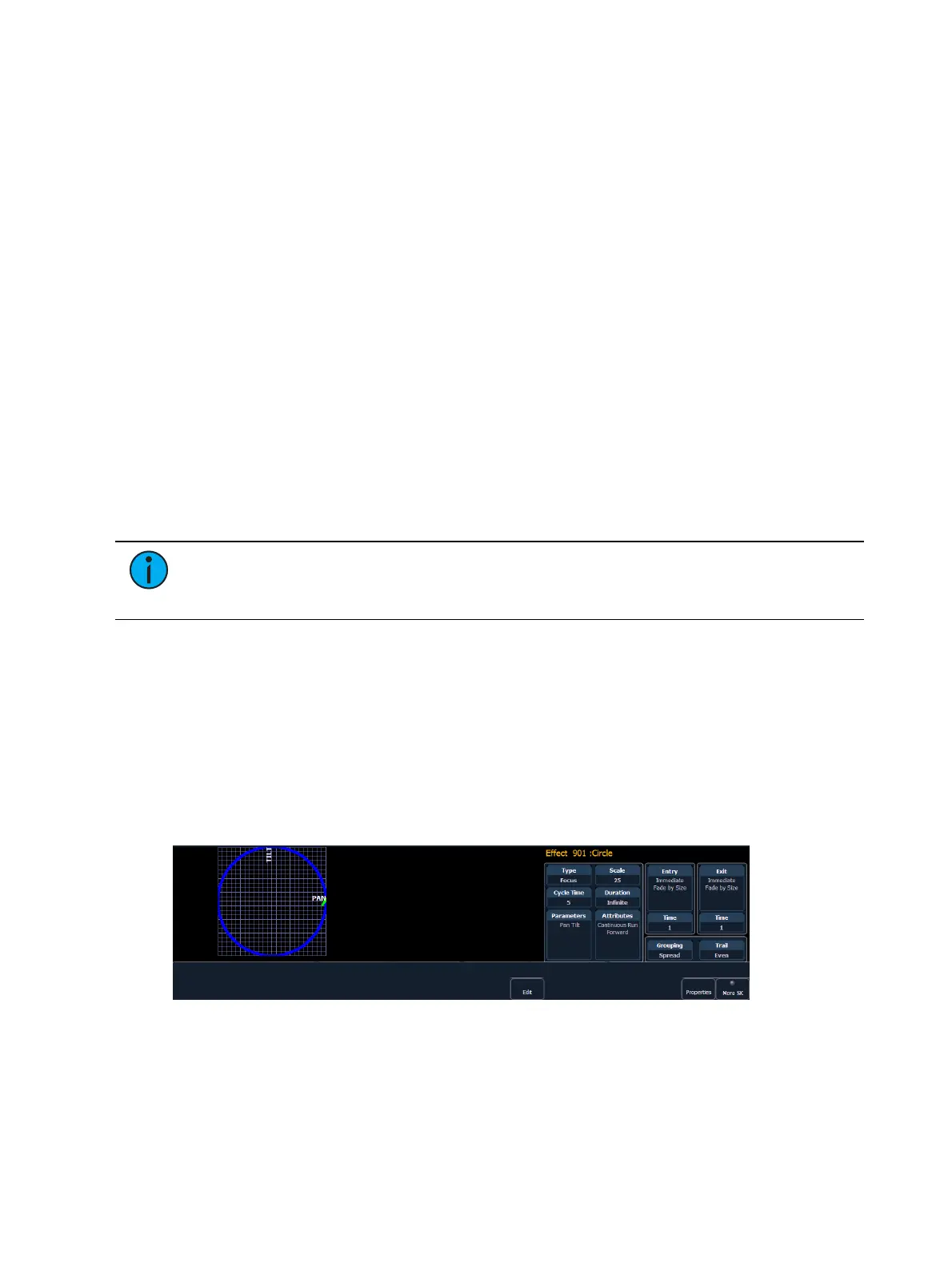
Focus effects are designed to impact a channel’s pan and tilt parameters. These are represented
in the horizontal and vertical axes of the graph in the effects editor. They can be created from
live or blind and the properties can be set in the effects editor as any other effect (see
Effects
Editor (on page281)
).
New focus effects default to a circle. You can clear this and draw your own shape by pressing
{Edit}>{Clear} and drawing on the graph with your finger or the mouse. Press {Apply} when you
are done. Other pre-made focus effects can be modified in the same manner. The green arrow
indicates default direction of motion, which can be modified in attributes.
Color Effects
Color effects impact only color parameters. Hue and saturation offsets can be used which are
represented in the horizontal and vertical axes of the graph in the effects editor. The
{Parameters} key within a color effect displays the various color mechanisms used in any



 To Next Page