Creating and Using Effects 287
Note: {Repeat on Go} is similar to {Restart Effect} but it is applied to the effect. For
more information on {Repeat on Go}, see Effects Editor (on page281).
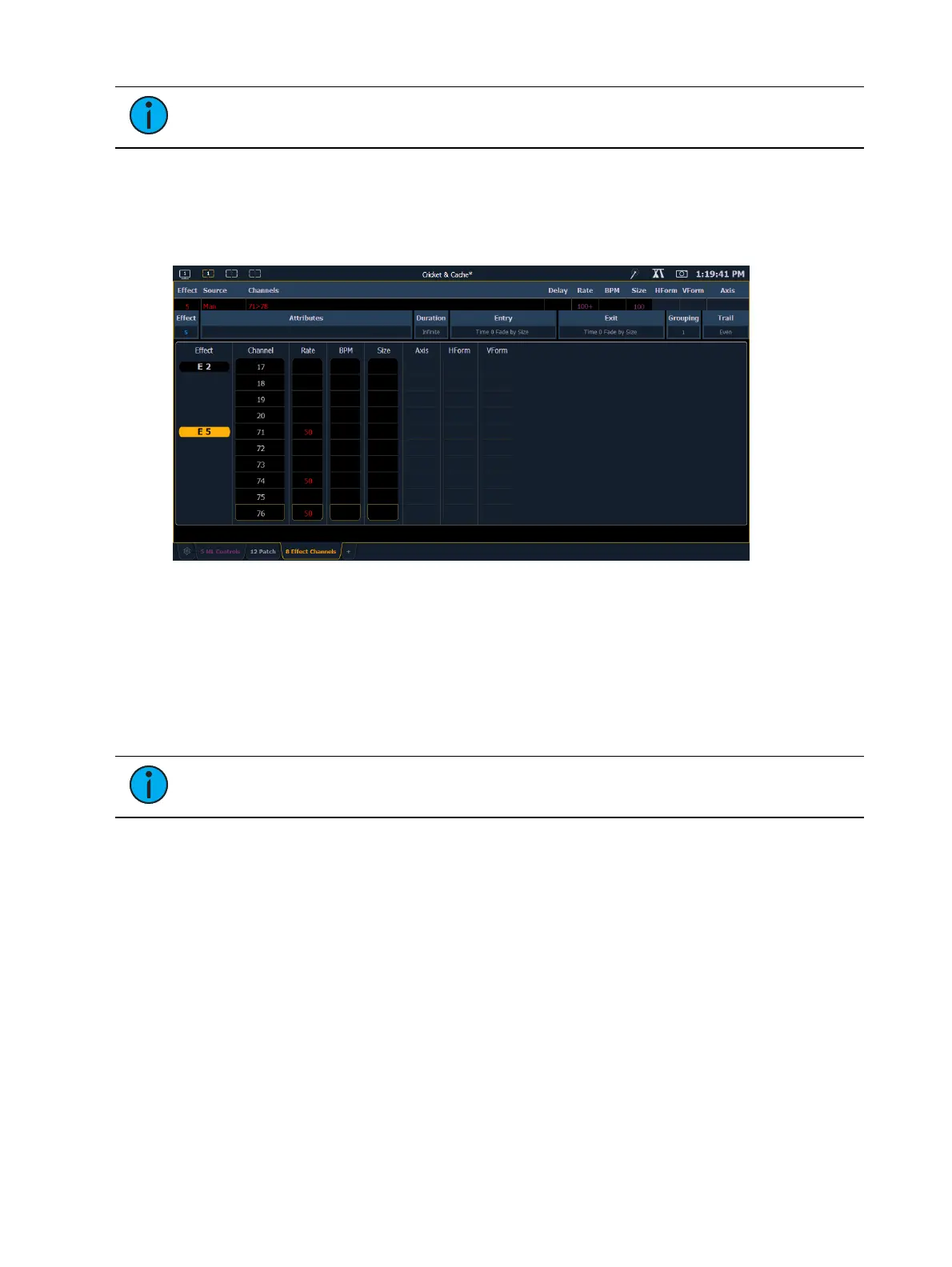
Effect Channel Display
In the Effect Channels Display, you can override certain effect properties per channel at the cue
level. To open this display, press [Shift] + [Effect], [Tab] [8], or select the effect channel icon
from the display management home screen.
The following properties can be overridden:
Rate
BPM
Size
Axis (Focus Effects Only)
H Form (Focus Effects Only)
V Form (Focus Effects Only)
Note: To add a channel level override, first you will need to be in the Effect Channel
display with the effect running.
[2][6]<Effect><1>{Rate}[6][Enter] - to change the rate for just channel 26. With the effect
running, the console will default to the running effect number. You may need to select the
effect first ([Effect] [n] [Enter]). This will open the effect status display, and you will have access
to the effect softkeys.
In the effect status display, an “+” will display by any effect property that has a channel level
override.
You can then store these channel overrides in a cue by using [Record] or [Update].
Step Effects
In step effects, each step contains an on-state and an off-state. The on-state is the action the
channels in the step should take when the step is active. The off -state is the action the channels
in the step should take when the step is not active. Step effects are a quick and easy way to
build simple chases.



 To Next Page