Patch 95
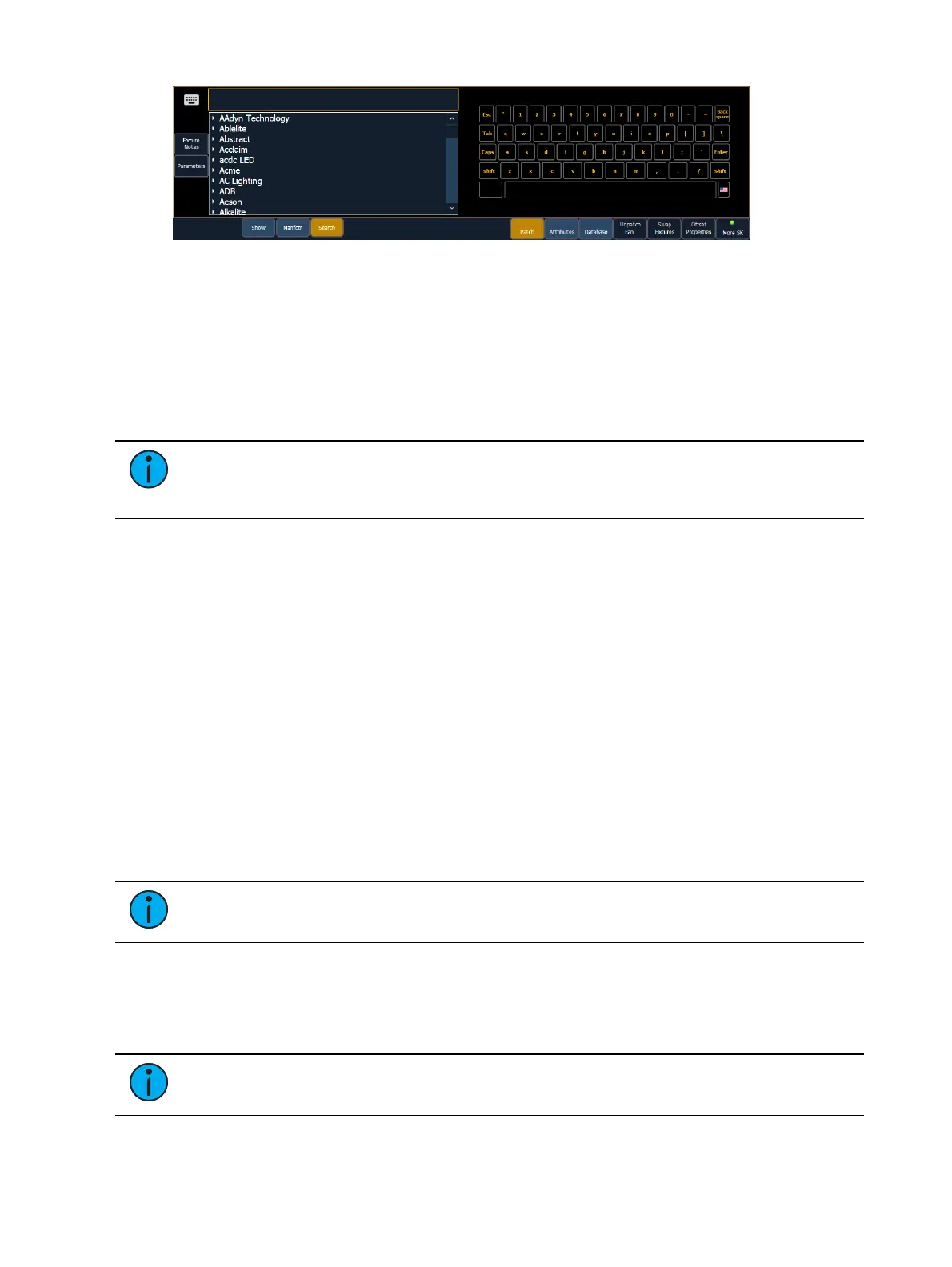
In the search window, press {Parameters} to view a parameter list for a fixture, or press {Fixture
Notes} to see any notes that exist for it. You can also view this information in the Fixture Editor.
Press [At] and then enter a starting address for the selected channel or group of channels. The
desk will automatically offset addresses based on the fixture type selected.
{Add Show} will add a fixture or device to your show list. If you want to delete a fixture or device
from the show list, click {Edit} while in the show display. Select the device you wish to remove
and click {Delete}.
Note: Fixtures can be added to your show list without first patching them. With
nothing on the command line, click {Type}. You can then select a device type from the
fixture library, and click {Add Show} to add to your show list.
To select a device interface (optional), click {Interface}. See
Output Protocols (on page414)
.
Click the {Attributes} softkey to set detailed moving light attributes. The following buttons may
be available on this page depending on the device selected: {Preheat}, {Proportion}, {Curve},
{Fan Curve}, {LD Flags}, {GM Exempt}, {Invert Pan}, {Invert Tilt}, {Swap P/T}, {ColorPath},
{Scrollers}, {Gobo Wheels}, {Color Wheels}, and {Effect Wheels}. Additional buttons maybe
available based off of your fixture type. See
{Attribute} Display and Settings (on page105)
.
If your moving light includes parameters such as a color scroller or gobo wheel and you have
custom gels or non-standard patterns installed, use the Scroller/ Wheel Picker and Editor to
modify the device patched. The more specific your patch data (including accurate colors and
patterns), the more detailed programming and operating will be. See
Using the Scroller/Wheel
Picker and Editor (on page98)
.
Patching Multicell Fixtures
Fixtures that have multiple same-type parameters can have a multicell profile assigned to them.
The process for patching multicell fixtures is similar to patching moving lights. There are a few
differences that are important to understand though.
Note: It is recommended that when patching multicell fixtures that you work in patch
by channel mode. See Patching By Channel (on page88).
After you have entered the channel number, click {Type}. You will then select a device type
from the fixture library.
Fixtures that have multicell functionality will be listed with a MC in their mode description in the
device list, and in the {Show} list.
Note: When using {Search}, the number of cells for a multicell fixture will also be
displayed.



 To Next Page