Storing and Using Snapshots 339
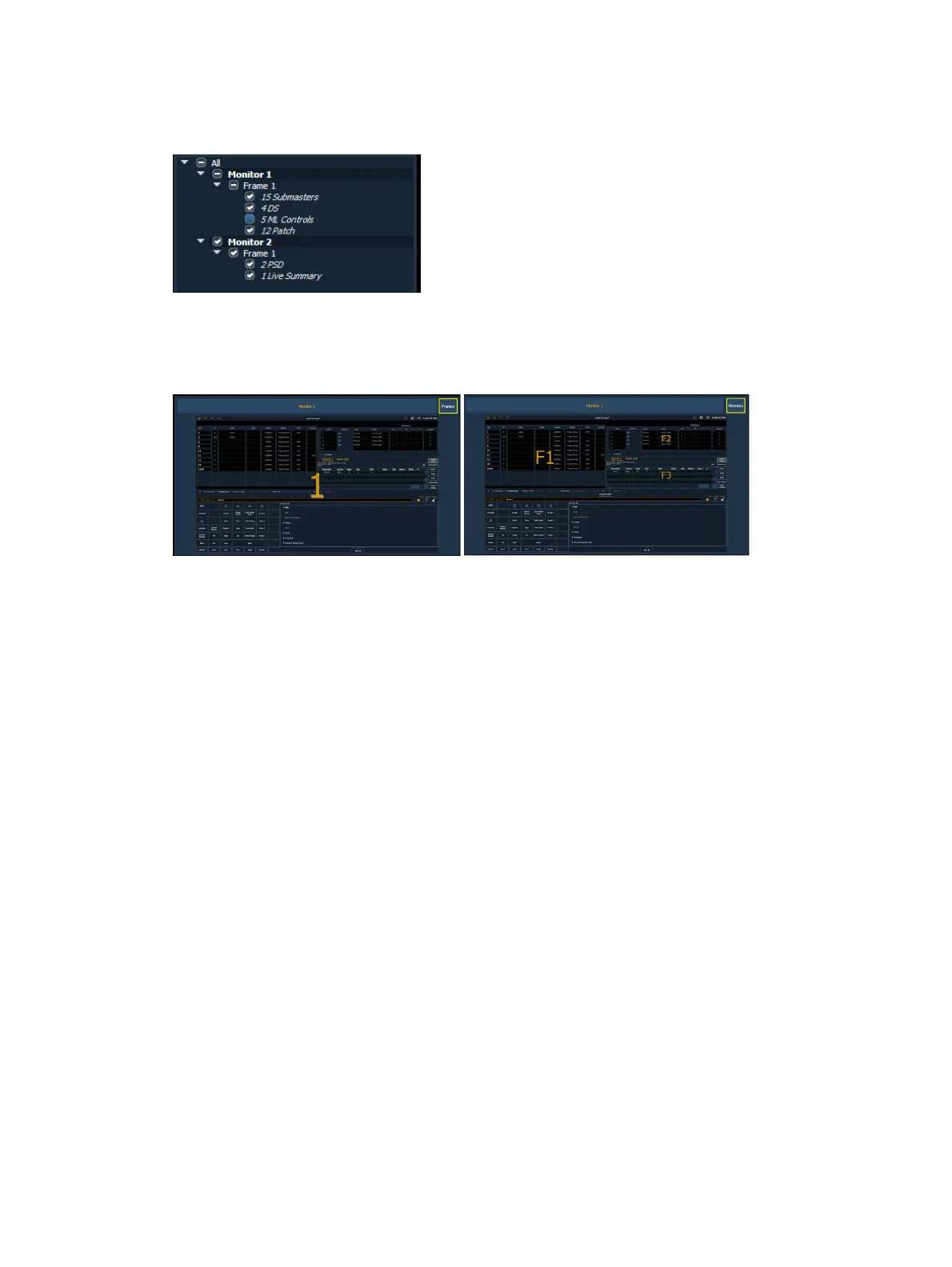
When a frame or tab has been excluded, an - icon will display to indicate that not everything on
that monitor will be saved. A checkmark icon will display when everything on the monitor will
be saved.
Monitors and frames can also be selected or deselected in the preview area. Use the
{Frames/Monitors} button to select whether you will see monitor or frame numbers in the
preview area.
When a monitor or frame has been deselected, it will be greyed out. Deselected frames will also
have a small red circle with a slash on them.
See
Workspace Layout Menu (on page31)
for information about arranging your monitors for
better control when creating snapshots.
Recalling Snapshots
When snapshots are recorded, you can view them in the snapshot list. To view the list:
press {Snapshots} {Snapshots}
-or-
press [Tab] [1] [9]
-or-
navigate to Browser>Record Target Lists>Snapshots.
Snapshots can be recalled in the following ways:
from the keypad /command line - {Snapshots} [5] [Enter]
from cues using the execute list
from a recorded macro instruction
from the direct selects - {Snapshot 4}
Since snapshots can be recalled from any device (except RFRs) on the Eos Family network,
snapshots may be affected by the type of device they are recalled on. If the recalling device
does not have the same physical layout or has other limitations that differ from the recording
device, Element will map the snapshot to the best of its ability.



 To Next Page