386 Eos Family v2.9.0 Operations Manual
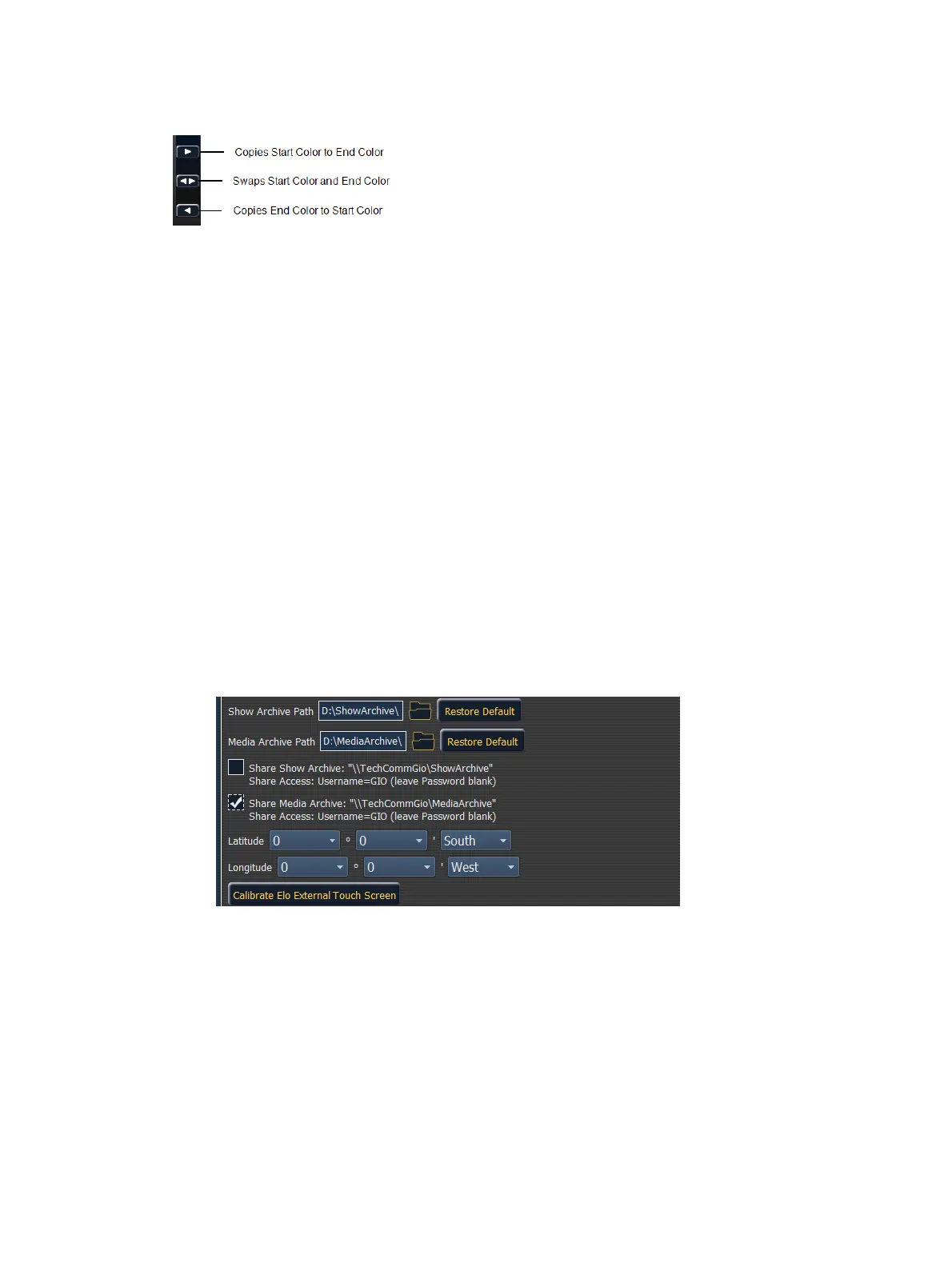
You can copy or swap a color between the two color pickers using the buttons located between
them.
Pixel Mapping in a Multi-Console System
When using file based media in a multi-console environment, the primary console should be
used as the ‘base’ media archive.
Media can be imported to the primary, and the backup console and/or any other clients can
then synchronize their own, local media archives with the primary. The backup must
synchronize media with the primary in the event that the backup must take control as the
master. For clients, synchronizing the media is optional but useful if you wish to see the media
playing back in the Pixel Map Preview display.
Steps for Configuring a Multi-Console System
Once the Eos Family Pixel Mapping Installer has been installed on all consoles, follow these
steps to configure your multi-console system:
Setting up the Primary
1. On the primary console, exit to the Eos Configuration Utility (ECU).
2. Press the {Settings} button.
3. Press {General} if needed.
4. Make sure that the {Share Media Archive} box is checked. This will allow for sharing of
the primary’s media archive. Copy the path name, you will need it to setup the backup
and/or client.
5. Setting up the Backup and Clients
6. On the backup or client, exit to the Eos Configuration Utility (ECU).
7. Press the {Settings} button.
8. Press {Maintenance}.



 To Next Page