Storing and Using Macros 343
You can also create a macro in live that bumps submasters across fader pages but first you must
have content assigned to the submasters.
Example:
Write submasters 1 through 5 and 15 through 17, each with its own channel selections
at 100%. Then press:
[Learn] [1] [Enter] [Bump1] [Bump2] [Bump3] [Bump4] [Bump5]
[Fader Page]
[Bump15] [Bump16] [Bump17] [Learn]
Once you have created the macro from Live in [Learn] mode, you can easily edit the sequence
from the macro editor display. See
Macro Editor Display (below)
.
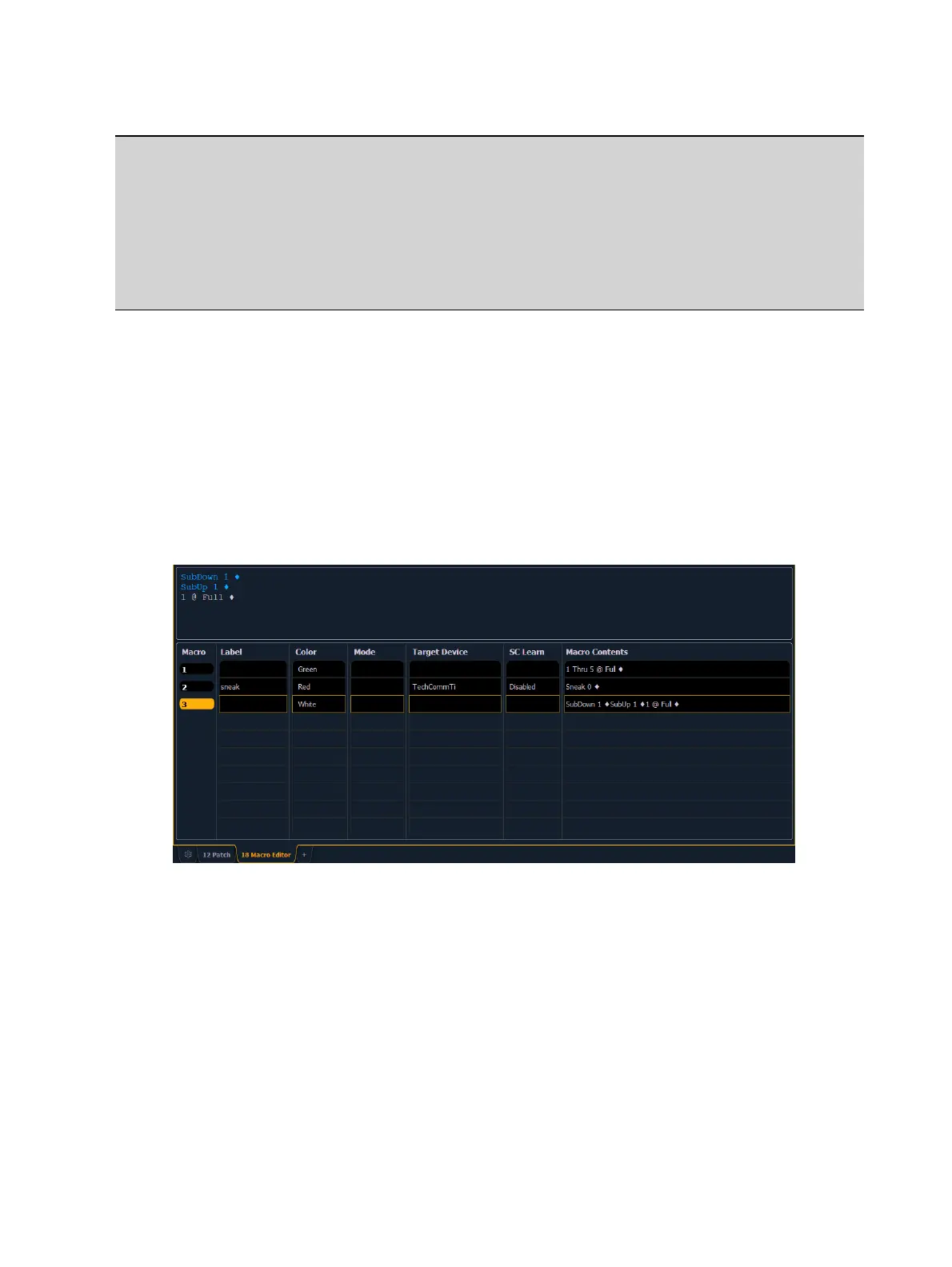
Macro Editor Display
Macro editing is accomplished from the macro editor display. As an alternative to recording your
macro in live, you may create it from this display instead. Open the macro editor display by
pressing [Macro] [Marco], from the browser by navigating to Record Target Lists > Macro Editor,
or press [Tab] [1] [8].
The display is divided horizontally, the top portion displays the macro contents in detail while
the bottom portion lists all macros, including the label and contents. Text that displays in blue
indicates a console event, and commands will display in gray text.
While in the macro editor display, any numeric entry on the command line is assumed to be a
macro number. If the macro number entered already exists and [Enter] is pressed, the macro list
will page to the selected macro and the macro content detail section will display all of the
contents of the selected macro. If the macro number entered does not exist in the list and
[Enter] is pressed, an empty macro will be created with the specified macro number.
While in the macro editor display, the following functions may be performed using the control
keypad and softkeys:
[Label] - when a macro is selected and [Label] is pressed, the alphanumeric keypad will
display on the CIA. Label the macro and press [Enter].
[1] [Label] <name> [Enter] - labels macro 1



 To Next Page