Using Partitioned Control 391
You can also use [+], [-], and [Group] to further modify the channels in the partition. When
adding/ subtracting channels to a partition, if you do not use [+] or [-] before channel numbers,
the numbers will replace the channels in the partition, rather than adding to or subtracting from
them. This overwriting does require a confirmation (if enabled in setup).
Deleting Partitions
To delete any partition, simply type the syntax in the command line:
[Delete] {Partition} [5] [Enter] [Enter] - deletes partition 5 from the list.
Preprogrammed partitions cannot be deleted.
Using Partitions
Partitions are set on a user level. See
Assigning User ID (on page397)
for more information.
When partitions are enabled and a partition is selected, you may only control and record data
for the channels included in the partition, with the exception of parking and unparking channel
parameters or playing back cues. If you try to control a channel that is not in your partition,
Element will post an advisory that this channel is outside of the partition, and you must confirm
that you want to control that channel. You will not, however, be able to store information for
that channel.
When you record a target (cue, preset, palette), only those channels that are partitioned to you
are recorded. Other programmers’ record actions to the same target can add to it (they do not
replace it) unless channels are shared. When shared, the last value provided at the point of the
record action will be stored.
Partitions in Playback
In Element, how faders are configured and what is loaded to those faders is shared across all
control devices, with the exception of the master playback. As such, if the leftmost fader on
page 1 is configured as submaster 1, all devices will display and control submaster 1 on that
fader.
When content is played back from any device, it will be recalled in its entirety. If you wish to
limit playback on cues, partitions can be assigned to cue lists. See
Partitions on Cue Lists
(below)
for more information. Additionally, filters can be placed directly on the playbacks to
restrict what is recalled on that fader. Filters are system wide.
Partitions on Cue Lists
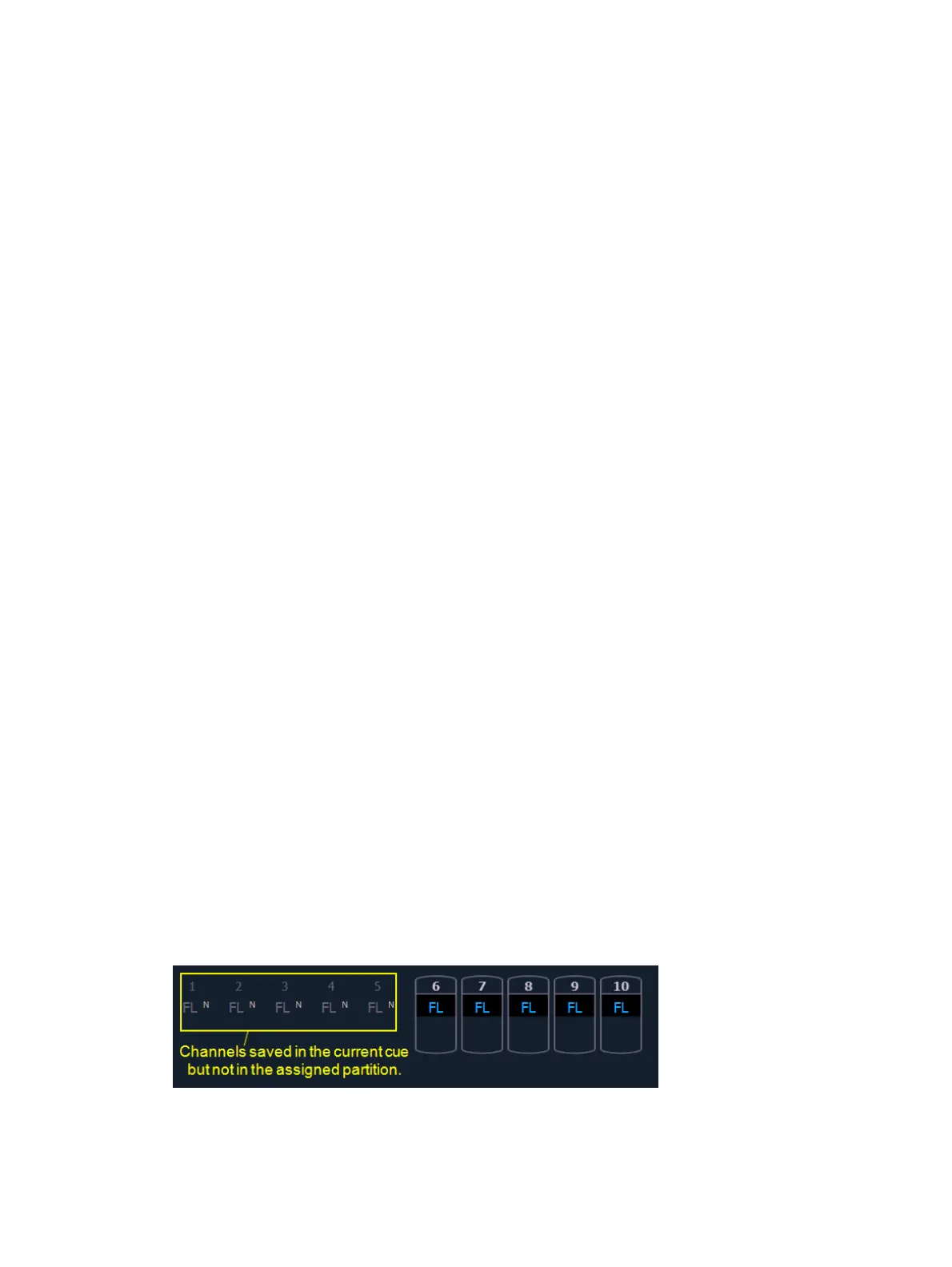
A partition may be assigned to a cue list. If a partition has already been applied to a cue list, any
channels not in the cue list's partition will not be included in cues when they stored or replayed.
Any data for a cue list that already existed before a partition is applied, will be maintained,
including data for channels not included in the partition. If data existed before the partition was
assigned, in blind, channels that are not in the partition will display without a channel graphic,
any levels will be in gray, and a small superscript N will display with it.
Assigned partitions will display at the top of the cue list index and in the PSD.



 To Next Page