230 Eos Family v2.9.0 Operations Manual
You can create a scene and a scene end at the same time by using [Thru]. For example, [Cue]
[1] [Thru] [5] {Scene} will add a scene to cue 1 and a scene end to cue 5.
Update Using Scene End
The {Scene End} softkey can also be used when updating the cues in a scene. For example,
[Update] <Cue> [1] [Thru] {Scene End} will put the last cue of that scene on the command line.
Note: Tracking / cue only rules still apply. If your console is in tracking mode, and you
want the update to stop at the scene end, you will need to use the [Q Only] command.
Using a Scene Break
You can recall a scene to quickly jump to a cue without needing to remember its number. To
recall a scene, use the [Go to Cue] button and select the {Scenes} softkey.
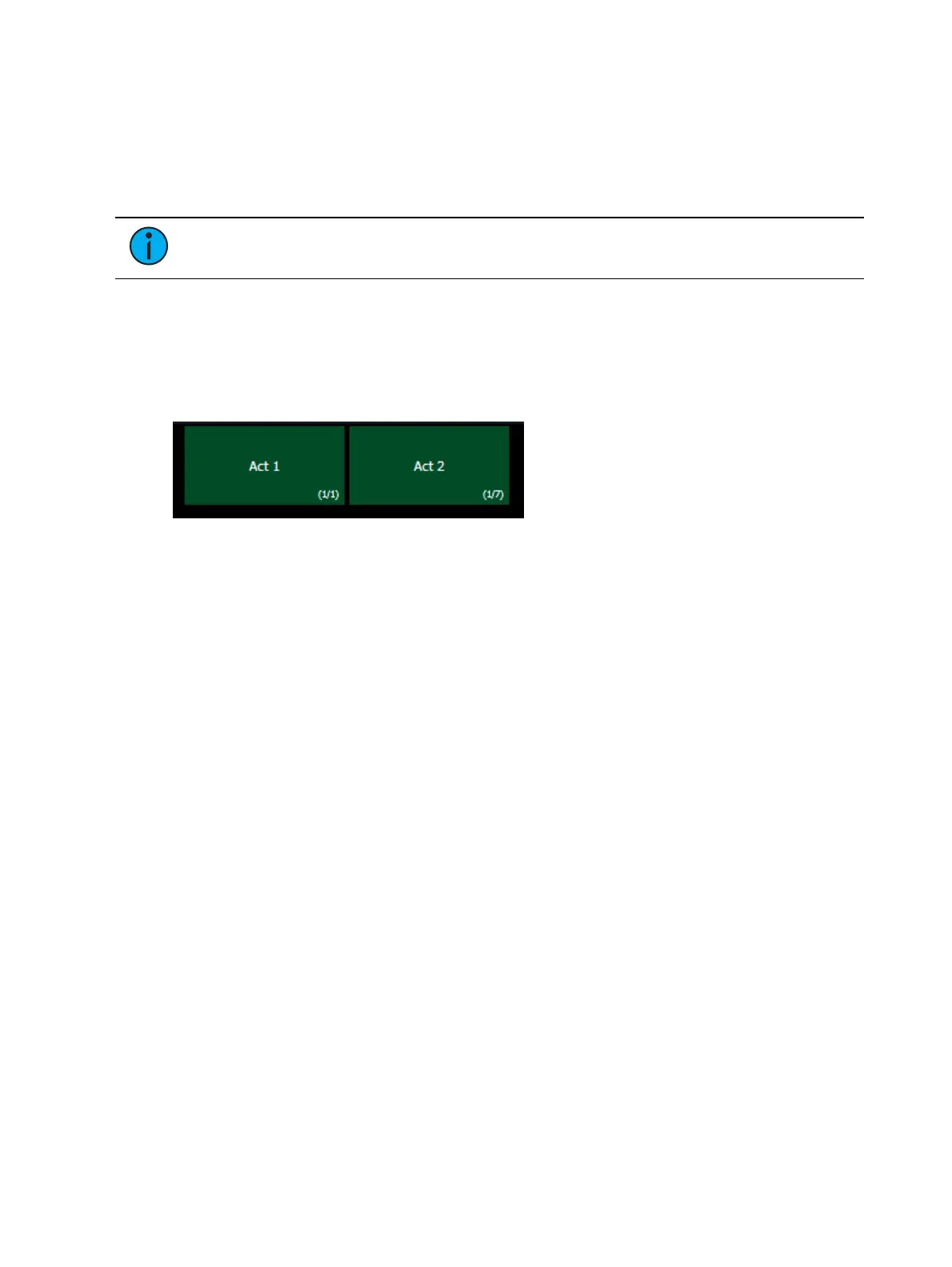
This will open up the scene selection display in the CIA. The scene's label and cue will display.
Press or click on the scene to select it.
Scenes can also be recalled by using the direct selects. See
Scenes on Direct Selects (on
page57)
for more information.
Deleting a Scene Break
To delete a scene or scene end, you will need to use the following syntax:
[Cue] [n] {Attributes} {Scene} [Label] [Enter] - deletes the scene.
[Cue] [n] {Attributes} {Scene End} [Enter] - deletes the scene end.
Clearing Cue Attributes
To clear attributes from a cue:
[Cue] [n] [Shift] & [Delay] [Enter] - removes the follow or hang time from the specified cue
“n”.
[Cue] [n] [Label] [Label] [Enter] - removes the label from the specified cue “n”.
[Cue] [n] {Link/Loop} [Enter] - removes the link instruction from the specified cue “n”.
[Cue] [n] [Thru] [y] {Attributes} {Rate} [Enter] - removes the rate instruction in cues “n”
through “y”.
You may combine these to remove multiple attributes at once:
[Cue] [n] [Shift] & [Delay] {Link/Loop} [Enter] - removes the follow time and link
instruction.
Flags
Flags can be applied to cues to change specific behaviors. Flags can be set for Block, Preheat,
and Moves.



 To Next Page