System Basics 57
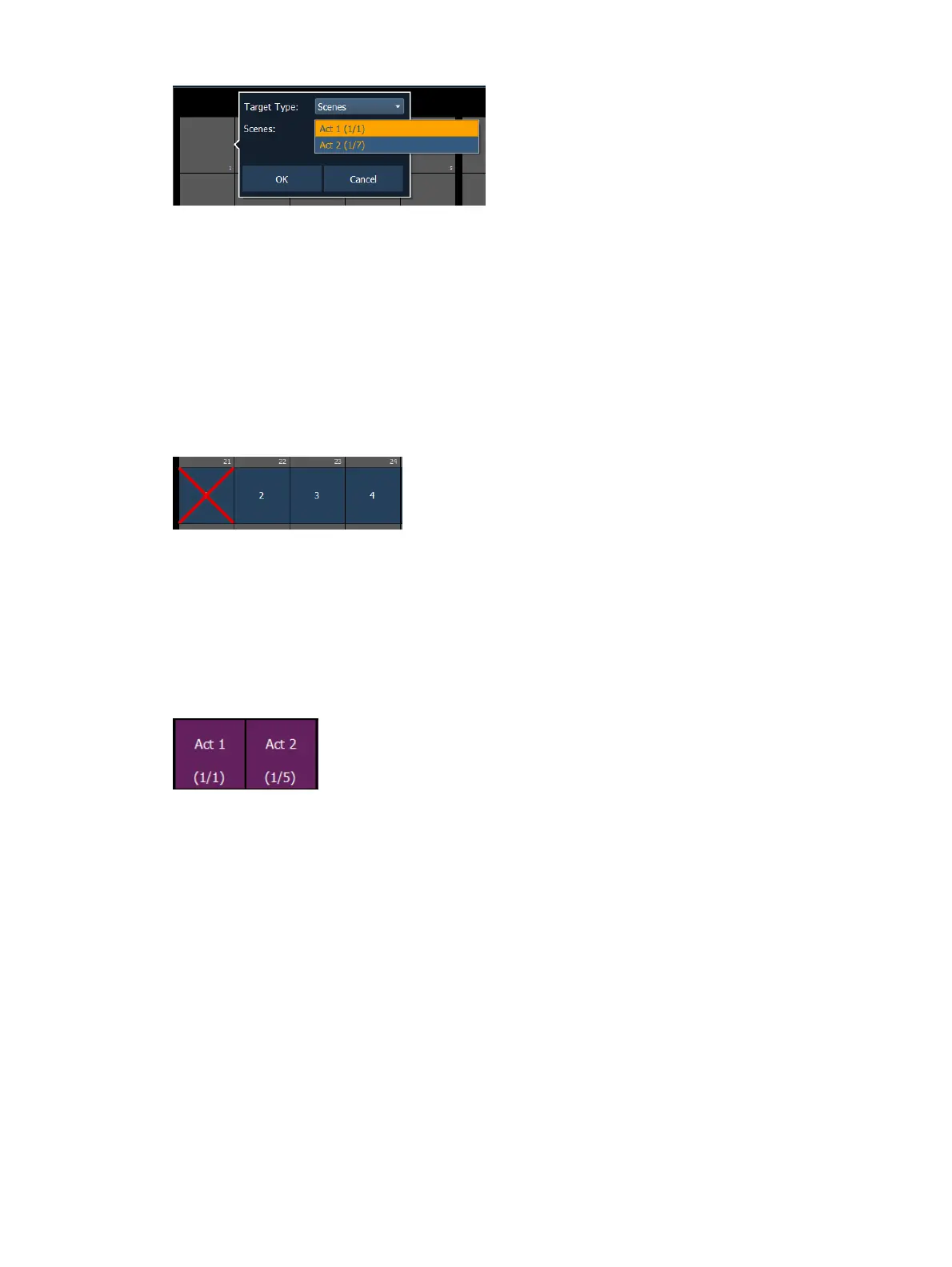
From the configuration window, you can select the target type of scene, and the scene number.
Only one scene can be assigned at a time.
From the command line, you can select a scene, such as [Cue] [1] {Attributes} {Scene} [1]
[Enter]. Then double click on a direct select to assign the selection.
Clearing Custom Direct Selects
You can clear a custom direct select by using the [Escape] key. Hold down the [Escape] key and
then press the direct select that you want to clear. To clear a range of direct selects, hold down
the [Escape] key and press the first direct select in the range until a red X appears on it. With
[Escape] still held down, press the last direct select of the range.
Using [Reset ALL Monitors and Workspaces] on the
Workspace Layout Menu (on page31)
will
also clear all custom direct selects.
Scenes on Direct Selects
Scenes
can be selected from the direct selects. From the direct selects display, press {Select}
and then {Scenes} to view your scenes on the direct selects. The direct select will show the
scene's label and cue.
Pressing a scene direct select will post the cue number associated with that scene as a
terminated command onto the command line.
Double pressing a scene direct select will fire the cue, if {DirSelDbl Clk} has been enabled in
Setup>Device>Displays.
To post as an unterminated command, hold down [Shift] as you press the direct select.
Scenes on Custom Direct Selects
Scenes can be assigned to custom direct selects. To assign a scene to a direct select, you can
either tap on a direct select to open the configuration window, or you can use the command
line.



 To Next Page