Managing Show Files 81
Note: Element does not currently support multiple gels per fixture from Lightwright.
Address Formats
Element will accept mulitple address formats for importing. Examples of those formats are 2/3,
2.3, 2,3, 2-3. Element will convert all formats to n/n.
Device Mapping
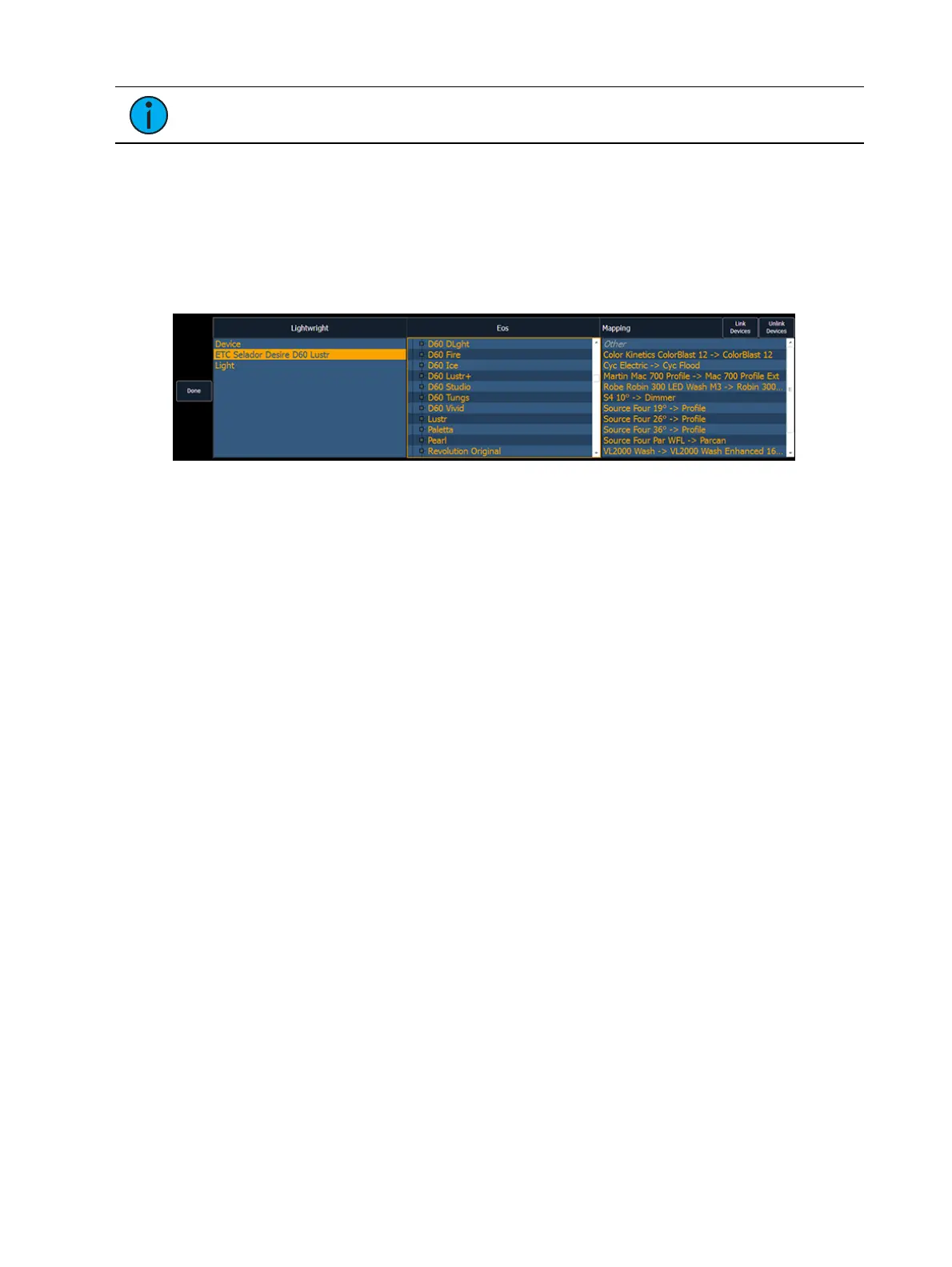
Devices can also be mapped. Click {Map Devices} to open the following display.
Select the Lightwright device and the match from the Eos column. Multiple Lightwright devices
can be selected at a time. Then click {Link Devices}. The link will appear in the Mapping
column. To unlink a device, select it from the Mapping column, and then press {Unlink Device}.
Device mapping and import fields are saved with the show file.
Importing Custom Gobo Images
Custom gobo images can be imported by going to Browser> Import> Gobo Images and selecting
an image file or folder. If a folder is selected, all image files within the folder will be imported.
All standard image files are supported with the exception of .svg files.
Imported gobo images can be deleted by going into Browser> Import> Gobo Images> Imported
Gobos, selecting the image, and pressing [Delete] [Enter].
Exporting a Show File
Export your Eos Family show file to a standard USITT ASCII, .csv, Focus Track, Moving Light
Assistant (MLA) or Fast Focus Pro show file using the export feature.
To export your Eos Family show file in ASCII format, navigate within the Browser to: File>
Export> and press [Select].
You have the option of exporting your show file in ASCII format to the Show File Archive, to a
File Server (if connected) or to a USB device.
Navigate to the desired storage location and press [Select]. The alphanumeric keypad will
display on the CIA. Name the show file and press [Enter]. The file will be saved in the specified
location with the file name you entered with a “.asc” file extension.
You can export Eos Family show files as a .csv format by navigating within the browser to: File>
Export> CSV and select the location for the export, the Show File Archive, a File Server (if
connected), or to a USB device.
Files can be exported in a Focus Track or Fast Focus Pro format by going to File> Export> Fast
Focus Pro or Focus Track and select the location for the export, the Show File Archive, a File
Server (if connected), or to a USB device.



 To Next Page