Creating and Using Effects 285
{Solo} - The first group will execute the entire pattern. When done, the second group will
execute the entire pattern, and so on.
Effect Editor Navigation
To navigate the effect editor, you will need to use the page arrow keys.
You can use [Page t]or [Page u] when in the effect list display to begin navigating in the effect
editor. This only works for step or absolute effects. You can press [Escape] to return focus to the
effect list display.
Confirming Effect Changes
When using [Page ▼ ] to create a new effect step/ action in the Effects Editor display, you will
first be asked to confirm the new step/ action number before continuing. This is to prevent new
step/ action from being created by mistake.
Effect Status Display
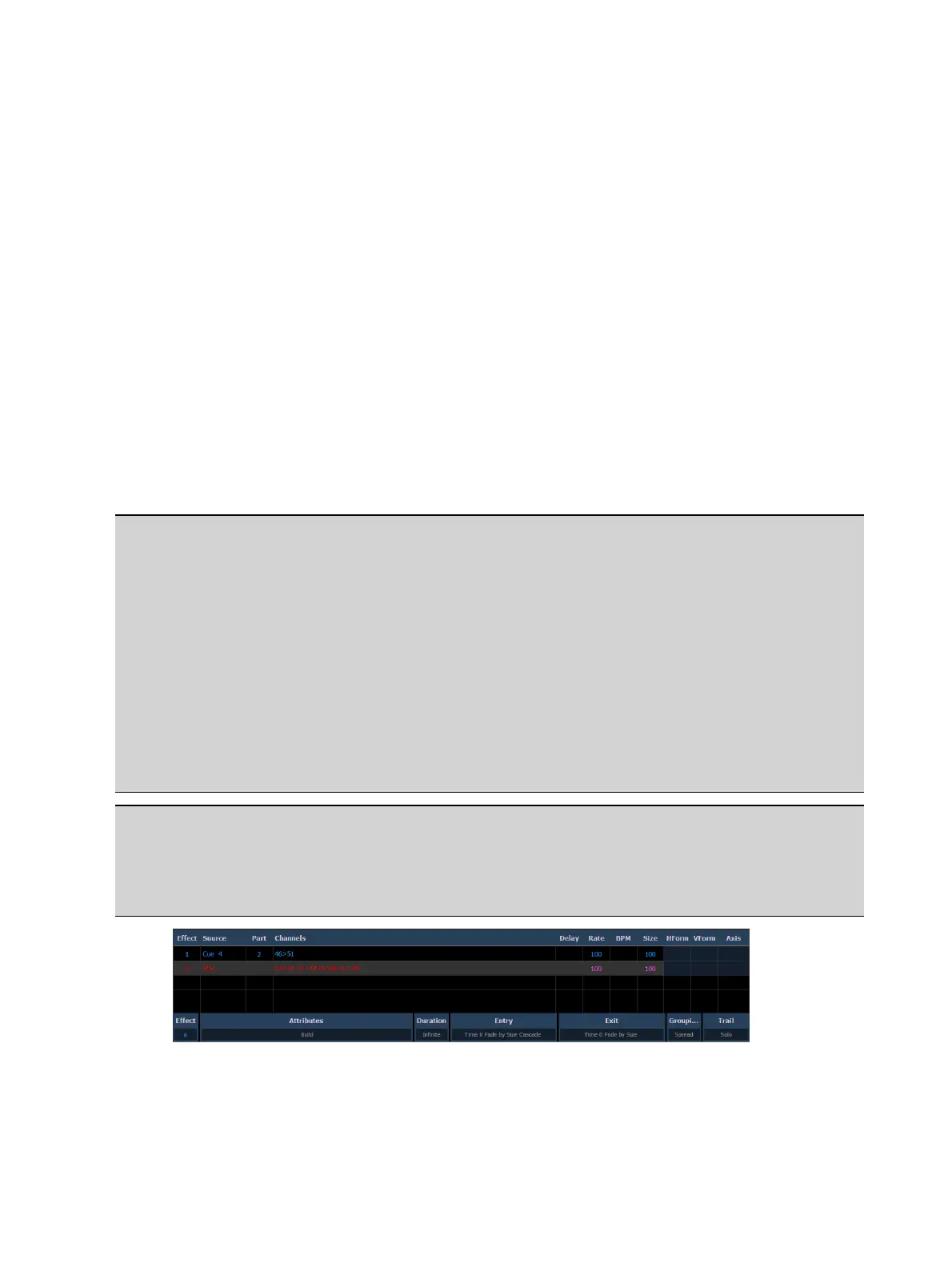
To view the effects currently running, you may press [Displays]>{Effect Status} to open the effect
status display in the CIA.
This display shows you any currently running effects and gives you the ability to edit the effect
while running.
Example:
To edit an effect, select the effect using the command line or select it directly from the
CIA.
[Effect] [9] [0] [2] [Enter]
The softkeys repaint so that they now control the five attributes in the columns of the
effect status display:
Rate - modifies cycle time. Default is 100% and can be modified from 0%-2000%.
Size - modifies scale. Default is 100% and can be modified from 0%-2000%.
Shape (Vertical or Horizontal) - Default is 100% and can be modified from 0%-2000%.
Axis - Default is 0° and can be modified by +/- 180°.
Use the softkeys to adjust the effects while watching the effect on stage.
Example:
Effect 1 is a step effect with the On State set to 50 and the Off State set to 10. If Size is
set to 50, the On State will be set to 50% of 50 and the Off State will be 50% of 10. So
On would be 25 and Off would be 5.



 To Next Page