Patch 115
Clearing the Patch
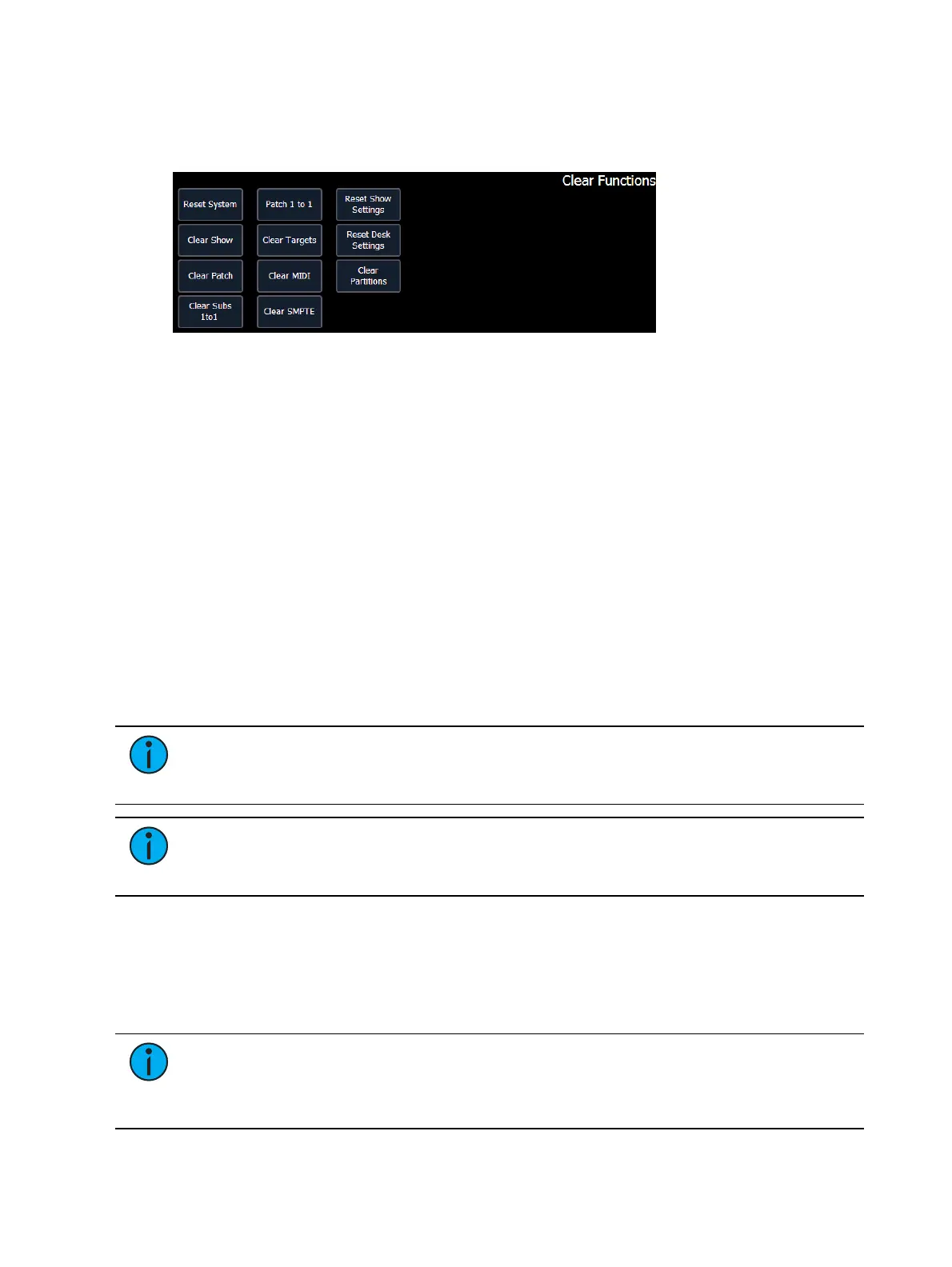
You can clear the patch entirely by accessing the clear functions from Browser>Clear. The clear
functions window will open in the CIA.
To clear the patch, click {Clear Patch}. A confirmation is required before the patch will be
cleared.
To create a 1-to-1 patch, click {Patch 1 to 1}. This will remove the current patch.
To exit the clear functions screen without clearing, press the [Displays] key at any time or select
a clear button and then select {Cancel} from the confirmation screen.
Update Profile
When a new library is installed on Element either from a software update or a separate fixture
library file from the ETC website, changes in library data will not automatically update your
show files. This is to prevent library changes from affecting a functional show file.
Using the {Fixtures} softkey in patch will open up the list of fixtures used in the current show file.
In this view, you will be able to tell which fixtures in the currently loaded show file differ from
the desk’s fixture library. Fixtures that have either been edited or their profile does not match
the current library will display with an "*" beside their name. For fixtures that have a library
update, the {Update Profile}softkey will display in white, and for fixtures that don’t have an
update, the {Update Profile} softkey will be grayed out.
Note: When updating a fixture in Patch, a warning message will display that includes
what changes will be made to the fixture by updating it. Press {Ok} to update the profile
or {Cancel} to return to the fixture editor.
Note: For multiconsole systems, all devices have to use the same fixture library. If the
fixture library is different between devices, a warning will be displayed on the device
trying to connect to the system.
Fixture Editor
Element provides you with the ability to create your own fixture type within patch and store it
with your show file. You can name the fixture, assign all necessary parameters, define the
address and operational range of those parameters, see fixture modes and their properties, and
set lamp controls.
Note: Before you create a new fixture, it is helpful to look at a few fixture
personalities of similar fixtures to get an idea of how to set yours up. You may even
want to look at their user manuals to see how their defined DMXfootprints look as a
fixture profile. This is especially helpful when creating modes.



 To Next Page