208 Eos Family v2.9.0 Operations Manual
Opening the Preset List
When you press the [Shift] & [Intensity Palette] twice, the preset list will open on a new tab (or
brings the list view into focus if already open). You can also open the list view from the home
screen. See
Workspace Layout Menu (on page31)
for more information.
Pressing the {Edit} softkey takes you to the blind view of the selected preset, in the last format
you used in blind. This will allow you to edit the preset. You can change the blind display to
spreadsheet or table view by pressing the [Format] key.
You can navigate the preset list using [Next] and [Last].
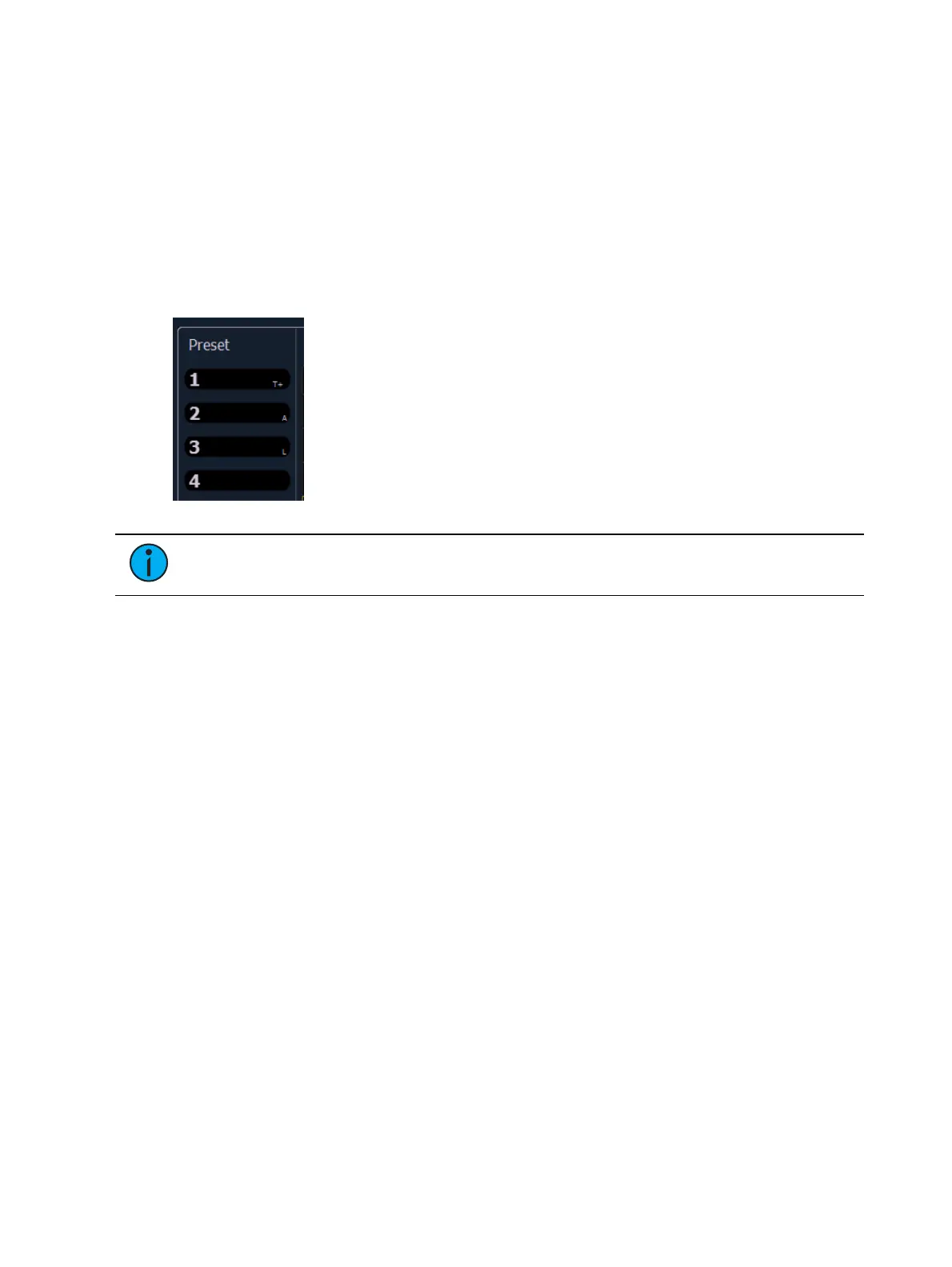
Indicators for absolute (A), locked (L), and by type (T+) display to the right of the preset number.
Note: In the by type channels column, any channel number with an asterisk indicates
that the channel does not have any by type data stored to it.
Copy To
You can copy presets within the list to another location in the list using [Copy To].
<Preset> [2] [Copy To] [9] [Enter] [Enter] - copies the contents of preset 2 to preset 9.
Preset 2 will remain in the list. The second [Enter] is not required if you have disabled
confirmations in setup.
You can also use [Copy To] from palettes to presets.
Move To
You can move presets within the preset list using Move To, which is accessed by pressing the
[Copy To] button twice.
<Preset> [3] {Copy To} {Copy To} [8] [Enter] [Enter] - moves preset 3 to preset 8. Preset 3
will be removed from the list. The second [Enter] is not required if you have disabled
confirmations in setup.
<Preset> [1] [Thru] [5] {Copy To} {Copy To} [6] [Enter] [Enter] - moves presets 1 through 5
to presets 6 through 10.
You can also move data from a palette to a preset and vice versa. It is important to remember
that when using the Move To command that data is removed from its current location and
moved to its new location.
Editing Presets in Blind
All presets can be viewed and edited in blind. To open a preset in blind, you can do any of the
following:



 To Next Page