System Basics 31
Browser
Magic Sheet
Workspace
Command History
Curves
Pixel Maps
Show Control
Mirror
Any of these softkeys will open the associated display with a single press.
Closing Displays
To close any tab display, select the display by using the [Tab] key or other means of navigation.
When the desired display is active, press [Escape] to close it.
To close a display in the CIA, press the [Displays] key and the browser will reappear.
To close all displays except for the live/blind display and the playback status display (tabs 1 and
2), press [Shift] & [Tab].
You can also close tabs by using the Tab Tools. See
Tab Tools (on page29)
for more
information.
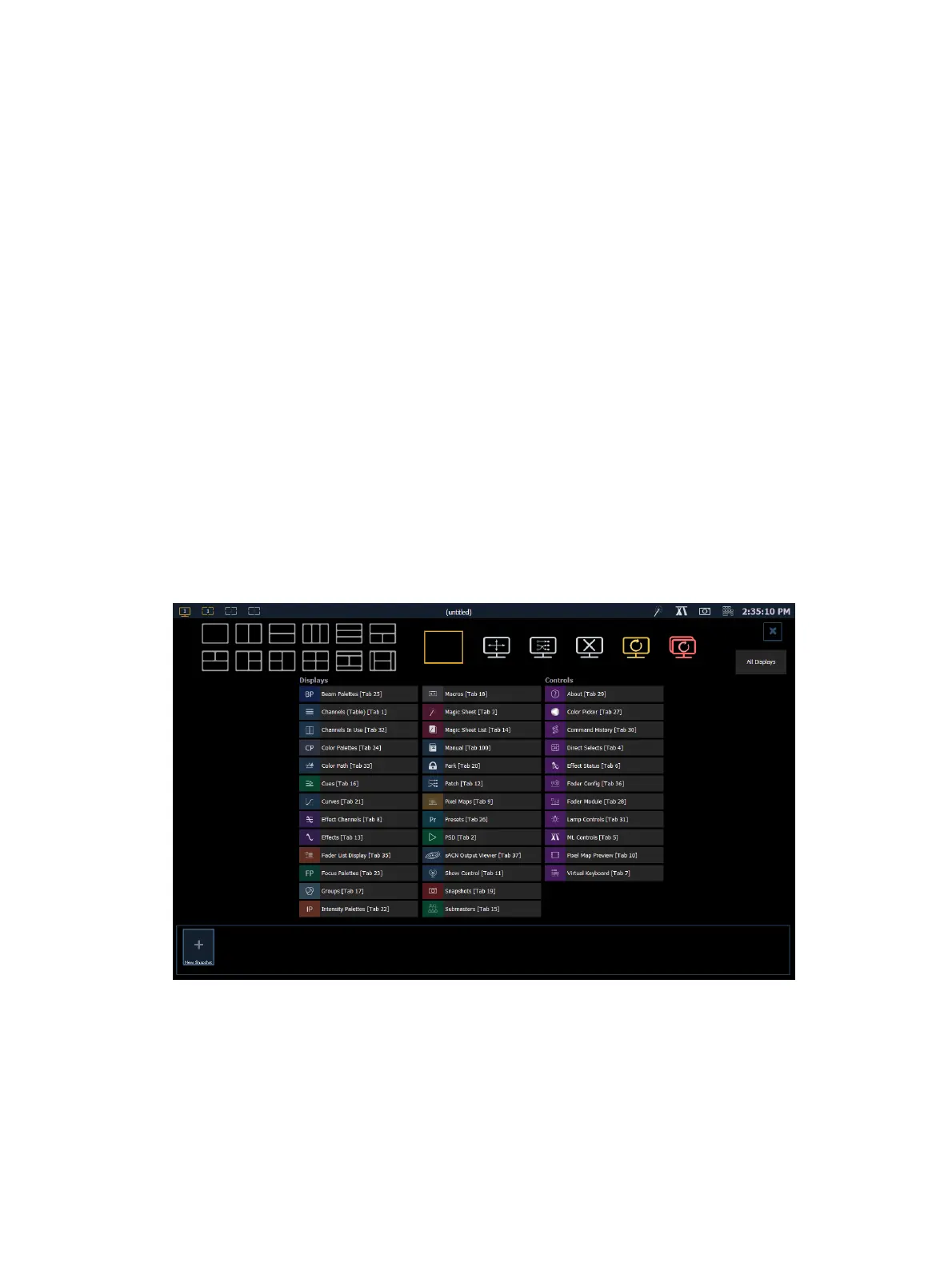
Workspace Layout Menu
Upon start up or creation of a new show file, any connected monitor that is not already
displaying the Live (Tab 1) or Playback Status Displays (Tab 2) will show the Workspace Layout
Menu. This screen will also display when a new tab is opened.
This screen consists of four general areas, each offering different display-related options.
Display and Control Icons
Clicking on an icon will open the appropriate display or control in a new tab.
Display Tabs



 To Next Page