32 Eos Family v2.9.0 Operations Manual
Control Tabs
Layout Options
These tools offer you greater flexibility in the number of tabs you can view in any given
workspace. A workspace can have up to four frames. Selecting a layout icon will assign the
frame layout identified in the icon. Once a layout is assigned, you can select which displays and
controls will be in which frames.
This screen also offers options for opening and closing tabs as well as resizing and resetting the
monitor(s).
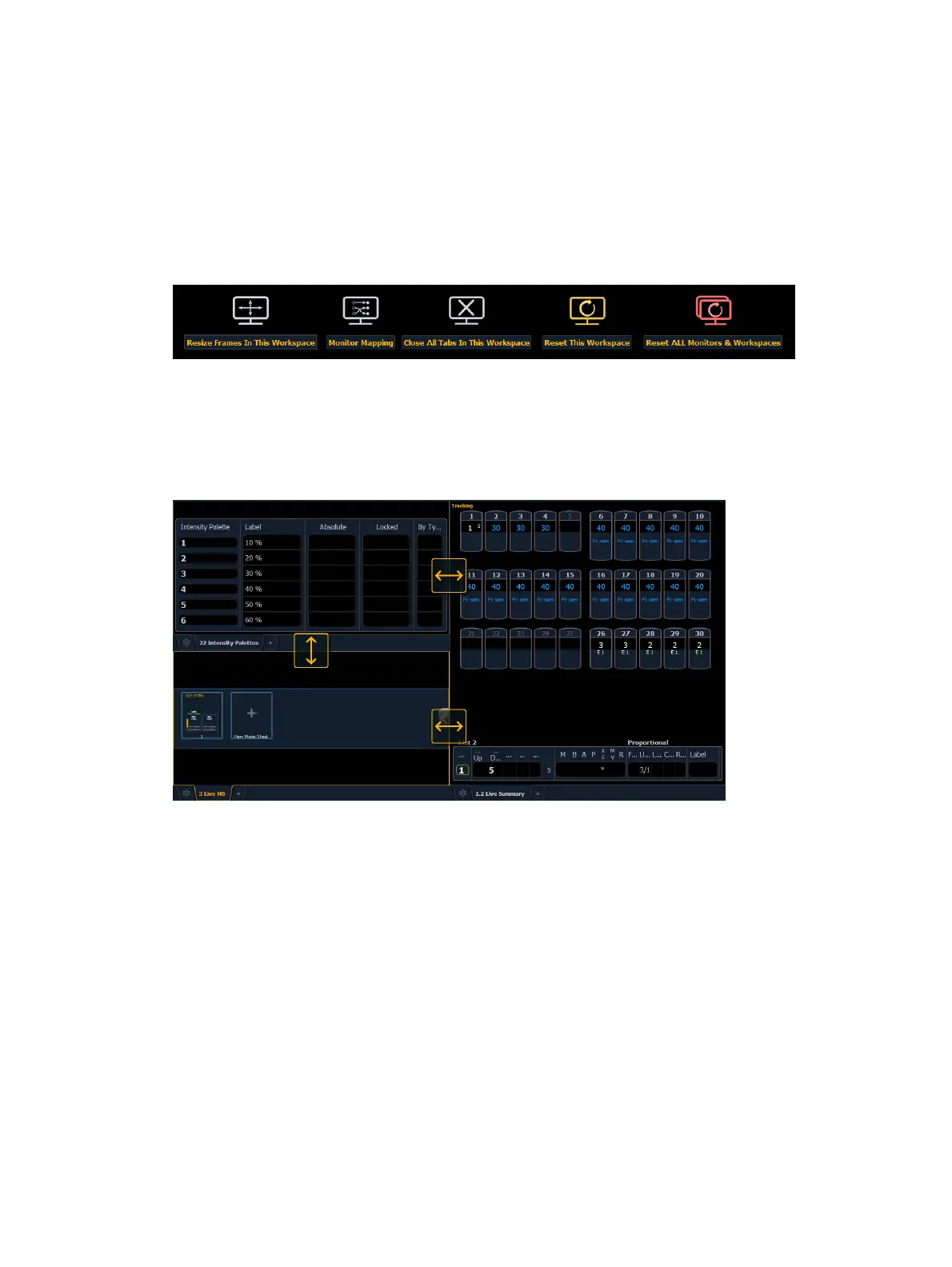
Resize Frames In This Workspace
Select this icon to resize frames in any of the workspaces on the monitor. After selecting,
resizing tools will appear between frames of the workspace and you can select and drag the
resize tool icons to adjust sizing as needed.
Monitor Mapping
Select this icon to arrange your monitors without having to go into the ECU. This function allows
you better control of your snapshots (
About Snapshots (on page338)
).
Click on a monitor to display the available numbers, and then click on the number to assign it.



 To Next Page