System Basics 67
Rows - sets the number of rows used for the module. Maximum number of rows is six.
Columns - sets the number of columns used for the module. Maximum number of columns
is six.
Show Sliders - shows or hides the slider portion of the fader. This is useful if you want a
module of just the configurable fader buttons.
For information about configuring your faders, see
Fader Configuration (on page60)
Copying Faders Using Attributes Only
When copying faders, you can use {Attrs Only} to copy over all of the fader properties except
levels, effects, and labels.
[Fader] [1] [Copy To] [Fader] [4] {Attrs Only} [Enter] [Enter] - copies all of the fader
properties from fader 1 and places it in fader 4. Levels, effects, and labels are not copied
when using the {Attrs Only} softkey.
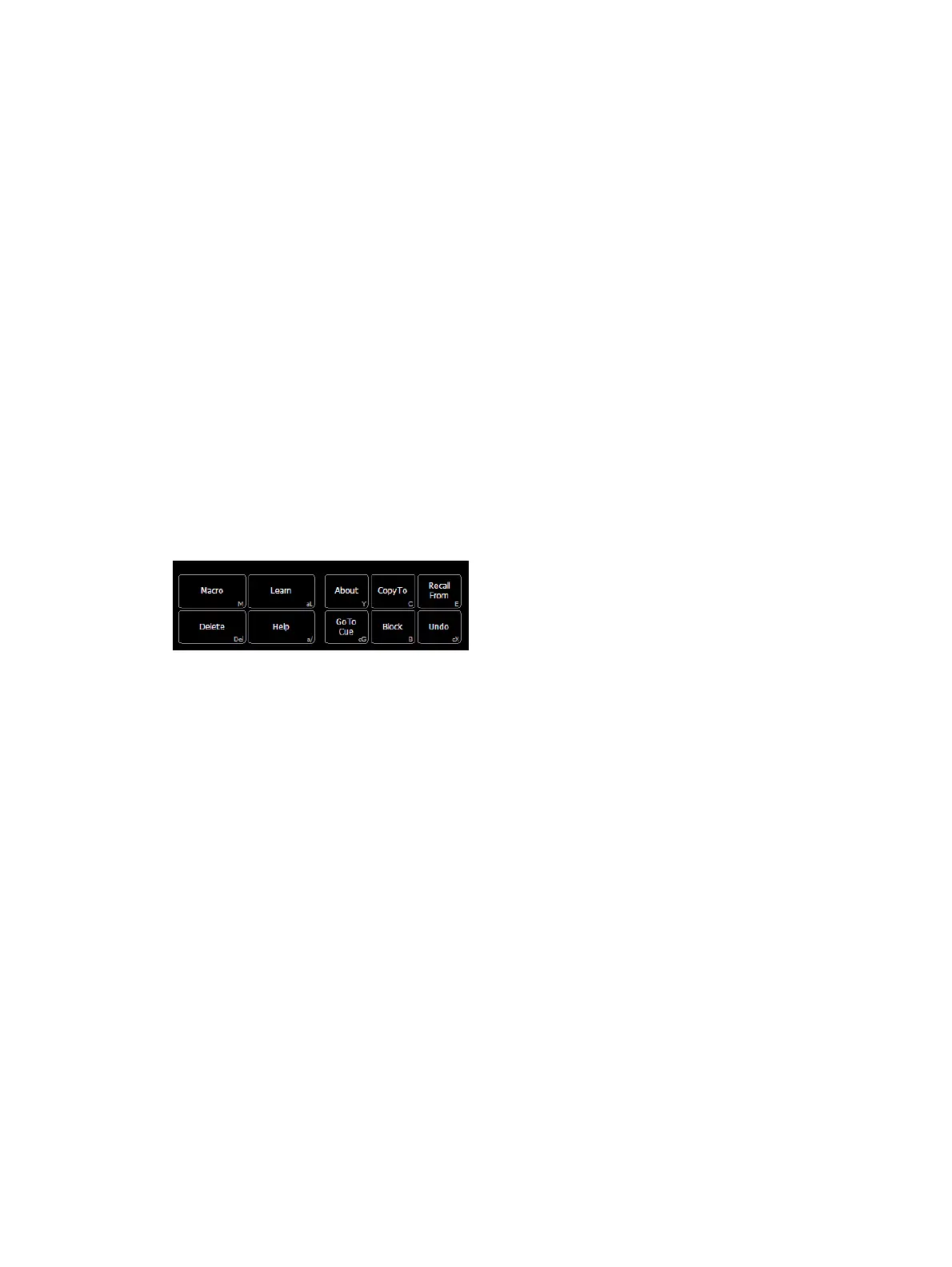
Virtual Keyboard
It is possible to open a keyboard which mimics the hard keys found on the actual Element
keypad.
To open, you can select the virtual keyboard from the
Workspace Layout Menu (on page31)
or
use [Tab] [7].
The virtual keyboard displays the alphanumeric keyboard shortcut for that hardkey in the lower
right hard corner.
The abbreviations are:
Ca - CTRL + ALT
S - SHIFT
C - CTRL
A - ALT
sACN Output Viewer
You can open the sACN Output Viewer by pressing [Tab] & [3][7] or selecting the sACNOutput
Viewer icon from the home screen.
The sACNOutput Viewer is a place to check the current live outputs on a universe by universe
basis.



 To Next Page