56 Eos Family v2.9.0 Operations Manual
Maximize Button Size - sets the size of the direct select buttons to fill the available space.
This is similar to Fit toScreen in previous versions of software.
Reset to Default - will restore the settings to the default state. If no default state has been
set, the Eos default settings will be used.
Set Current as Default - allows you to set the current settings to be used as a default state.
Reset to Eos Default - restores the settings to Eos defaults.
{Reset Currant Bank} - restores the settings of the current bank.
Custom Direct Selects
{Custom} allows you to select multiple targets to display in the same bank of direct selects.
Assigning Targets toCustom Direct Selects
After selecting {Custom} as the direct select type, the direct selects will first display as being
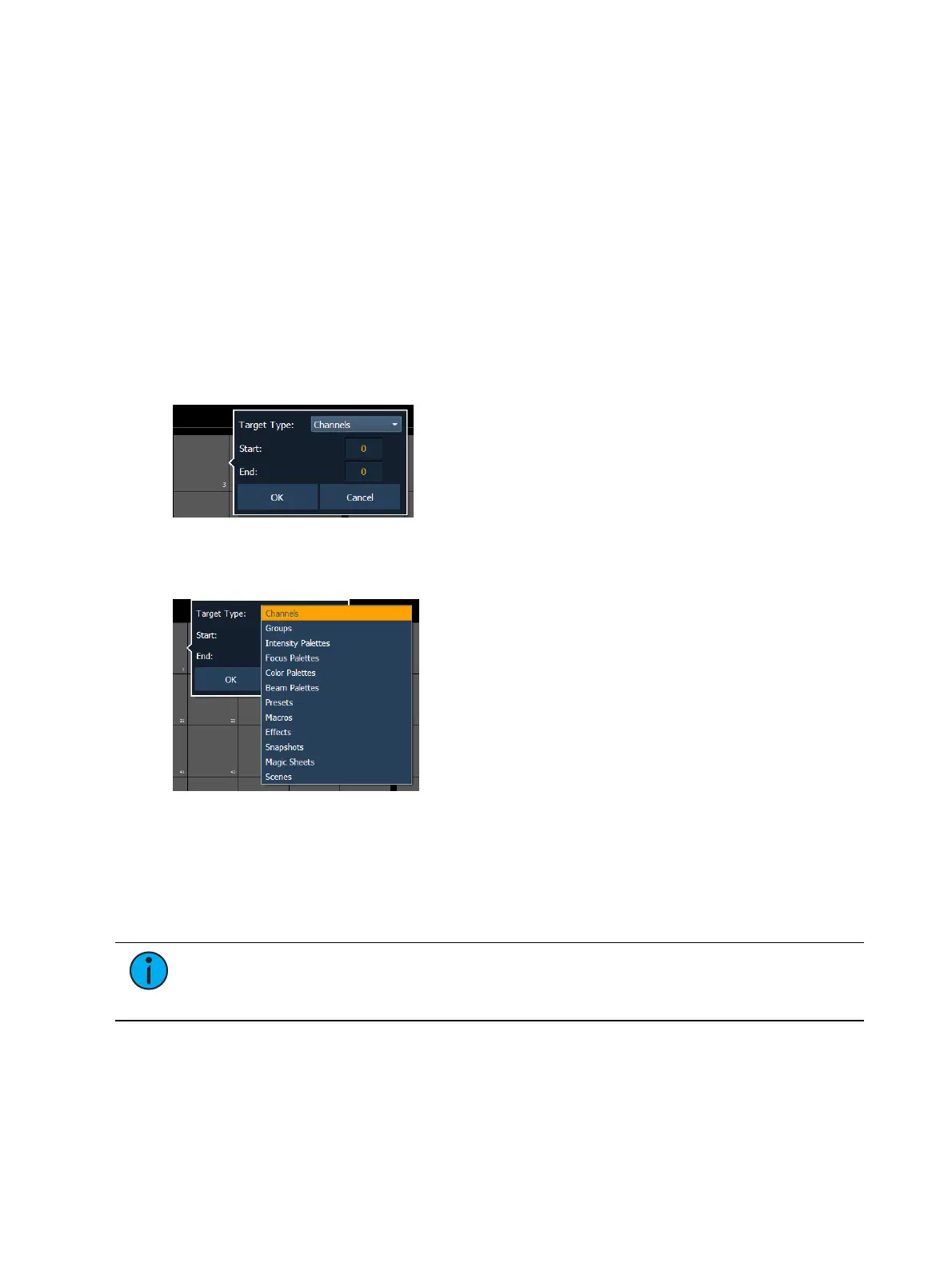
empty. To assign a target to a direct select or multiple direct selects, you can either tap on a
direct select to open the configuration window, or you can use the command line.
From the configuration window, you can select the target type, and the starting and ending
target numbers, which allows you to assign a range of targets.
From the command line, you can select a range of targets that you want to assign, such as
[Presets] [1] [Thru] [5] [Enter]. Then double click on a direct select to assign the selection. A
range typed in reverse will be mapped in reverse.
Checking the "Include Non-Existant Whole Number Targets" box allows you to map targets that
may not exist yet. If the box is left unchecked, non-existent targets will not be mapped.
Note: To assign a range of channels to the direct selects, you will need to use the
configuration window. From the command line, you can only assign one channel at a
time.
Scenes on Custom Direct Selects
Scenes can be assigned to custom direct selects. To assign a scene to a direct select, you can
either tap on a direct select to open the configuration window, or you can use the command
line.



 To Next Page