296 Eos Family v2.9.0 Operations Manual
patched channels.
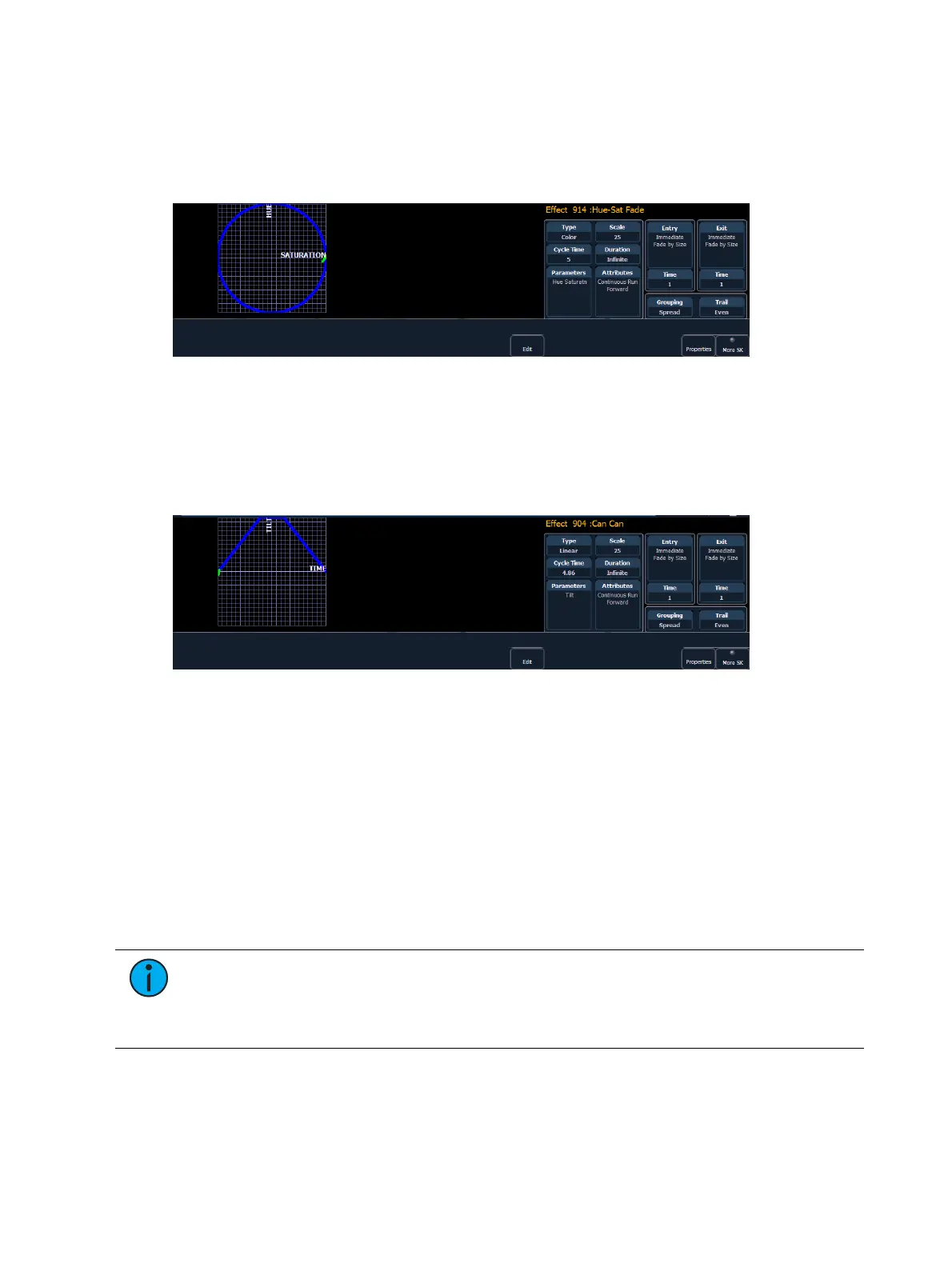
New color effects default to a circle. You can clear this and draw your own shape by pressing
{Edit}>{Clear} and drawing on the graph with your finger or the mouse. Press {Apply} when you
are done. Other pre-made color effects can be modified in the same manner. The green arrow
indicates default direction of color shift, which can be modified in attributes.
Linear Effects
A linear effect does not have to be parameter specific. Rather it can simply be a reference to a
linear diagram which can be applied to any parameter. You can redraw the linear diagram for
an existing linear effect by pressing {Edit}>{Clear} and then tracing the diagram on the graph
with the mouse or your finger. Press {Apply} when you are done.
Define a Pattern Shape
Shapes can be defined for any relative effect (focus, color, or linear). You can either draw a
pattern from scratch or use one of preexisting patterns as a starting point.
To define a shape, press the {Edit} softkey beneath the pattern editor. The softkeys will change
to {Apply}, {Restore}, {Clear}.
1. Press {Clear} to clear the pattern.
2. Draw a new pattern using your finger (or the mouse), or select a preexisting pattern. If you
want to return to the original pattern, press {Restore} before pressing apply.
3. When you have the proper pattern drawn, press {Apply}. The pattern will be applied to the
effect.
Note: If you delete a preprogrammed effect (for example, after making changes to it)
the effect will return to its default value. You can also copy effects to another effect
location and modify them from there. This will leave the original effect untouched.
[Effect] [904] [Copy To] [8] [Enter]



 To Next Page