Patch 117
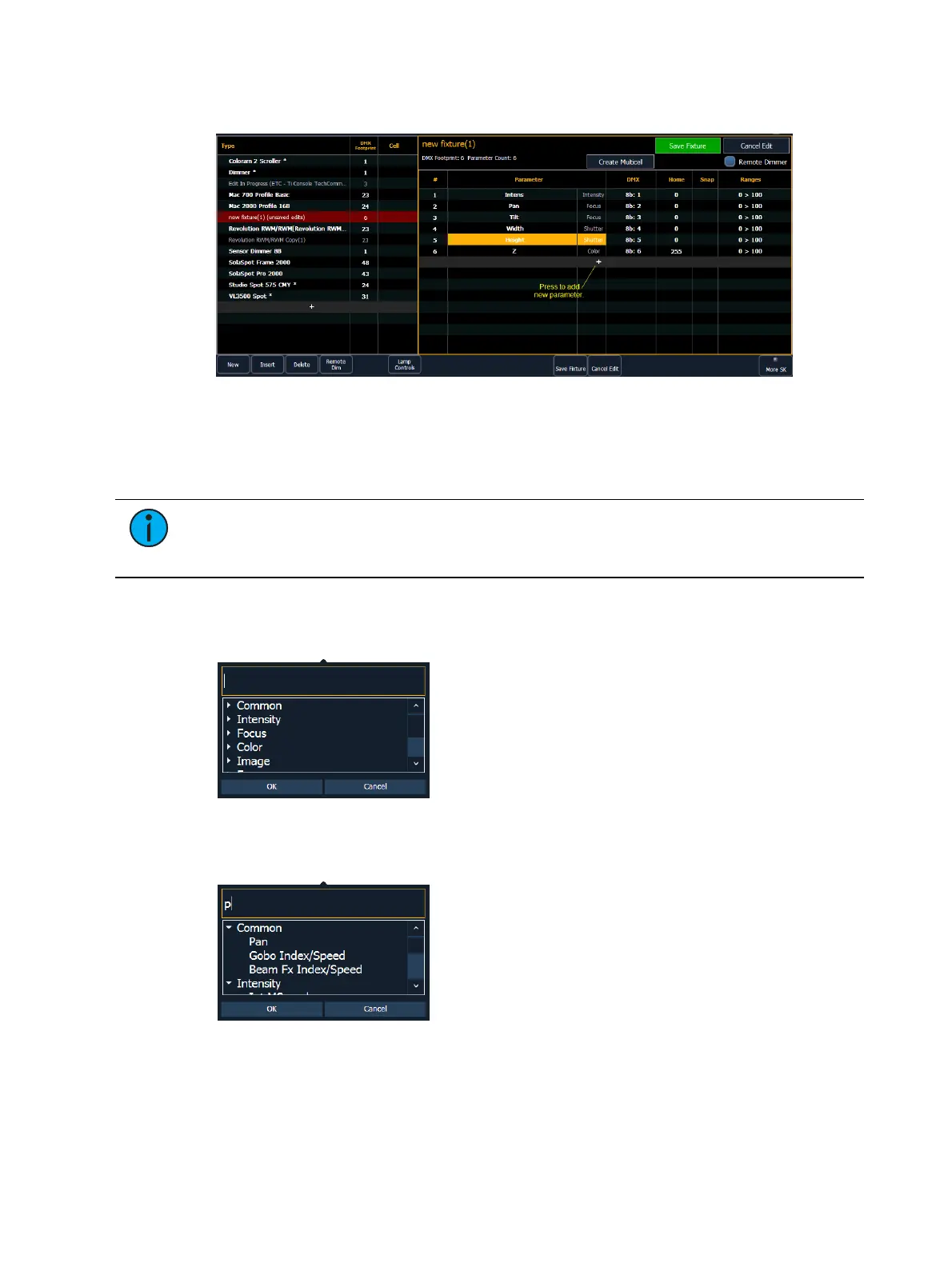
1. Use the [Page] keys, mouse, or touchscreen to select the new fixture.
2. Select the parameter list by clicking on it or touching it.
3. Determine the total number of parameters that your fixture has. Do not count 16-bit
parameters as two parameters, this will be done in a later step.
4. Press {New} or {+} to add parameter slots. Repeat this step until you have as many slots as
are required by the number determined in step 3.
Note: When {New} or {+} is pressed, the parameter slot will appear in the list with a
default name in the “Parameter” column. You may disregard these default parameters
as you will redefine the designations in a later step.
5. Use the [Page] keys, mouse, or touchscreen to navigate to any parameter slots that you
wish to alter the default parameter designations for.
6. Click on the slot to open a dropdown list of available parameters.
7. Click on a category to open the dropdown list to see the parameters, or use the search box
to find the parameter.
8. Press the desired parameter to assign it or press [Enter] when the parameter is selected.
9. Repeat steps 5 through 8 until you have entered all of the required parameters for the new
fixture.



 To Next Page